

Most laptops, tablets, and all-in-one computers sold in the United States have a built-in microphone. Desktop towers often do not. To check, look for a small microphone opening, review your computer’s sound settings, and make a short recording.
The fastest test is simple:
- Open your computer’s sound settings.
- Find the Input or Microphone section.
- Speak near the computer.
- Watch for the input level meter to move.
If the meter responds, your computer has a working microphone, and the system can detect it.
Where a Built-In Microphone Is Usually Located
A built-in microphone is often a tiny hole near the webcam, keyboard, screen, or front edge of the computer. It may be marked with a microphone symbol, but many computers do not label it.
Common locations include:
- Beside the webcam at the top of a laptop screen
- Near the screen hinge
- Above or below the display on an all-in-one computer
- Near the keyboard on some laptops
- Along the front or top edge of a monitor
- Near the power button on some desktop displays
Many newer laptops have two or more microphone openings. This setup can help the computer reduce background noise, but the openings may be hard to see.
Do not push a pin, paper clip, or other object into a small hole. A hole near the webcam may be a microphone, sensor, or ventilation opening. Poking it can damage the computer.
Built-in microphone versus external microphone
A built-in microphone is installed inside the computer. It needs no separate cable or accessory.
An external microphone connects through one of these methods:
- USB
- A 3.5-millimeter microphone jack
- Bluetooth
- A headset connector
- A monitor, docking station, or webcam
A computer may have a built-in microphone even when an external microphone is connected. The operating system lets you choose which input device to use.
Do desktop computers have microphones?
A traditional desktop tower usually has no built-in microphone. The tower may have audio ports, but those ports do not mean that a microphone is installed.
A desktop setup may still have a microphone in:
- A USB webcam
- A headset
- A monitor
- A laptop-style docking device
- A separate USB or 3.5-millimeter microphone
Check the computer’s input device list instead of relying only on the tower’s appearance.

How to Check for a Microphone in Windows 11
Windows 11 can show whether it detects a microphone and whether the microphone receives sound.
Check the input device list
- Select Start.
- Open Settings.
- Select System.
- Select Sound.
- Scroll to Input.
- Look for a device under Choose a device for speaking or recording.
You may see names such as:
- Microphone
- Internal Microphone
- Microphone Array
- USB Microphone
- Headset Microphone
- Webcam Microphone
- A manufacturer or model name
If Windows lists an input device, the computer or a connected accessory has a microphone that Windows can detect.
Test the microphone in Windows 11
- Open Settings > System > Sound.
- Select the microphone under Input.
- Find the Input volume or test area.
- Speak in a normal voice.
- Watch the input indicator.
A moving indicator usually means that Windows receives audio. If the indicator stays still, check that the correct device is selected and that the microphone is not muted.
Windows also provides a microphone test on many versions of Windows 11. The wording and layout may vary after updates, so the control may appear as Test your microphone or a similar option.
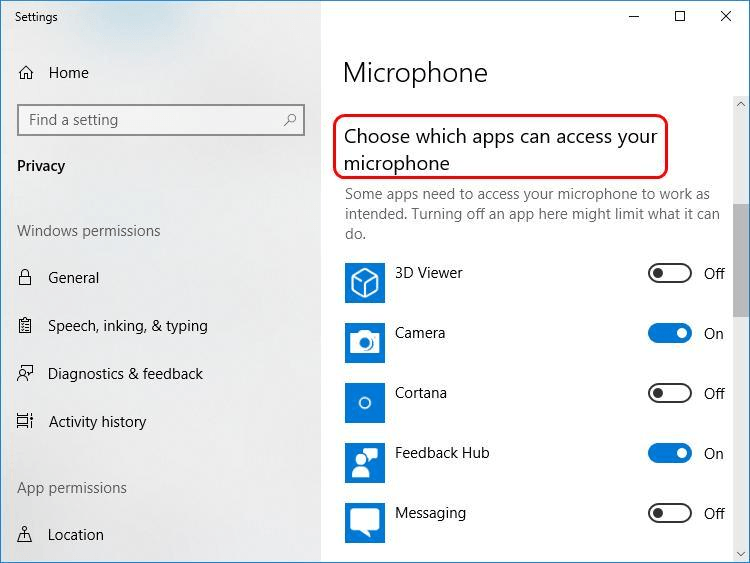
Check microphone permissions
Windows can detect a microphone while blocking apps from using it.
To review access:
- Open Settings.
- Select Privacy & security.
- Select Microphone.
- Turn on Microphone access.
- Turn on Let apps access your microphone.
- Enable access for the specific app you want to use.
For desktop programs, also check the setting that allows desktop apps to access the microphone.
A privacy indicator may appear when an app uses the microphone. If an app asks for access, grant permission only when you trust the app and understand why it needs audio access.
How to Check for a Microphone in Windows 10
Windows 10 uses a similar process, although the names and layout differ from Windows 11.
- Select Start.
- Open Settings.
- Select System.
- Select Sound.
- Find the Input section.
- Choose an input device from the list.
- Speak and watch the microphone test or volume bar.
To check access permissions:
- Open Settings.
- Select Privacy.
- Select Microphone.
- Turn on access for the device.
- Allow access for the app you want to use.
If no input device appears, Windows may not have the right driver, the microphone may be disabled, or the computer may not include one.

How to Check for a Microphone on a Mac
macOS shows available microphones in the Sound settings.
Check the microphone in System Settings
On newer versions of macOS:
- Select the Apple menu.
- Open System Settings.
- Select Sound.
- Select the Input tab or Input section.
- Look for Internal Microphone or another input device.
- Speak and watch the input level meter.
If the meter moves, the Mac is receiving sound from that microphone.
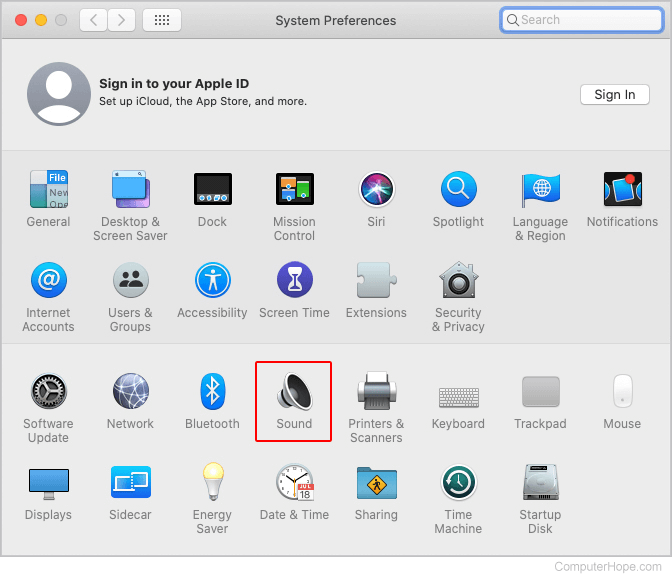
On older macOS versions, the path is usually:
- Open System Preferences.
- Select Sound.
- Select Input.
- Choose Internal Microphone or another listed device.
Check microphone permissions on a Mac
If the microphone works in settings but not in a particular app:
- Open System Settings.
- Select Privacy & Security.
- Select Microphone.
- Turn on access for the app.
- Quit and reopen the app if macOS asks you to do so.
macOS may show an orange privacy indicator when an app uses the microphone. This helps you see when audio access is active.
A MacBook normally has an internal microphone. An iMac may also have one, while a Mac mini or Mac Studio may need a microphone built into a display, webcam, headset, or separate audio device.
How to Check for a Microphone on a Chromebook
ChromeOS can show the microphone in its settings and quick controls.
- Select the time in the lower-right corner.
- Select the Settings gear.
- Select Audio or open the sound settings.
- Find the Input section.
- Select the built-in or connected microphone.
- Speak and watch the input level.
You can also check microphone permissions for websites:
- Open Chrome.
- Select the three-dot menu.
- Select Settings.
- Select Privacy and security.
- Select Site settings.
- Select Microphone.
- Review which sites can ask for access.
Most Chromebooks have a built-in microphone, but a school, business, or administrator may control access. A blocked microphone may result from device policies rather than hardware failure.
How to Test Whether the Microphone Actually Works
Seeing a microphone in the settings proves that the computer detects an input device. It does not always prove that the microphone can record clear sound. Use a short recording or call test for a stronger check.
Use the computer’s built-in recording app
On Windows, open Sound Recorder or Voice Recorder, depending on the version installed. On a Mac, open QuickTime Player, select File > New Audio Recording, and choose the desired microphone.
Then:
- Place the computer in a quiet room.
- Start recording.
- Speak from your normal sitting position.
- Stop after about 10 seconds.
- Play the recording.
You should hear your voice at a steady volume. Background noise, weak volume, or silence can point to a setting, placement, permission, or hardware issue.
Test the microphone in a trusted calling app
A video meeting or calling app can test the full audio path. Open the app’s audio settings and select the microphone. Speak and watch its input meter.
Some services offer a test call or microphone preview. If you use a work or school account, the administrator may restrict these tools.
Do not join a live meeting just to test without telling other participants. A recording app is more private and usually gives the same basic answer.
Use an online microphone test with care
A browser test may show whether a website can receive audio. The site will normally ask for microphone permission.
Before using one:
- Confirm that the website uses a secure connection.
- Read the permission request.
- Avoid uploading or sharing recordings unless necessary.
- Close the tab when finished.
- Remove the site’s microphone permission afterward if you do not need it.
A browser test can show that the browser has access. It cannot always prove that every desktop app has access or that the microphone works outside the browser.
What It Means When the Microphone Does Not Work
A missing microphone and a silent microphone are different problems. Start with the symptom that matches what you see.
| What you see | Likely cause | Best first check |
|---|---|---|
| No input device appears | No microphone, disabled hardware, missing driver, or connection problem | Check connected devices and device settings |
| A microphone appears but the meter does not move | Mute, low input level, wrong device, or blocked permission | Unmute it and verify app access |
| The meter moves but recordings are silent | The app uses a different microphone | Select the same input in the app |
| Your voice sounds very quiet | Low input level, distance, or blocked microphone opening | Raise input volume and move closer |
| There is a constant buzz | Electrical noise, cable problem, or faulty accessory | Disconnect accessories and test again |
| The microphone works in one app only | App permission or app-specific input setting | Review that app’s audio settings |
| The microphone stopped after an update | Driver, permission, or system setting change | Restart and review privacy and sound settings |
Check the mute controls
Look for:
- A physical microphone mute key
- A microphone icon on the keyboard
- A mute switch on a headset
- A mute button on a webcam
- A red indicator light
- A mute control inside the calling app
Some laptops use a function key for microphone privacy. You may need to press the Fn key with the relevant function key.
Select the correct microphone
A computer may list several inputs at once. For example, it may show an internal microphone, a webcam microphone, a headset microphone, and a monitor microphone.
Choose the device that is physically closest to you. Then speak and watch the input meter. If it does not respond, test the next device.
Check the input volume
A low input level can make a working microphone sound silent. Raise the input level a little, then test again. Avoid setting it to maximum unless needed, because a high level can cause distortion.
Disconnect other audio devices
Bluetooth headsets, USB webcams, docking stations, and monitors can change the selected input device. Disconnect or turn off these devices, then test the computer’s built-in microphone again.
Restart the computer
A restart can reload an audio driver and clear a temporary device error. This is a safe early step before changing advanced settings or reinstalling drivers.
Check drivers and hardware settings
If Windows does not list a microphone, check Device Manager under audio inputs and outputs. A disabled device or driver problem may prevent detection.
Do not download random driver tools or firmware from unverified websites. Use Windows Update, the computer maker’s official support site, or the accessory maker’s official support page.
On a Mac or Chromebook, system updates and administrator policies can also affect microphone access. Install updates from the operating system’s normal update controls.
How to Tell If a Webcam, Monitor, or Headset Has a Microphone
A connected device may include a microphone even when the computer itself does not.
Webcams
Many webcams include a microphone. Look for one or more small openings near the camera lens. To verify it:
- Connect the webcam.
- Open the computer’s sound settings.
- Select the webcam as the input device.
- Speak and watch the input meter.
The webcam may appear under its brand name rather than as “webcam microphone.”
Monitors
Some monitors include speakers and microphones, especially models designed for video calls. A monitor microphone may connect through USB, a USB-C cable, or a separate audio connection.
A video cable alone does not always carry microphone data. If the monitor does not appear as an input device, connect the required USB cable or use the monitor’s documented connection method.
Headsets
A headset may have:
- A boom microphone
- An in-line microphone on the cable
- A wireless microphone
- No microphone at all
A single 3.5-millimeter headset plug may carry both sound and microphone signals, while separate computer ports may require separate headphone and microphone plugs. USB and Bluetooth headsets usually appear as their own input devices.
USB microphones
A USB microphone should normally appear in the sound settings after you connect it. If it does not:
- Try another USB port.
- Avoid an unpowered hub during testing.
- Reconnect the cable.
- Select it manually in the app.
- Test it on another computer if available.
Common Mistakes When Checking for a Computer Microphone
A few mistakes can lead to the wrong conclusion.
Mistaking a speaker hole for a microphone
Speaker openings and microphone openings can look alike. Do not rely only on the shape of a hole. Confirm the device in the sound settings and test it.
Assuming an audio jack means a microphone is built in
A 3.5-millimeter jack is a connection port, not proof of an internal microphone. It may support headphones, a headset, an external microphone, or only one of those options.
Testing the wrong input
If a webcam or headset is connected, the app may use that device instead of the computer’s internal microphone. Always check the selected input inside the app.
Confusing privacy blocking with hardware failure
A microphone can be present and fully functional while operating-system privacy controls block it. Review permission settings before assuming that the microphone is broken.
Covering the microphone opening
A case, screen cover, sticker, dust, or hand can block a small microphone opening. Keep the opening clear, but do not insert anything into it.
Relying only on a browser test
A browser test checks browser access. It does not guarantee that Zoom, Microsoft Teams, a game, or a recording program is using the same device. Test the microphone in the program where you need it.
When You Should Use an External Microphone
An external microphone may help when the built-in microphone is missing, damaged, too quiet, or poorly placed. It can also help when you need clearer speech in a noisy room.
Choose the connection that fits your computer:
- USB: Usually simple to install and common for desktop use
- 3.5-millimeter jack: Useful when the computer supports a compatible microphone or headset
- Bluetooth: Convenient, but it may require pairing and charging
- USB-C: Common on newer computers and accessories
- Webcam microphone: Useful for video calls when the camera is already connected
Check compatibility before buying. A port may provide power without supporting audio input, and some computers use a combined headset jack rather than separate microphone and headphone ports.
For basic calls, the built-in microphone may be enough. For recording music, podcasts, presentations, or professional voice work, microphone choice, room noise, distance, and software settings matter more than simply having an input device.
Frequently Asked Questions
Do all laptops have built-in microphones?
Most modern laptops sold in the United States have a built-in microphone, often beside the webcam. The reliable way to confirm yours is to check the operating system’s input devices and test the input meter.
Does a desktop computer have a microphone?
A desktop tower usually does not have a built-in microphone. A microphone may be built into a connected webcam, monitor, headset, or other accessory.
How can I tell if my microphone is muted?
Look for a microphone icon on the keyboard, a physical mute switch, a headset mute button, or a red indicator. Also check the operating system and app controls. A moving input meter normally means the microphone is not muted at that stage.
Why does my microphone work in settings but not in Zoom or Teams?
The app may have selected a different microphone or may not have permission to use it. Open the app’s audio settings, select the working input device, and review the operating system’s microphone permissions.
Can a computer have a microphone if I cannot see a microphone hole?
Yes. Microphone openings can be very small or hidden near the webcam, screen edge, keyboard, or case seam. Check the sound settings and make a short recording instead of relying on appearance.
Key Takeaways
- Check Sound settings and look under Input.
- Speak while watching the input meter.
- A laptop usually has a built-in microphone; a desktop tower usually does not.
- A webcam, monitor, headset, or USB accessory may provide the microphone.
- Check mute controls and app permissions if the microphone is detected but silent.
- Use a short recording to confirm that the microphone works, not just that the computer can see it.
Conclusion
To tell if your computer has a microphone, check its input devices, speak near the computer, and watch for a responding volume meter. On Windows, use Settings > System > Sound. On a Mac, use System Settings > Sound. On a Chromebook, open the audio settings and review the input device.
If no microphone appears, inspect connected webcams, monitors, headsets, and USB devices. If one appears but does not record sound, check permissions, mute controls, input selection, and volume before considering a hardware fault.