
To test a microphone in Windows 11 and hear yourself, use Sound settings or Voice Recorder.
Learning how to test microphone Windows 11 and hear yourself is useful before a video call, podcast, game chat, or online class. Windows 11 includes simple tools for checking input levels, permissions, and playback, so you can find problems before others hear them.
How to test microphone Windows 11 and hear yourself
The fastest method uses Windows 11 Sound settings. It checks whether your computer detects the microphone and receives a clear signal.
- Connect your microphone to the computer.
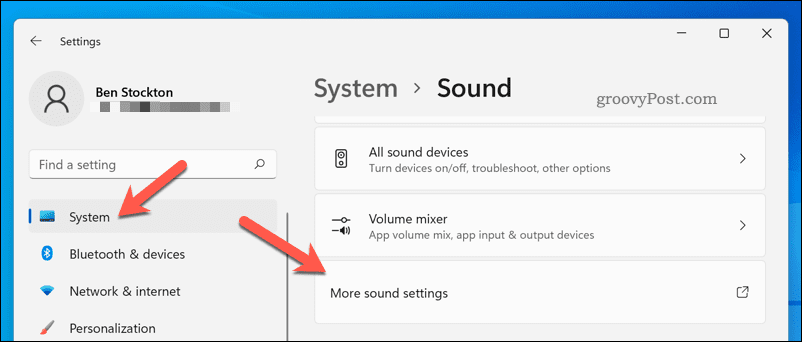
- Right-click the speaker icon on the taskbar.
- Select Sound settings.
- Scroll to Input.
- Choose your microphone from the list.
- Speak at your normal volume.
- Watch the input level move under the microphone test area.
If the level responds to your voice, Windows 11 is receiving sound. However, this test does not always let you hear your voice through the speakers. For live feedback, use the microphone monitoring method explained below.
You can also open the same page by following this path:
Settings > System > Sound > Input
Choose the correct device if you have more than one microphone. A laptop may show its built-in microphone, a headset microphone, a webcam microphone, and a USB microphone at the same time.

How to hear yourself through Windows 11 microphone monitoring
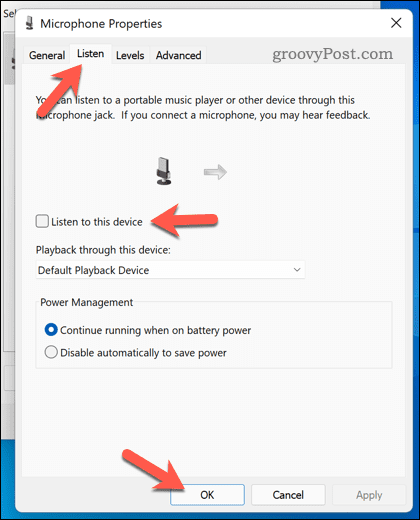
Microphone monitoring sends your voice to your headphones or speakers. It works like a small mirror for sound. You speak, and the computer plays your voice back so you can judge the volume and quality.
Here is how to enable it:
- Press Windows + R.
- Type
mmsys.cpl. - Press Enter.
- Open the Recording tab.
- Double-click your microphone.
- Select the Listen tab.
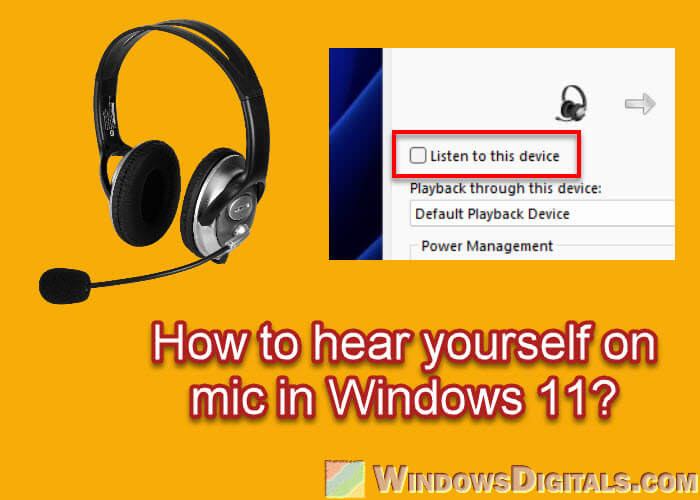
- Check Listen to this device.
- Select your headphones or speakers under Playback through this device.
- Click Apply, then OK.
Speak into the microphone. You should hear your voice through the selected playback device.
Headphones are the better choice for this test. Speakers can create feedback, which causes a loud squeal or repeating echo. If you hear feedback, lower the speaker volume or switch to headphones.
Windows may add a small delay to microphone monitoring. This delay is normal because the signal travels through the audio system before you hear it. It is fine for testing, but it may feel uncomfortable during singing, gaming, or live recording.

Test your microphone with the Windows 11 Sound Recorder app
The Sound Recorder app provides a practical way to test microphone quality. Instead of only watching a meter, you record a short sample and listen to the result.
To use it:
- Open the Start menu.
- Search for Sound Recorder.
- Open the app.
- Click the Record button.
- Speak for 10 to 20 seconds.
- Stop the recording.
- Play it back with headphones.
Say a few normal sentences during the test. Include a soft voice, a normal voice, and a louder voice. This helps you notice low volume, distortion, background noise, or sudden volume changes.
For example, say:
“This is a microphone test. I am speaking at a normal distance and volume.”
Keep the microphone in the same position you plan to use during calls or recordings. A microphone can sound clear from six inches away but weak from two feet away.
Sound Recorder is also useful when learning how to test microphone Windows 11 and hear yourself without changing advanced audio settings. It creates a simple real-world test rather than relying only on Windows’ input meter.
Check microphone permissions in Windows 11
A microphone may work in one app but fail in another because of privacy permissions. Windows 11 controls microphone access at both the system and app level.
Check these settings:
- Open Settings.
- Select Privacy & security.
- Choose Microphone.
- Turn on Microphone access.
- Turn on Let apps access your microphone.
- Turn on access for the specific app you want to use.
You may also see a setting called Let desktop apps access your microphone. Turn it on if you use programs such as Discord, Zoom, Microsoft Teams, OBS Studio, or a web browser.
Look for the microphone privacy indicator near the taskbar when an app is using the microphone. Windows displays this indicator to help you understand when audio access is active.
If permission is blocked, changing the microphone volume will not solve the problem. The app cannot receive sound until Windows allows access.
Choose the correct microphone input
Many microphone problems come from selecting the wrong device. For example, your computer may use the laptop microphone while your headset is connected.
To select the right microphone:
- Open Settings > System > Sound.
- Scroll to Input.
- Select Choose a device for speaking or recording.
- Click the microphone you want to use.
- Speak and watch the input meter.
Windows usually lists devices by name. Common examples include:
• Microphone Array
• Headset Microphone
• USB Audio Device
• Webcam Microphone
• External Microphone
• Microphone High Definition Audio Device
Disconnect microphones you are not using if the list becomes confusing. This makes it easier to identify the active device.
In my experience, this simple check solves many “my microphone does not work” complaints. People often test the hardware while Windows is listening to a different microphone.
Adjust microphone volume and input level
A working microphone may still sound too quiet or too loud. Windows 11 lets you change the input volume for the selected microphone.
Follow these steps:
- Open Settings > System > Sound.
- Select your microphone under Input.
- Find Input volume.
- Move the slider while speaking.
- Use the microphone test to check the result.
Start near the middle of the slider. Speak at your usual distance and volume. Increase the level if your voice is faint. Lower it if your voice sounds harsh or distorted.
Keep the microphone close enough to capture your voice but not so close that it picks up breathing and sharp sounds. A distance of about six to twelve inches works well for many desktop microphones.
If the input meter reaches its maximum often, the signal may clip. Clipping creates crackling or rough audio that cannot be fully repaired later. A slightly lower level is usually safer than an overloaded one.

Fix microphone echo, delay, and feedback
Hearing yourself is helpful, but the monitoring signal can create problems. Echo occurs when your microphone captures sound from speakers and sends it back through the audio system.
Try these solutions:
• Use headphones instead of speakers.
• Lower the speaker volume.
• Move the microphone away from the speakers.
• Disable “Listen to this device” after testing.
• Close other apps that use microphone monitoring.
• Turn off duplicate microphone input in communication apps.
A delayed voice usually comes from software monitoring. This delay is different from an internet connection problem. If your voice repeats a moment later inside your headphones, check the Windows listening setting and the audio software.
Some USB microphones include a headphone jack with direct monitoring. Direct monitoring lets you hear your voice with little or no delay because the sound travels straight from the microphone to the headphones.
For calls and recordings, software monitoring may not be necessary. Use it while setting up, then turn it off if the delay distracts you.
Test a microphone in Zoom, Teams, Discord, and browsers
Windows may detect the microphone correctly while an app uses a different input device. Always check the audio settings inside the app too.
In most apps, open Settings, Audio, or Voice. Then select the same microphone chosen in Windows 11.
Common steps include:
- Open the app’s audio settings.
- Select your microphone under Input device.
- Speak into the microphone.
- Watch the app’s input meter.
- Use the built-in test call or recording feature when available.
For browser-based calls, check the browser’s microphone permission. Select the lock or settings icon near the website address, then allow microphone access for that site.
Discord has an input test that plays your voice back through your headphones. Zoom and Microsoft Teams also offer microphone tests in their audio settings. These tests are useful because they show how your voice sounds inside the app, not only inside Windows.
This is an important part of learning how to test microphone Windows 11 and hear yourself. A microphone can pass the Windows test but fail because an app has the wrong device, permission, or input level.

Update or reinstall the microphone driver
Drivers help Windows communicate with audio hardware. An outdated or damaged driver can cause missing devices, low volume, crackling, or sudden failure.
To check the driver:
- Right-click the Start button.
- Select Device Manager.
- Expand Audio inputs and outputs.
- Right-click your microphone.
- Select Update driver.
- Choose Search automatically for drivers.
Also check Sound, video and game controllers. Your microphone may appear under a manufacturer name or a general audio controller.
If an update does not help, right-click the device and choose Uninstall device. Restart the computer afterward. Windows may reinstall the driver automatically.
For USB microphones, try another USB port. Avoid testing through an unpowered hub when possible. A direct port can provide a more stable connection.
Only download drivers from the computer or microphone manufacturer when Windows cannot find the correct driver. Avoid unknown driver websites, which may provide unsafe or incorrect files.
Use the Windows audio troubleshooter
Windows 11 includes automated troubleshooters for common audio issues. They can check settings, services, and device connections.
To run the troubleshooter:
- Open Settings.
- Select System.
- Choose Troubleshoot.
- Select Other troubleshooters.
- Find Recording Audio.
- Click Run.
Follow the instructions on the screen. The troubleshooter may ask you to select a microphone or confirm which device you want to repair.
Automated tools are useful for basic problems, but they cannot fix every hardware fault. If the microphone is not detected on another computer, the cable, port, or microphone may be defective.
The best test is to compare results. Try the microphone in another USB port, another computer, or another app. This helps separate a Windows issue from a hardware issue.
Microphone testing mistakes to avoid
A few small mistakes can make a good microphone seem broken.
Avoid these common errors:
• Testing from too far away.
• Speaking toward the back of a directional microphone.
• Leaving a mute switch turned on.
• Selecting the webcam microphone by mistake.
• Using speakers while microphone monitoring is active.
• Forgetting to allow app microphone access.
• Testing only with a loud voice.
• Judging audio through low-quality laptop speakers.
• Connecting through a faulty adapter or hub.
Do not test only by tapping the microphone. A tap proves that the microphone detects impact, but it does not show whether speech sounds clear. Speaking normally gives a much more useful result.
I also recommend testing the microphone in the exact setup you plan to use. If you will join a meeting with headphones, test with those headphones. If you will record at a desk, keep the same distance and room conditions.
A simple microphone test checklist
Use this checklist before a meeting, stream, class, or recording session:
- Connect the microphone securely.
- Select it in Windows 11 Sound settings.
- Confirm that the input meter responds.
- Check microphone permissions.
- Enable “Listen to this device” for a short monitoring test.
- Use headphones to prevent feedback.
- Record a short sample in Sound Recorder.
- Listen for noise, echo, clipping, and delay.
- Select the same microphone inside your app.
- Disable monitoring if the delay becomes distracting.
This process takes only a few minutes. It can prevent the most common audio failures, such as muted input, poor device selection, and excessive volume.
The goal is not to make your voice unnaturally loud. The goal is clear speech with enough volume and little background noise.
Frequently Asked Questions
How do I test my microphone in Windows 11?
Open Settings > System > Sound, select your microphone under Input, and speak normally. The input meter should move as Windows receives your voice.
How can I hear myself through my microphone in Windows 11?
Open mmsys.cpl, choose the Recording tab, double-click your microphone, and select Listen to this device. Use headphones to avoid feedback and echo.
Why can Windows 11 detect my microphone but I cannot hear myself?
Windows may detect the microphone without playing its signal back to you. Enable Listen to this device, choose the correct playback device, and click Apply.
Why is my microphone test silent?
Check the mute switch, microphone permissions, input device, cable, and volume level. Then try another USB port or test the microphone in Sound Recorder.
Why does my microphone sound delayed when I hear myself?
Windows software monitoring can add a short delay as it processes the signal. Turn off Listen to this device or use a microphone with direct headphone monitoring.
Can I test my microphone without installing software?
Yes. Windows 11 includes Sound settings and the Sound Recorder app. You can also use the built-in audio test in many meeting and chat apps.
How do I test a microphone in Zoom or Discord?
Open the app’s audio or voice settings and select your microphone as the input device. Use the app’s test feature to check how your voice sounds inside that service.
Conclusion
Learning how to test microphone Windows 11 and hear yourself is simple when you check the device, permissions, input level, and monitoring settings in order. Windows 11 Sound settings confirm that the microphone receives audio, while “Listen to this device” and Sound Recorder help you judge how your voice actually sounds.
Use headphones during live monitoring, select the correct microphone in each app, and test with your normal speaking voice. Take a few minutes to run the checklist before your next call or recording, then explore your app’s audio settings for finer control.