

Your computer microphone is working if your system detects it, the input meter moves when you speak, and a recording or test call plays your voice back clearly. In the United States, the fastest way to check is to use the built-in sound settings on your Windows PC or Mac. Then test the microphone in the app where you plan to use it, such as Zoom, Microsoft Teams, FaceTime, or a web browser.
Quick microphone test
Follow these steps first:
- Make sure the microphone is plugged in or connected by Bluetooth.
- Check the microphone’s mute switch.
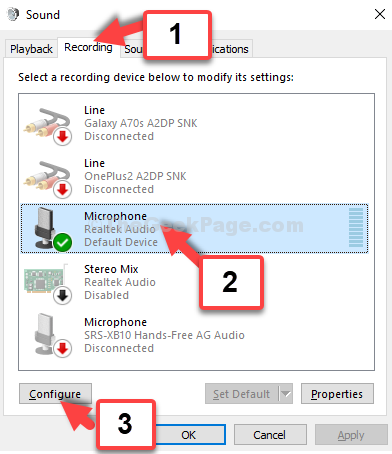
- Open your computer’s sound settings.
- Select the correct microphone as the input device.
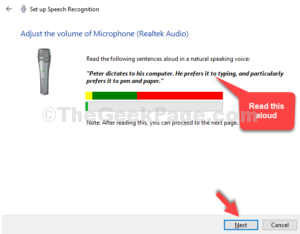
- Speak and watch the input level meter.
- Make a short recording or test call.
- If the test fails, check app permissions and the connection.
A moving input meter shows that the computer is receiving sound. A clear recording shows that the microphone is not only detected but is also usable.
How to test a microphone on Windows 11 or Windows 10
Windows includes a built-in microphone test. You do not need to install extra software.
Test the microphone in Windows 11
- Select Start.
- Open Settings.
- Select System.
- Select Sound.
- Scroll to Input.
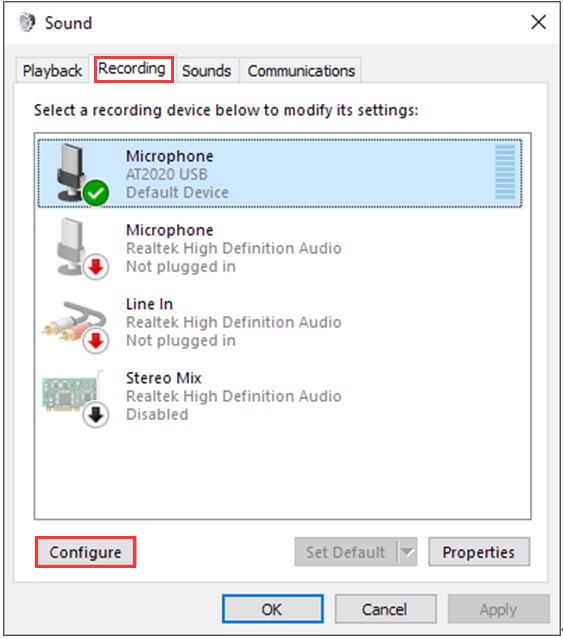
- Choose the microphone you want to test.
- Speak in a normal voice.
- Watch the input volume or test meter.
If the meter responds to your voice, Windows is receiving audio from that microphone.
Some Windows 11 versions show a Test your microphone option. Select it, speak for a few seconds, and stop the test. Windows may show an input level or test result.
Test the microphone in Windows 10
- Select Start.
- Open Settings.
- Select System.
- Select Sound.
- Under Input, choose your microphone.
- Speak while watching the input volume bar.
If the bar moves, the microphone is connected and sending sound to Windows.
Make a recording on Windows
A recording is a better test than a level meter alone.
- Open the Sound Recorder app. It may be called Voice Recorder on some Windows versions.
- Select the record button.
- Speak for 10 to 15 seconds.
- Stop the recording.
- Play it back through your speakers or headphones.
Listen for three things:
- Your voice is present: The microphone is capturing sound.
- Your voice is clear: The input level and microphone position are suitable.
- The recording is silent or very faint: The wrong microphone, mute control, permission, or hardware connection may be the cause.
Microsoft’s official microphone troubleshooting guidance can help if the input meter does not respond.

How to test a microphone on a Mac
macOS lets you check the microphone in Sound settings. You can also use QuickTime Player to make a short recording.
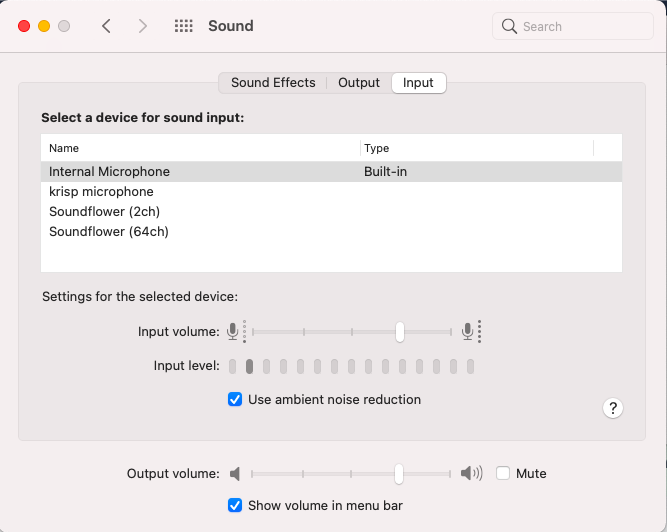
Check the input level on a Mac
- Select the Apple menu in the top-left corner.
- Open System Settings.
- Select Sound.
- Select the Input tab or input device list.
- Choose the built-in microphone, USB microphone, headset, or other device.
- Speak normally.
- Watch the input level indicator.
If the input level moves, your Mac is receiving sound.
If you use a Mac with an external display, dock, webcam, or headset, check the selected device carefully. macOS may switch to another available microphone when a device is connected.
Record a voice sample with QuickTime Player
- Open QuickTime Player.
- Select File.
- Select New Audio Recording.
- Choose the microphone from the menu beside the record button.
- Select Record.
- Speak for several seconds.
- Stop the recording.
- Play it back.
If the recording contains your voice, the microphone works in that app and on the Mac.
Apple provides additional steps in its Mac microphone and sound input guidance.
Check microphone permissions on a Mac
If the input meter works in Sound settings but an app cannot hear you, check permission access:
- Open System Settings.
- Select Privacy & Security.
- Select Microphone.
- Turn on access for the app you want to use.
- Close and reopen the app.
An app may not receive microphone audio until you restart it after changing permission settings.
How to test a microphone in a web browser
A browser microphone test can confirm whether a website can access your microphone. This is useful for online meetings, customer service calls, and browser-based voice tools.
Run a browser microphone test
- Open a trusted microphone test page or the website for your meeting service.
- When the browser asks for permission, select Allow.
- Choose the correct microphone if the site offers a device list.
- Speak normally.
- Watch for an input meter or record a short sample.
- Play the sample back if the site supports playback.
The browser must have permission to use the microphone. If you selected Block in the past, open the site’s permissions from the browser address bar and change microphone access to Allow.
Test a microphone in Google Meet
For a Google Meet call:
- Open Google Meet.
- Join or preview the meeting.
- Open the audio settings.
- Select the desired microphone.
- Speak and watch the microphone indicator.
If other people cannot hear you but the computer’s input meter works, the issue may be inside the meeting app. Check the selected device, mute button, browser permission, and meeting controls.
Test a microphone in Zoom or Microsoft Teams
Most meeting apps include an audio test:
- In Zoom, open audio settings and use the microphone test or input meter.
- In Microsoft Teams, open device settings and use the test call feature when available.
- In FaceTime, check the selected microphone in macOS Sound settings and make a test call.
App menus can change with updates. Look for settings named Audio, Devices, Microphone, Input, or Test call.
How to test a USB, wired, Bluetooth, or built-in microphone
The connection type changes what you should check first.
| Microphone type | First check | Common failure |
|---|---|---|
| Built-in laptop microphone | Input device selection | Privacy setting or disabled microphone |
| USB microphone | Cable, USB port, and input selection | Loose cable or wrong input device |
| Wired headset | Plug and mute switch | Headset jack mismatch or damaged cable |
| Bluetooth headset | Pairing and battery level | Connected for audio output but not input |
| Webcam microphone | Camera connection and app settings | App uses the laptop microphone instead |
| Monitor microphone | Monitor connection and input settings | Microphone is not available through the cable |
USB microphone
Unplug the microphone and connect it to another USB port. Avoid a loose hub while testing. Wait a few seconds for Windows or macOS to detect it, then select it in the sound input settings.
If the microphone has a hardware gain knob, raise it slightly. Do not turn it to maximum at once because that can cause distortion.
Wired headset
Check the plug and the headset’s mute switch. A headset with separate headphone and microphone plugs needs the correct ports. Some computers use one combined headset jack, while others use separate audio and microphone jacks.
A headset may play sound correctly even when its microphone is not connected. Test both functions separately.
Bluetooth headset
Confirm that the headset is:
- Turned on.
- Charged.
- Paired with the computer.
- Selected as the input device.
- Not connected to another nearby device.
Bluetooth systems may list separate options for high-quality listening and headset communication. The microphone may work only when the headset communication mode is selected.
Built-in laptop microphone
Make sure no key or physical switch disables the microphone. Some laptops have a microphone mute key with a light. If the light shows that mute is active, press the key again.
Also check the computer’s privacy settings. A device can appear in the input list while apps remain blocked from using it.
What the microphone test results mean
Use the result to narrow down the cause instead of changing many settings at once.
| Result | Likely cause | Next step |
|---|---|---|
| No microphone appears | Disconnected device, driver issue, or hardware fault | Reconnect it and restart the computer |
| Microphone appears but meter does not move | Mute, wrong input, permission, or connection problem | Select the device and check permissions |
| Meter moves but recording is silent | Recording app uses another input or playback issue | Select the same microphone in the app |
| Voice is very quiet | Low input level or distant microphone | Raise input volume and move closer |
| Voice sounds distorted | Input level is too high | Lower the input level |
| Voice has an echo | Speakers feed sound back into the microphone | Use headphones or lower speaker volume |
| Others cannot hear you in one app | App setting or app permission | Select the microphone inside that app |
| Microphone works on another computer | Local settings, driver, or port problem | Update, reconnect, or reset local settings |
| Microphone fails on several computers | Cable, device, or hardware problem | Try another cable or replace the device |
The key difference is whether the input meter moves. If it does not move, start with the computer, connection, mute control, and permissions. If it moves but one app cannot hear you, focus on that app.
How to fix a microphone that is not working
Work from the simplest checks to the more involved ones.
1. Check the mute controls
Look for:
- A mute button on the microphone.
- A mute switch on the headset cable.
- A microphone mute key on the keyboard.
- A mute button inside the meeting app.
- A system-wide mute setting.
Some apps show a microphone icon with a slash when you are muted.
2. Select the correct input device
Computers often have several microphones. These may include the built-in microphone, webcam microphone, monitor microphone, headset microphone, and USB microphone.
Open the sound settings and choose the device you are actually using. Then repeat the input meter test.
3. Check privacy permissions
On Windows, open Settings > Privacy & security > Microphone. Make sure microphone access is enabled. Also allow access for desktop apps if that setting appears.
On a Mac, open System Settings > Privacy & Security > Microphone and enable the app.
In a browser, select Allow when the site requests microphone access.
4. Restart the app and computer
Close the app fully and open it again. If that does not help, restart the computer. This can refresh a device connection and release the microphone from another program.
5. Check the cable, port, and battery
For external devices:
- Try another USB port.
- Try another cable if one is removable.
- Disconnect the device from other computers.
- Charge a wireless microphone or headset.
- Re-pair a Bluetooth device.
- Test without a USB hub when possible.
Do not force a plug into a port. Stop if a connector feels damaged or unusually hot.
6. Update or reinstall the device software
On Windows, use Device Manager to inspect the audio input device and check for driver updates. The exact driver steps depend on the computer maker and Windows version.
On a Mac, system updates can include audio and device fixes. Install updates only through System Settings or Apple’s official support channels.
Avoid random driver download sites. They may provide incorrect or unsafe software.
7. Test the microphone on another device
Connect the microphone to another compatible computer or phone. This separates a microphone problem from a computer problem.
- If it works elsewhere, inspect the original computer’s settings, ports, permissions, and drivers.
- If it fails elsewhere too, the microphone, cable, battery, or adapter may be faulty.
Common mistakes when testing a microphone
A few test errors can make a working microphone seem broken.
Testing the wrong microphone
A computer may use the laptop microphone while you speak into a USB microphone. Always confirm the device name in the input settings and in the app.
Checking only the speakers
Hearing sound from your computer does not prove that the microphone works. Speaker output and microphone input are separate functions.
Standing too far away
A microphone may work but record a very low signal if you are far away. Speak at a normal distance, often about 6 to 12 inches from a desktop microphone, unless the manufacturer gives different guidance.
Using a speaker during a call
Speakers can send the other person’s voice back into the microphone. Use headphones for a cleaner test.
Assuming a browser test proves every app works
A browser test checks browser access. It does not guarantee that Zoom, Teams, a game, or another program has selected the same microphone.
Relying on a single recording
A short recording can miss an intermittent cable, Bluetooth drop, or app conflict. If the problem comes and goes, test the microphone while moving the cable gently or using the device for several minutes. Do not bend or strain a damaged cable.
When to replace the microphone or seek help
Replace or repair the microphone when it fails on more than one compatible device, especially after you have checked the mute control, cable, battery, and input selection.
Seek help from the computer maker, microphone maker, school IT team, or workplace IT team when:
- The microphone is disabled by an administrator.
- The device is covered by a warranty.
- A port appears damaged.
- The computer shows repeated hardware errors.
- The microphone becomes hot, smells burnt, or shows physical damage.
Stop using damaged electrical equipment. Do not open a powered microphone, laptop, charger, or USB device unless you have the proper training.
Frequently asked questions
How do I know if my microphone is working without joining a call?
Use the built-in sound settings and watch the input meter while speaking. For stronger proof, make a short recording in Sound Recorder on Windows or QuickTime Player on a Mac.
Why does my microphone work in settings but not in Zoom or Teams?
The app may use a different input device or may not have microphone permission. Open the app’s audio or device settings, select the correct microphone, and check the operating system and browser permissions.
Can I test a microphone with headphones?
Yes. Headphones can help you hear a recording and prevent speaker echo. However, regular headphones do not always include a microphone. Confirm that the computer lists the headset as an input device.
Why is my microphone detected but my voice is too quiet?
The input level may be low, or you may be too far from the microphone. Raise the input volume slightly, move closer, and check whether a hardware gain control is turned down. Avoid setting the level so high that your voice becomes distorted.
How can I test whether a microphone is broken?
Test it on another compatible computer or device. If it does not produce an input signal anywhere, check its cable, battery, mute switch, and adapter. If those are fine, the microphone may need repair or replacement.
Conclusion
The quickest microphone test is to open your computer’s sound settings, select the correct input device, and speak while watching the input meter. A short recording or test call confirms whether your voice sounds clear.
If the microphone fails, check the mute control, input selection, app permissions, connection, and device software in that order. Testing the microphone on another computer can tell you whether the fault is in the microphone or in your computer.