

Connect your karaoke microphone by plugging it in, selecting it as the input, and testing it in your computer’s sound settings.
Learning how to connect a karaoke microphone to a computer is easier when you first identify the microphone’s connector. USB, 3.5 mm, XLR, wireless, and Bluetooth microphones each need a slightly different setup. This guide explains the safest connection method, sound settings, software choices, and simple fixes I use when helping singers prepare a computer karaoke system.
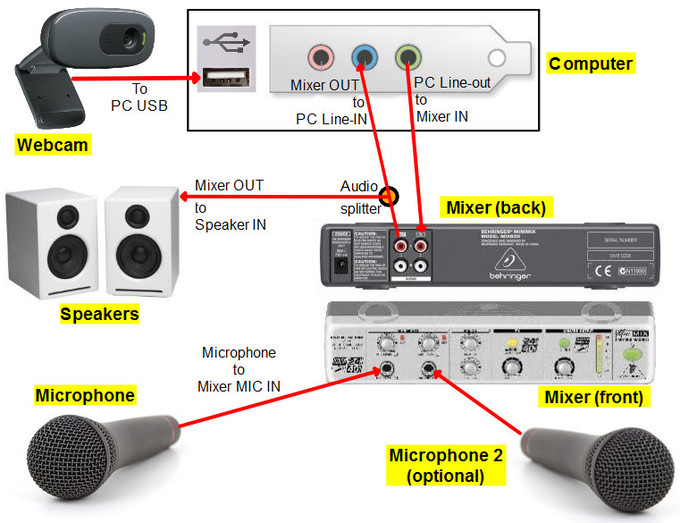
Identify Your Karaoke Microphone
Before learning how to connect a karaoke microphone to a computer, check the plug or receiver that came with it. The connector tells you whether your computer can accept the microphone directly or needs an adapter.
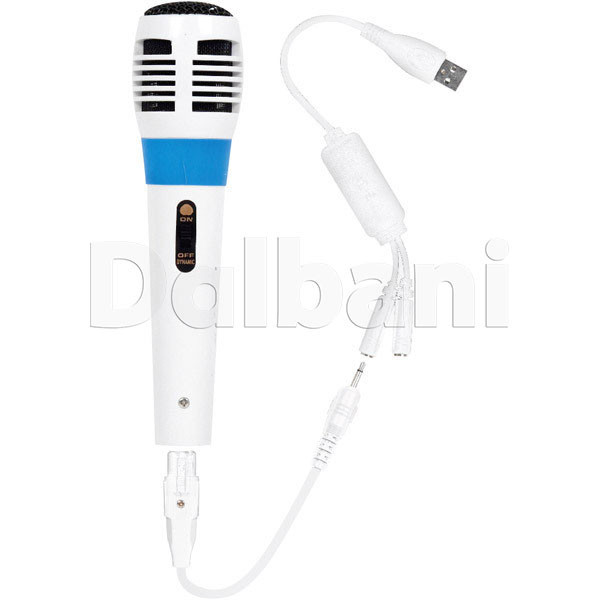
USB karaoke microphone
A USB microphone has a USB A, USB C, or Micro USB connector. It usually contains its own digital audio converter, so you can connect it directly to a computer.
USB microphones are often the simplest choice for karaoke. They usually work without a separate mixer, preamp, or sound card.
3.5 mm karaoke microphone
A 3.5 mm microphone uses a small round plug. It may connect to a dedicated microphone port, a headset port, or a computer sound card.
Some laptops have one combined headset port. This port may not accept a standard microphone plug without a TRRS adapter. A plug with three black bands is usually a TRRS plug, while a common stereo plug has two black bands.
XLR karaoke microphone
An XLR microphone has a large, round connector with three pins. Most computers cannot connect to an XLR microphone directly.
You will need one of these devices:
• A USB audio interface
• A USB microphone mixer
• A mixer with a USB output
The interface supplies microphone gain and converts the analog signal into digital audio for the computer.
Wireless karaoke microphone
A wireless karaoke microphone normally sends sound to a receiver. The receiver may use:
• USB
• 3.5 mm audio
• 6.35 mm, or quarter-inch, audio
• XLR
Connect the receiver to the computer, not the microphone itself, unless the microphone supports Bluetooth pairing.
Bluetooth karaoke microphone
Some karaoke microphones work as Bluetooth audio devices. However, many Bluetooth karaoke microphones are made to play music from a phone and send sound through their built-in speaker. They may not send microphone audio back to a computer.
Check the product manual before assuming Bluetooth will work for recording or live karaoke.

How to Connect a USB Karaoke Microphone to a Computer
A USB microphone is usually the fastest way to get started. Modern versions are often plug and play, which means the computer detects them automatically.
Follow these steps:
Turn down your computer’s speaker volume.
Plug the microphone into a working USB port.
Wait several seconds while the operating system installs the device.
Open the computer’s sound settings.
Select the USB microphone as the input device.
Speak or sing into the microphone and watch the input meter.
Open your karaoke app and choose the same microphone as its input.
On Windows, open Settings, select System, choose Sound, and look under Input. Select the USB microphone, then use the input level test to confirm that the meter moves when you speak.
On a Mac, open System Settings, choose Sound, and select Input. Click the USB microphone and check the input level while speaking.
If the microphone has a mute button, make sure it is not active. Some models also include a gain knob. Start with the gain near the middle, then adjust it while watching the input meter.
In my own USB microphone tests, the most common mistake was choosing the microphone in Windows but not inside the karaoke app. The computer heard the mic, but the app still used the built-in laptop microphone. Always check both places.

How to Connect a 3.5 mm Karaoke Microphone to a Computer
A 3.5 mm microphone may connect directly if your computer has a microphone input. Desktop computers often have separate colored ports, while laptops commonly use one combined headset jack.
Use the following process:
Find the microphone or headset port on the computer.
Insert the microphone plug fully.
Open the sound settings.
Select the microphone input.
Speak into the microphone and check the input meter.
Adjust the input volume until your voice is clear.
If your laptop has one combined headset port and the microphone does not work, you may need a headset splitter. Look for a splitter with separate microphone and headphone plugs. A basic audio adapter can also help if the computer uses a different port.
Some 3.5 mm karaoke microphones are designed for portable karaoke machines, not computers. They may have low output or use wiring that does not match a computer headset port. In that case, a USB sound adapter is often more reliable than forcing the connection.
Avoid pushing a large quarter-inch plug into a 3.5 mm port. You need the correct adapter or a small audio interface. Using the wrong adapter can result in weak sound, noise, or no input at all.

How to Connect an XLR Karaoke Microphone to a Computer
An XLR microphone needs more equipment because the computer usually lacks an XLR input and microphone preamp.
The cleanest setup is:
Connect the XLR cable to the microphone.
Connect the other end to an audio interface or USB mixer.
Connect the interface or mixer to the computer with USB.
Turn on phantom power only if the microphone requires it.
Raise the input gain while speaking or singing.
Select the interface as the computer’s input device.
Dynamic karaoke microphones usually do not need phantom power. Condenser microphones may need it, but check the microphone manual first. Turning on phantom power for the wrong setup can create problems, especially with certain passive equipment or incorrect cables.
Use the interface’s gain control to create a healthy signal. If the level is too low, your voice will sound quiet and noisy. If the level is too high, the sound will clip and become harsh.
A good input signal normally stays below the maximum level. Leave some space for loud notes. Singers often test with a quiet verse and forget that the chorus may be much louder.
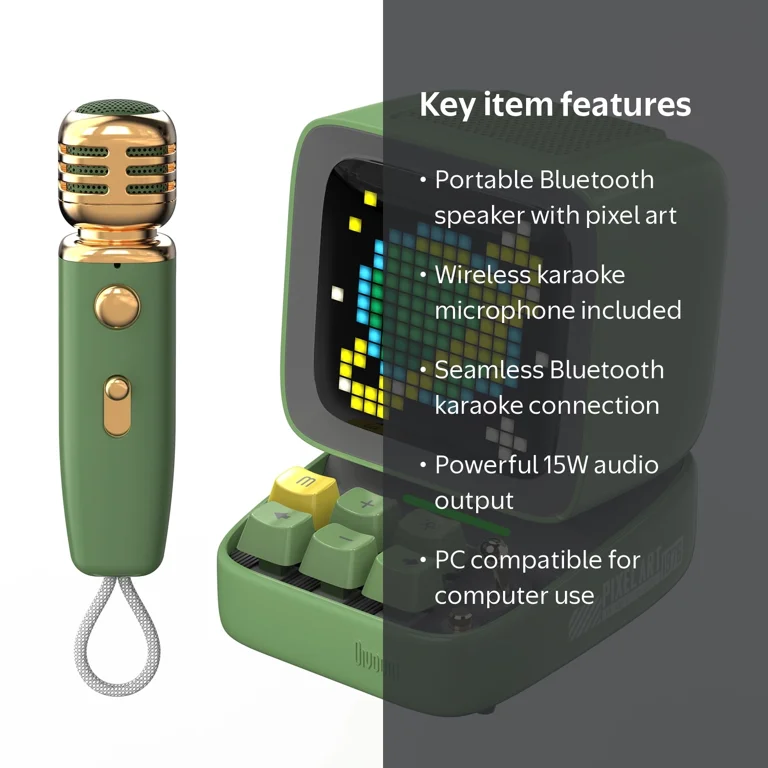
How to Connect a Wireless Karaoke Microphone to a Computer
Wireless microphones need a receiver. The receiver collects the microphone’s radio signal and sends audio to the computer.
For a USB receiver:
Plug the receiver into the computer.
Turn on the microphone.
Wait for the receiver and microphone to pair.
Select the receiver as the input device.
Test your voice in the sound settings.
For a receiver with a 3.5 mm or quarter-inch output, connect it to a suitable computer input or USB audio interface. You may need an adapter if the receiver output and computer input use different connectors.
Keep the receiver away from Wi-Fi routers, USB hubs, and other wireless devices when possible. Interference can create pops, dropouts, or a buzzing sound. Fresh batteries also matter. A weak battery may cause unstable audio before the microphone stops working completely.
Place the receiver where it has a clear path to the microphone. Large metal objects, walls, and crowded wireless spaces can reduce range.

How to Connect a Bluetooth Karaoke Microphone to a Computer
Bluetooth karaoke microphones can be confusing because Bluetooth audio has two separate roles. A computer can send music to a Bluetooth device, but that does not always mean the computer can receive microphone audio from it.
To try the connection:
Turn on Bluetooth on the computer.
Put the microphone into pairing mode.
Open the computer’s Bluetooth settings.
Select the microphone from the device list.
Wait for the pairing message.
Open sound settings and check whether the microphone appears as an input.
Select it inside the karaoke program.
Bluetooth may add a short delay between your voice and the music. This delay can make singing feel uncomfortable. It can also reduce sound quality when the computer switches to a hands-free Bluetooth profile.
For live karaoke, a USB, wired, or wireless receiver microphone is usually better. Bluetooth is more convenient for casual use, but it is not always the best choice for low-latency performance.
Configure Microphone Settings in Windows
After physically connecting the microphone, Windows must use it as the default input.
Open Settings, then choose System and Sound. Under Input, select your microphone. Speak into it and check whether the input meter responds.
You can also adjust these options:
• Input volume: Controls how strong the microphone signal is.
• Mono audio: Can help when a single microphone plays only through one channel.
• Audio enhancements: May improve sound, but can also create delay or strange effects.
• Sample rate: Keep the microphone and karaoke software on compatible settings.
If the input meter moves but the karaoke app does not hear you, open the app’s audio settings. Choose the microphone there as well. Some programs use their own input selection and ignore the Windows default.
Check microphone privacy permissions if the program still has no sound. In Windows, privacy settings can prevent desktop apps from accessing the microphone.

Configure Microphone Settings on a Mac
On a Mac, open System Settings and select Sound. Choose Input, then click the connected microphone or audio interface.
Speak into the microphone and watch the input level. Move the input volume slider until your voice is strong but not distorted.
If an app cannot access the microphone, open System Settings, choose Privacy & Security, and select Microphone. Allow access for the karaoke app, browser, or recording program you plan to use.
macOS may change the input device when you plug in headphones, an interface, or a USB microphone. Check the input again after making hardware changes.
You can also use Audio MIDI Setup for advanced devices. This tool helps confirm whether the computer sees the interface and lets you review audio format settings.

Choose the Right Karaoke Software
Your karaoke software needs two audio paths:
• The microphone input carries your voice.
• The speaker or headphone output plays the backing track and your voice.
Many web karaoke services use the browser microphone permission. When prompted, allow access to the connected microphone. Then check the site’s own microphone and volume controls.
Desktop karaoke programs may include echo, reverb, pitch control, and vocal volume settings. These effects can make singing more enjoyable, but too much reverb can hide unclear vocals.
For a simple test, use a basic voice recorder before opening the karaoke program. Record a few words and play them back. This separates hardware problems from software settings.
Headphones are useful when testing. They prevent the backing track from entering the microphone and causing feedback. If you use speakers, keep them in front of the microphone and lower the volume.
Prevent Echo, Feedback, and Delay
Feedback happens when the microphone hears sound from the speakers, sends it back to the computer, and repeats the cycle. It often creates a loud squeal.
Use these steps to prevent feedback:
• Wear headphones.
• Lower the speaker volume.
• Keep speakers away from the microphone.
• Point the microphone away from the speakers.
• Reduce software monitoring if your voice sounds doubled.
Echo can also come from enabling microphone monitoring in both the computer and karaoke software. Choose one monitoring path, not several.
Delay is common with Bluetooth devices and software effects. If your voice reaches your ears late, turn off unnecessary effects, use wired headphones, or switch to a USB microphone and direct monitoring interface.
In live setups I have tested, headphones solved more karaoke problems than almost any other change. They make it easier to hear pitch and stop the backing track from leaking into the mic.
Improve Karaoke Microphone Sound Quality
A good connection is only the first step. Placement and gain have a major effect on sound.
Hold a handheld microphone about two to four inches from your mouth. Move it slightly farther away during loud notes. Do not cover the microphone grille, because your hand can change the sound and increase handling noise.
Speak or sing toward the microphone’s front. Many handheld microphones reject sound from the sides and rear, so pointing the wrong end at your mouth can make the voice seem very quiet.
Set the input gain so normal singing is clear. Watch for red clipping indicators. Digital clipping cannot be repaired easily after recording.
For a cleaner result:
• Use a quiet room.
• Close nearby windows.
• Keep cables away from power adapters.
• Use a pop filter for a studio-style microphone.
• Keep the microphone stand stable.
• Turn off automatic effects that make the voice sound unnatural.
Room treatment is not essential for casual karaoke, but soft furniture can reduce reflections. A bare room may make the voice sound sharp or hollow.
Troubleshoot Common Connection Problems
The computer does not detect the microphone
Try a different USB port or cable. Avoid an unpowered USB hub during testing. Restart the computer with the microphone connected, then check the input device list again.
For XLR microphones, confirm that the audio interface appears in the computer’s sound settings. The microphone cannot work through USB unless the interface or mixer converts the signal.
The microphone is detected but has no sound
Check the mute button, input volume, and app permissions. Confirm that the karaoke software uses the same microphone selected in the operating system.
A 3.5 mm plug may also be in the headphone port instead of the microphone port. On a combined headset jack, use the correct TRRS adapter.
The microphone sounds very quiet
Raise the input gain slowly. A passive dynamic microphone connected directly to a computer may need more gain than the computer can provide.
An audio interface, USB mixer, or compatible USB adapter can solve this problem. Do not turn the gain all the way up if it adds loud hiss.
The sound is distorted
Lower the input volume or interface gain. Distortion usually means the signal is too strong and is clipping before the software records it.
Test with your loudest singing, not only quiet speech. A setting that sounds fine during talking may distort during a chorus.
There is a buzzing or humming noise
Disconnect unnecessary chargers and test the microphone again. A ground loop, poor cable, or electrical interference may cause the noise.
Try another USB port, move the audio cable away from power cords, and test with headphones. If the noise remains, use a different cable or interface.
Mistakes to Avoid When Connecting a Karaoke Microphone
Many connection problems come from small setup errors rather than faulty equipment.
Avoid these common mistakes:
• Buying an XLR to USB cable without checking its quality or features.
• Assuming every Bluetooth karaoke microphone supports computer microphone input.
• Using a headphone-only port for a microphone.
• Selecting the microphone in Windows but not in the karaoke app.
• Setting the gain too high.
• Testing with speakers at full volume.
• Using a damaged cable.
• Ignoring microphone privacy permissions.
• Expecting a portable karaoke microphone to perform like a studio microphone.
A simple signal path is easier to troubleshoot. Start with the microphone, then the cable, then the interface, then the computer, and finally the software. Change one thing at a time so you know what fixed the issue.
Frequently Asked Questions About How to Connect a Karaoke Microphone to a Computer
Can I connect any karaoke microphone directly to a computer?
No. USB microphones usually connect directly, but XLR, quarter-inch, and some 3.5 mm microphones need an interface, adapter, or USB sound card. Always match the microphone output with the computer’s input.
Why does my karaoke microphone work in Windows but not in the karaoke app?
The app may be using a different input device. Open the app’s audio settings and manually select the same microphone shown in Windows Sound settings.
Can I connect a wireless karaoke microphone to a laptop?
Yes, if its receiver has a compatible USB, 3.5 mm, or audio interface connection. Connect the receiver to the laptop and select it as the input device.
Will a Bluetooth karaoke microphone work for live singing?
It may work, but Bluetooth can create noticeable audio delay. A wired USB microphone or a microphone connected through a low-latency interface is usually better for live karaoke.
Do I need a mixer to connect a karaoke microphone to a computer?
You do not need a mixer for most USB microphones. An XLR microphone may need a USB audio interface or mixer to provide gain and convert the analog signal.
Why is my microphone loud in headphones but quiet in the recording?
The headphone volume and microphone input gain are separate controls. Increase the microphone input level or interface gain, but stop before the signal clips.
How can I stop karaoke microphone feedback?
Use headphones, lower speaker volume, and keep speakers away from the microphone. Also turn off duplicate microphone monitoring in the operating system or karaoke software.
Conclusion
Learning how to connect a karaoke microphone to a computer starts with identifying the connector. USB microphones are the easiest, while 3.5 mm models may need the right headset adapter and XLR microphones require a USB interface or mixer. Wireless and Bluetooth microphones depend on their receiver and may introduce compatibility or delay issues.
After connecting the hardware, select the microphone in both the computer’s sound settings and the karaoke app. Test the input, adjust gain carefully, use headphones to prevent feedback, and check privacy permissions if the microphone remains silent.
Set up your microphone today, sing a short test track, and make one adjustment at a time until your voice sounds clear. Explore your karaoke software’s audio controls, and share your setup or questions in the comments.