

Raise the microphone level, choose the correct input, and check mute, gain, distance, and app settings.
A quiet microphone can make calls, streams, podcasts, and game chats frustrating. In most cases, the problem comes from low input volume, the wrong microphone, weak permissions, poor placement, or noise reduction that is too strong. This guide explains how to fix quiet mic problems on Windows, Mac, phones, Discord, Zoom, and common USB or headset microphones.
The steps below use simple checks first, then move to drivers, hardware, and advanced settings. They also reflect common issues found during real audio troubleshooting, so you can avoid changing settings that do not affect microphone volume.
How to fix a quiet mic quickly
Before changing advanced settings, test the microphone with a basic recording app. This tells you whether the issue affects the whole device or only one app.
Follow these steps in order:
- Check that the microphone is not muted on the headset, microphone body, keyboard, or audio interface.
- Move the microphone closer to your mouth, usually 4 to 8 inches away.
- Select the correct microphone as the input device.
- Raise the input volume or microphone level to about 80% to 100%.
- Check the app’s own input volume and noise suppression settings.
- Disconnect other microphones that may be taking priority.
- Restart the app after changing audio settings.
- Test with another USB port, cable, or device.
If the microphone sounds loud in a recording app but quiet in Discord or Zoom, the hardware is likely fine. The problem is usually inside the app or its input settings.
Why is my microphone so quiet?
A microphone converts sound into an electrical signal. If that signal is too weak before it reaches your computer or phone, your voice will sound distant, thin, or very quiet.
The most common causes include:
• Low microphone input volume in the operating system
• A low gain setting on an audio interface
• The wrong input device selected
• A muted headset control or microphone switch
• The microphone being too far from your mouth
• A damaged USB cable, adapter, or audio jack
• App settings that reduce voice volume
• Aggressive noise suppression or automatic gain control
• Missing microphone permissions
• Outdated, incorrect, or damaged audio drivers
Microphone distance matters more than many people expect. Moving a mic from 6 inches away to 2 feet away can make your voice much weaker, even when the volume slider stays the same. Think of the microphone like a camera: the farther it is from the subject, the less detail it captures.
Another common mistake is confusing output volume with input volume. Raising your speaker or headphone volume does not make your microphone louder. You must adjust the microphone input level, gain, or boost.
How to fix a quiet mic on Windows
Windows provides several microphone controls, and some are hidden behind separate menus. Check each one carefully.
Select the correct input device
- Open Settings.
- Select System.
- Choose Sound.
- Find the Input section.
- Select your microphone.
- Speak and watch the input meter.
The meter should move clearly as you speak. If it does not move, Windows may be listening to another microphone, such as a laptop mic, webcam mic, or monitor mic.
Choose the microphone you actually want to use. Then open its properties and increase the input volume. Start around 80% and test your voice before setting it to 100%.
Adjust microphone volume and boost
Some Windows devices include a microphone boost option.
- Open Settings and go to System.
- Select Sound, then More sound settings.
- Open the Recording tab.
- Double-click your microphone.
- Select the Levels tab.
- Raise Microphone volume.
- If available, increase Microphone Boost in small steps.
Boost can help a weak microphone signal, but too much boost creates hiss, distortion, and background noise. Increase it slowly while listening to a test recording.
Allow microphone access
Windows can block microphone access even when the device appears connected.
- Open Settings.
- Select Privacy & security.
- Choose Microphone.
- Turn on microphone access.
- Allow access for the app you are using.
- Turn on desktop app access if needed.
This setting matters for browsers, games, meeting apps, and recording software. After changing permissions, close and reopen the app.
Update or reinstall the audio driver
If the microphone worked before a system update, a driver issue may be responsible. Open Device Manager, expand Audio inputs and outputs, and check the microphone device.
You can try these options:
• Update the driver through Windows
• Disable and re-enable the microphone
• Uninstall the device, then restart the computer
• Install the driver supplied by the computer or microphone maker
Avoid downloading drivers from unknown websites. A wrong driver can create more audio problems and security risks.

How to fix a quiet mic on Mac
Mac computers usually make microphone control simple, but app permissions and input selection can still cause trouble.
Choose the microphone in Sound settings
- Open the Apple menu.
- Select System Settings.
- Choose Sound.
- Open the Input section.
- Select your microphone.
- Adjust the input volume slider.
Speak while watching the input level. If the meter barely moves, move closer to the microphone or increase the input level.
If you use an audio interface, select the interface instead of the built-in microphone. The microphone may be plugged into the interface while the Mac is still listening to its internal mic.
Check microphone permissions
- Open System Settings.
- Select Privacy & Security.
- Choose Microphone.
- Allow access for the app you use.
Quit and reopen the app after changing this setting. Some apps do not detect permission changes until they restart.
Check the app’s audio input
Meeting and recording apps often have their own microphone menus. Open the app settings and select the same microphone shown in Mac sound settings.
If the app offers automatic microphone adjustment, test it both on and off. Automatic gain control can help casual calls, but it may lower your voice when it detects background noise or pauses.
How to fix a quiet mic in Discord, Zoom, and Teams
A microphone can work well in the operating system and still sound quiet in a communication app. These apps may use their own input volume, gain, and noise filters.
Discord
Open User Settings, select Voice & Video, and choose the correct input device. Raise the input volume and use the microphone test feature.
Check these settings carefully:
• Input Mode should match how you speak
• Input Sensitivity should not cut off quiet words
• Automatic Gain Control can be tested on and off
• Noise Suppression may reduce soft speech
• Echo cancellation can sometimes affect natural voice tone
If Discord shows your voice meter moving only a little, raise the system input level first. If the meter looks strong but friends still hear you quietly, check Discord’s input volume and server user volume.
Zoom
Open Settings, select Audio, and choose the correct microphone. Use Test Mic to record your voice and review the result.
Turn off automatic microphone volume if it lowers your voice too much. Then set the input level manually while speaking at your normal distance.
Zoom also includes background noise reduction. A high setting can remove keyboard noise, but it may also reduce soft voices. Try the low setting or automatic mode if your speech sounds clipped.
Microsoft Teams
Open Teams settings and select Devices. Choose the microphone you want, then make a test call if the option is available.
Check that your microphone is not muted inside the meeting. Also look for a physical mute button on the headset cable or earcup. A physical mute switch can override the software setting.

Improve microphone placement and speaking technique
Correct placement is one of the fastest ways to fix a quiet mic. You may not need new equipment at all.
Place the microphone close enough to capture your voice clearly, but not so close that breath sounds overload it. A distance of 4 to 8 inches works well for many USB microphones and headset mics.
Try these placement tips:
• Speak toward the front of the microphone, not the back
• Keep the microphone near mouth level
• Use a pop filter for strong P and B sounds
• Aim slightly to the side of your mouth to reduce breath blasts
• Keep the mic still while recording
• Speak at a steady, natural volume
Headset microphones usually work best when the boom sits near the corner of your mouth. If it points toward your cheek or hangs below your chin, your voice may sound quiet.
Do not shout into a microphone to solve a low level. Shouting can cause clipping, harsh tones, and listener fatigue. Increase the input level or gain instead.
A practical test is to record the same sentence from three distances: 3 inches, 6 inches, and 12 inches. Listen for the clearest balance between volume, bass, breath noise, and room sound.
Check cables, ports, and microphone hardware
Hardware problems can create a quiet microphone signal even when all software settings look correct.
Start with the simplest checks:
• Unplug and reconnect the microphone
• Try a different USB port
• Avoid unpowered USB hubs
• Test another USB cable if the cable is removable
• Check the headset mute switch
• Inspect the audio jack for dust or damage
• Try the microphone on another computer or phone
If a USB microphone works on another device, your computer settings are likely the issue. If it is quiet everywhere, the microphone, cable, adapter, or internal preamp may be failing.
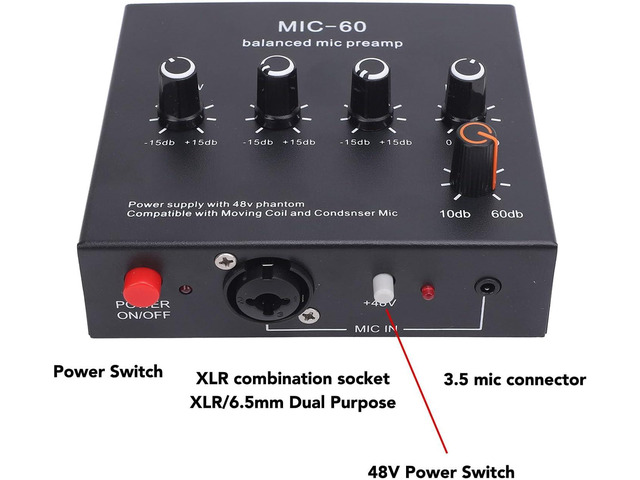
For XLR microphones, check the gain knob on the audio interface. A condenser microphone may also need phantom power, commonly marked as 48V. Turn phantom power on only when the microphone and interface support it. Do not use it carelessly with equipment that may be damaged by phantom power.
Some microphones need more gain than a basic laptop or low-cost interface can provide. In that case, an appropriate preamp or inline booster may help. A booster cannot repair a damaged microphone, though, and it should not be the first step.

Reduce noise without making your voice quiet
Noise reduction is useful, but aggressive filtering can make speech sound faint or robotic. The software is trying to remove unwanted sound, yet it may treat parts of your voice as noise.
Test these settings one at a time:
• Automatic gain control
• Noise suppression
• Echo cancellation
• Voice isolation
• Compressor settings
• Expander or gate settings
A noise gate is especially important in streaming and recording software. It blocks sound below a chosen volume. If the threshold is too high, the gate cuts off the start or end of words.
Lower the gate threshold until normal speech passes through. Use a compressor to make soft and loud parts more even, but avoid extreme settings that make breathing and room noise louder.
For a simple voice setup, begin with mild processing:
- Set the microphone level so normal speech peaks around minus 12 to minus 6 decibels.
- Add light noise reduction only if needed.
- Use a gentle compressor.
- Listen with headphones.
- Check the result on another device.
The exact numbers vary by app and microphone. The goal is a clean signal with headroom, not a meter that stays at maximum.

How to fix a quiet mic on a phone
Phone microphones are small and easy to block. A case, screen protector, dust, or your hand may cover the microphone opening.
Try these steps:
- Remove the phone case temporarily.
- Clean the microphone opening with a soft, dry brush.
- Restart the phone.
- Check microphone permission for the app.
- Record a voice memo.
- Test the front and rear cameras.
- Try wired or Bluetooth headphones with a microphone.
Do not push pins or sharp tools into the microphone opening. This can damage the protective mesh or internal microphone.
If voice memos sound clear but calls sound quiet, the issue may involve the calling app, cellular network, Bluetooth device, or call volume. If every recording is quiet, professional repair may be needed.
Bluetooth headsets can also cause confusion. A phone may use the headset for playback but use its built-in microphone for recording. Select the headset as the input device when the app provides that option.
Advanced fixes for recording and streaming software
Apps such as OBS Studio, Audacity, and other recording tools may use filters and separate gain controls. A quiet microphone in these apps does not always mean the device is faulty.
Check the source or track volume first. Then review filters such as:
• Gain
• Compressor
• Noise gate
• Limiter
• Expander
A gain filter can increase a weak signal. Use it carefully because it raises background noise too. A compressor can make speech easier to hear, but it cannot replace correct microphone placement.
If the waveform is very small, increase the input level before adding heavy software gain. If the waveform reaches the top and sounds distorted, lower the level. Distortion caused by clipping usually cannot be repaired later.
Record a short sample before every stream or important meeting. This small habit prevents the classic mistake of discovering after an hour that the microphone was almost muted.
Common mistakes to avoid
Many people make a quiet microphone worse by changing too many settings at once. Make one change, test it, and write down what happened.
Avoid these mistakes:
• Raising speaker volume instead of microphone input volume
• Setting microphone boost to the maximum immediately
• Speaking into the wrong side of a directional mic
• Using a noisy USB hub
• Running several noise suppression tools at once
• Ignoring a physical mute switch
• Testing only inside one app
• Replacing the microphone before checking permissions
• Downloading random driver software
• Recording without listening to the playback
One lesson I have seen repeatedly in audio troubleshooting is that the simplest cause is often the correct one. A headset mic that seems broken may only be muted on its cable. A USB mic that seems weak may be connected to a low-power hub. A professional mic may simply need more interface gain.
Use a short diagnostic path: test the device, test the operating system, then test the app. This separates hardware problems from software problems and saves time.
When should you replace the microphone?
Replacement makes sense when the microphone remains quiet on several devices after you test the cable, port, input level, and permissions.
Consider replacing it if:
• The signal is quiet on every device
• The cable is permanently damaged
• The connector feels loose
• The microphone produces crackling when moved
• The device cuts out during normal use
• The microphone has suffered liquid or impact damage
Before buying a new microphone, consider how you use it. A headset mic is convenient for gaming and calls. A USB microphone is simple for desk recording. An XLR microphone offers more control but needs an audio interface and proper gain.
A more expensive microphone is not always louder. Sensitivity, pickup pattern, room noise, interface gain, and placement all matter. Choose equipment that fits your space and workflow instead of judging quality by price alone.
How to fix quiet mic: a simple troubleshooting checklist
Use this checklist when you need a fast solution:
- Is the microphone physically muted?
- Is the correct input device selected?
- Does the operating system input meter move?
- Is microphone input volume above 80%?
- Does the microphone need more interface gain?
- Is the mic within 4 to 8 inches of your mouth?
- Does the app use a different input device?
- Are microphone permissions enabled?
- Is noise suppression cutting off your voice?
- Does the microphone sound quiet on another device?
If the answer to the last question is no, focus on software settings. If the answer is yes, inspect the hardware, cable, power, and microphone itself.
Frequently asked questions about how to fix quiet mic
Why is my mic quiet even when the volume is at 100%?
A volume slider at 100% cannot fix a weak signal caused by distance, low interface gain, a bad cable, or a damaged microphone. Move the mic closer, check gain, and test it on another device.
How do I make my microphone louder without getting static?
Move the microphone closer first, then raise input volume in small steps. If you use boost or software gain, increase it gradually and reduce background noise to prevent static.
Why is my mic quiet in Discord but normal everywhere else?
Discord may use the wrong input device or apply automatic gain control and noise suppression. Select the correct microphone in Voice & Video, test automatic settings, and check the input sensitivity.
Can a USB port make a microphone quiet?
Yes, a damaged, underpowered, or unstable USB port can cause audio problems. Connect the microphone directly to another USB port and avoid testing through an unpowered hub.
How do I know if my microphone is broken?
Test the microphone on another computer or phone with a different cable if possible. If it remains quiet everywhere after you check mute and gain settings, the microphone or its cable may be failing.
Does microphone distance affect volume?
Yes, distance has a major effect on voice level and clarity. Keeping the mic about 4 to 8 inches away usually produces a stronger signal than placing it across a desk.
Should I turn on microphone boost?
Microphone boost can help when the normal input level is not strong enough. Use the lowest boost that gives clear volume because excessive boost can add hiss and distortion.
Conclusion
The best way to fix a quiet mic is to troubleshoot in a clear order. Check mute controls, select the right input, raise microphone volume, improve placement, review app settings, and test the hardware on another device.
Most quiet mic problems do not require expensive equipment. A closer microphone position, the correct input choice, or a small gain adjustment can make a major difference. Work through the checklist one step at a time, record a short test, and listen before your next call or stream.
Try these fixes today, then share your result or explore more audio guides to build a cleaner and more reliable setup.