

A microphone is an input device, while headphones are output devices that play sound to your ears.
If you have ever opened an audio setting and wondered, “is output mic or headphones,” you are not alone. This mix-up is common because microphones and headphones often appear together in the same sound menu. Understanding the difference helps you choose the right device, fix audio problems, and set up calls, games, recordings, and music with confidence.
Is Output Mic or Headphones?
The answer is simple: output usually means headphones, speakers, or another device that sends sound from your computer to you. A microphone is an input device because it sends your voice or other sounds into the computer.
When people ask, “is output mic or headphones,” they are usually asking which device should be selected for sound output. Choose headphones or speakers for output. Choose a microphone for input.
Think of your computer as a two-way road:
• Input carries sound into the computer. A microphone uses this path.
• Output carries sound out of the computer. Headphones and speakers use this path.
For example, during a video call, your microphone is the input device that captures your voice. Your headphones are the output device that let you hear the other person. Some headsets combine both devices in one physical product, but the microphone and headphones still perform separate jobs.
What Is an Input Device?
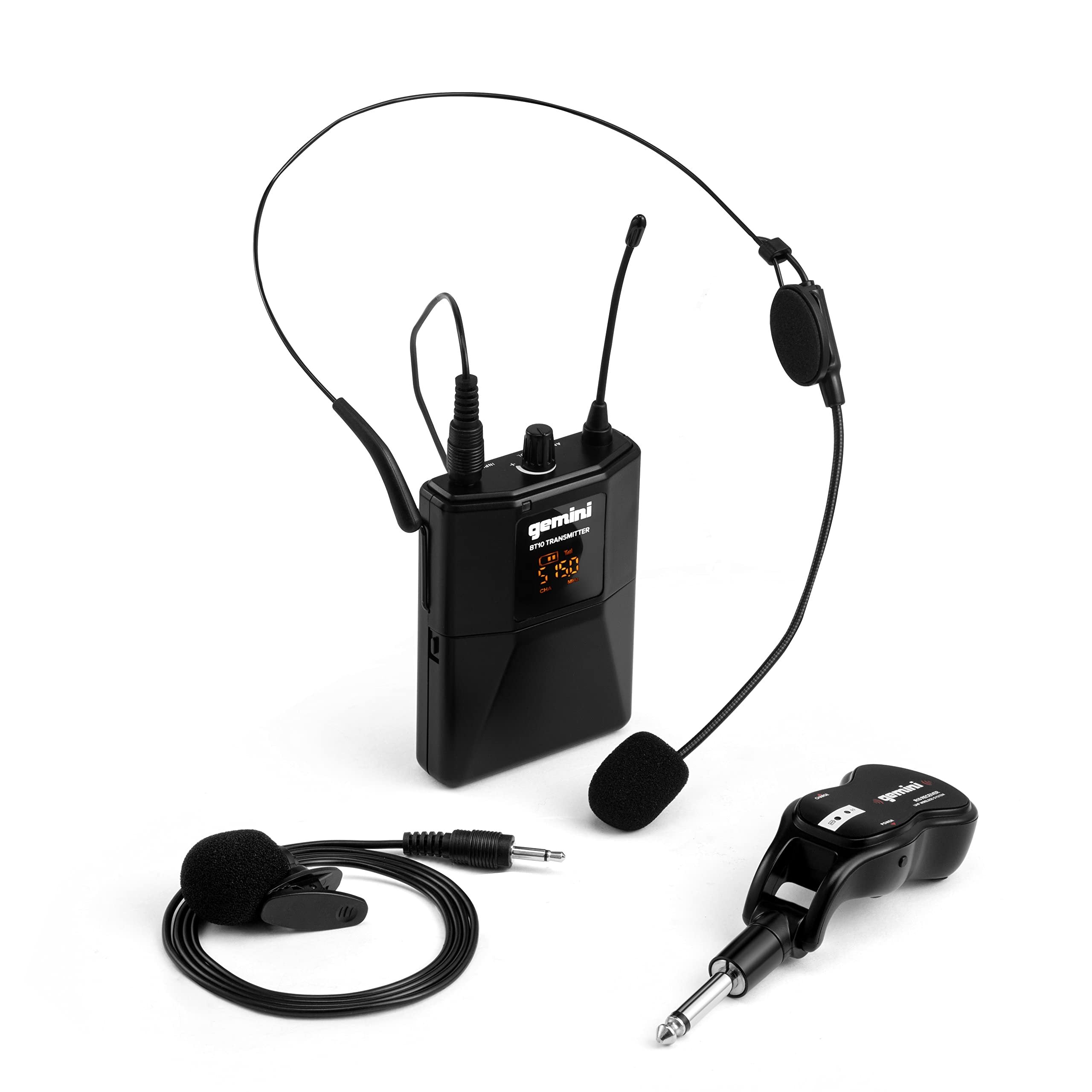
An input device sends information to a computer, phone, tablet, or other electronic system. It allows the system to receive data from the outside world.
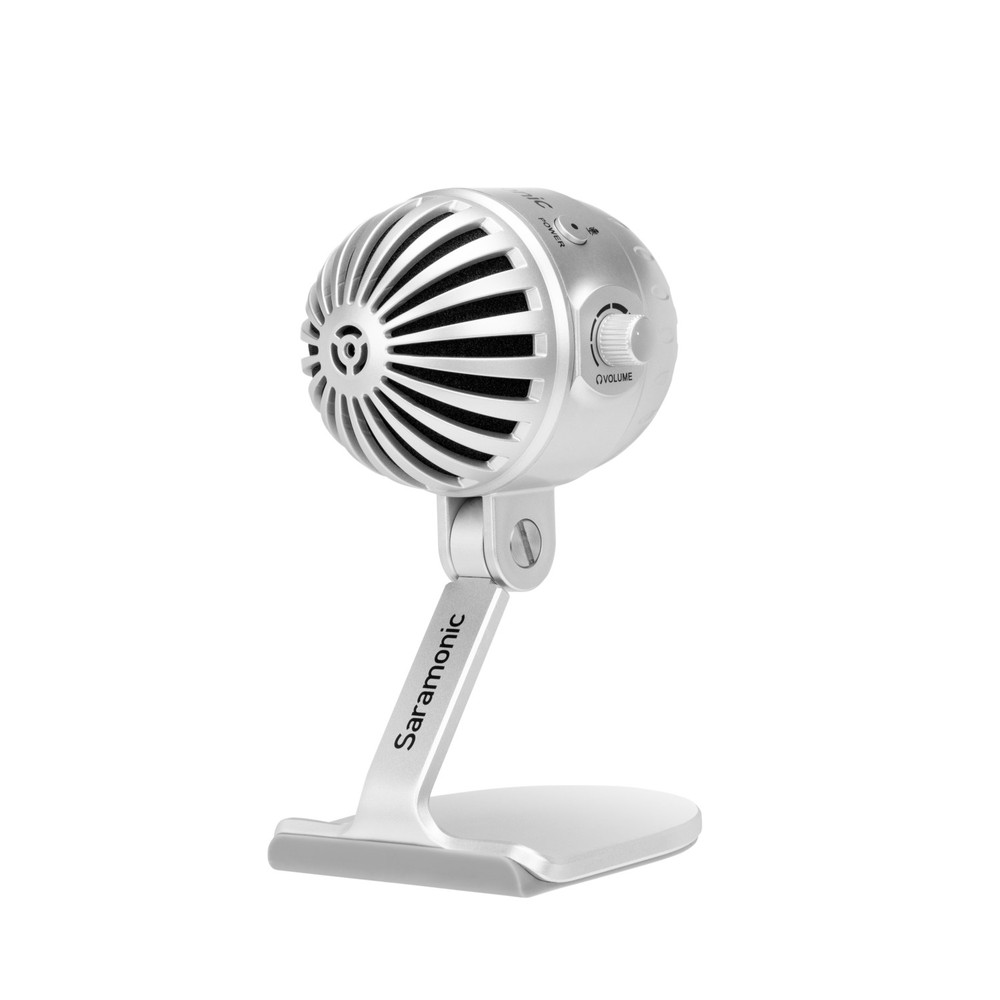
A microphone changes sound waves into an electrical or digital signal. Your device then processes that signal for a call, recording, game chat, voice command, or video.
Common audio input devices include:
• Built-in laptop microphones
• USB microphones
• Headset microphones
• Wireless earbuds with microphones
• Audio interfaces connected to studio microphones
• Smartphone microphones
When you speak into a microphone, your voice travels into the device. That makes the microphone an input, not an output.
This distinction matters when an app asks you to select an input device. If you choose your headphones as the input by mistake, the app may use a weak built-in microphone or fail to capture your voice clearly.
In my experience helping people set up calls and recordings, this is one of the most common mistakes. They see a headset name in both menus and assume the same setting controls everything. In reality, one headset may appear as two audio devices: one for input and one for output.
What Is an Output Device?
An output device sends information from the computer to you. In audio, it converts a digital sound signal into sound that you can hear.
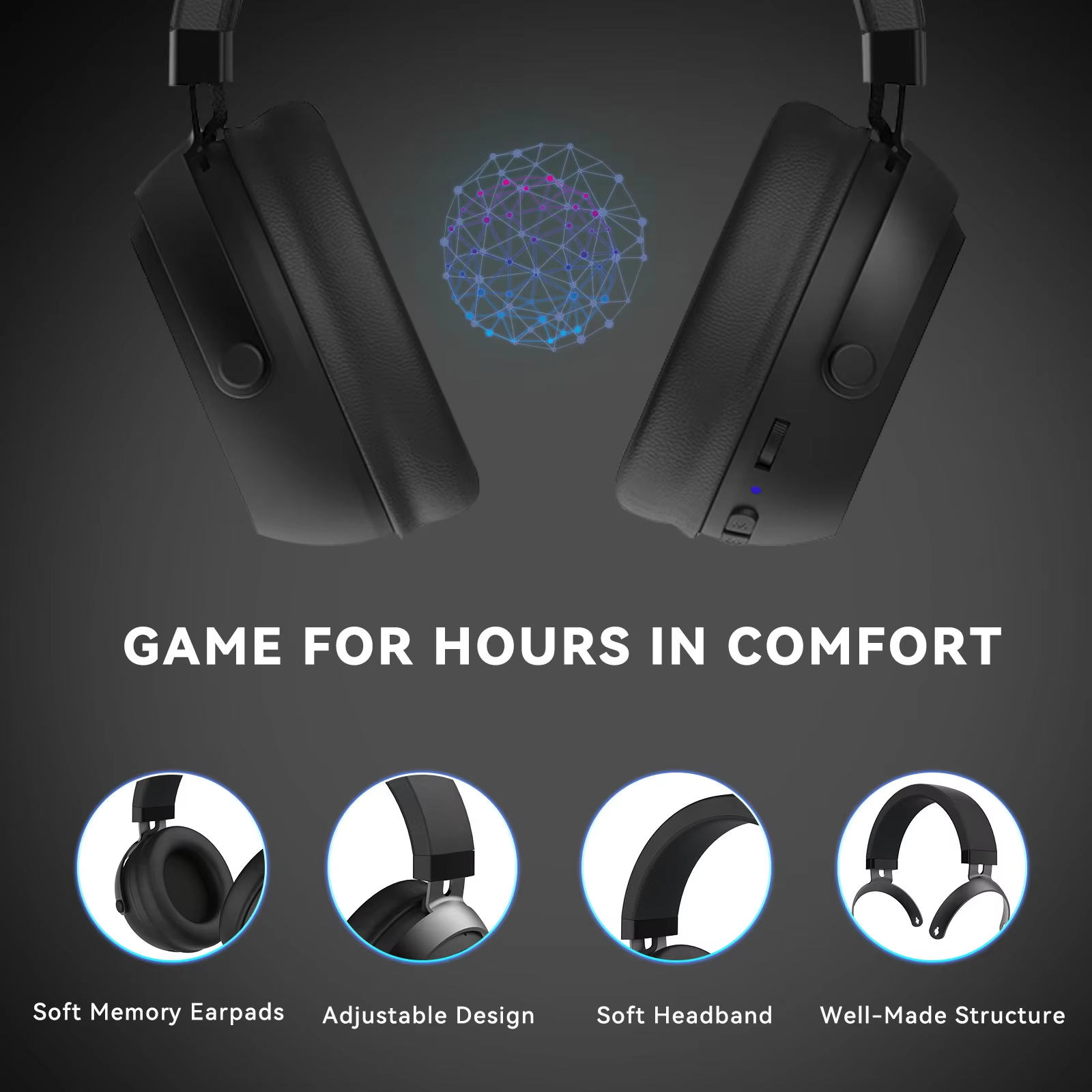
Headphones are output devices because they play music, voices, alerts, and game sounds. Speakers work in the same way, although they send sound into the room instead of directly into your ears.
Common audio output devices include:
• Wired headphones
• Wireless headphones
• Earbuds
• Computer speakers
• Bluetooth speakers
• Monitor speakers
• Smart television speakers
• Audio receivers and soundbars
When you select an output device, you are telling the system where to play sound. If you select a laptop speaker, sound comes from the laptop. If you select Bluetooth headphones, sound moves to those headphones.
So, if you are asking, “is output mic or headphones,” select headphones when you want to hear audio privately. Select speakers when you want sound to play aloud.
Why Do Headsets Show Both Input and Output?
A headset contains two main parts: headphones and a microphone. The headphones receive sound from your device, while the microphone sends your voice back to it.
That means a headset can work as both:
• An output device through its ear cups or earbuds
• An input device through its built-in microphone
This dual role can make audio settings seem confusing. Windows, macOS, Android, iOS, and communication apps may list the headset under separate input and output menus.
For example, you may see options such as:
• Headset microphone for input
• Headphones for output
• Built-in microphone for input
• Internal speakers for output
Some Bluetooth devices show separate profiles. A high-quality stereo mode may provide better music playback, while a hands-free mode activates the microphone but reduces sound quality. This is a technical limit of some Bluetooth connections, not necessarily a fault with your headphones.
A mistake I often see is choosing “headset” without checking which part of the device the setting controls. Always test both sides. Speak and watch the input meter. Then play a sound and confirm that it comes through the correct output device.

How to Choose the Correct Audio Device
Choosing the right device depends on what you want to do. Start by deciding whether you need to send sound into the device or receive sound from it.
Use a microphone as the input when you want to:
• Join a video meeting
• Record a podcast
• Stream a game
• Send a voice message
• Use voice commands
• Speak with teammates
Use headphones or speakers as the output when you want to:
• Listen to music
• Hear a video call
• Play a game
• Watch a movie
• Hear system alerts
• Monitor a recording
For a normal video call, the best setup is usually:
Select the headset or external microphone as the input.
Select headphones or speakers as the output.
Speak while checking the input level.
Play a test sound before the call begins.
Confirm that other people can hear you and that you can hear them.
If you ask, “is output mic or headphones,” remember this practical rule: output is what you hear, and input is what the device hears from you.

How to Change Input and Output Settings
The steps vary by operating system, but the basic idea remains the same. Find the sound settings, locate the input and output menus, and choose the correct device.
On Windows
Open Settings, choose System, and then select Sound. You will usually see separate menus for output and input.
Under output, select your headphones, speakers, or monitor. Under input, select your microphone or headset microphone. Windows also lets you adjust volume and test the microphone.
On macOS
Open System Settings and select Sound. Choose Output to control headphones or speakers. Choose Input to select a microphone and adjust its input level.
If your headphones do not appear, reconnect them, check Bluetooth status, or select the correct audio device inside the app you are using.
On iPhone or iPad
The device often switches audio automatically when you connect wired headphones, Bluetooth earbuds, or a compatible headset. During a call, you may also tap the audio control to choose the output device.
The microphone is usually selected automatically, but some apps provide their own audio settings.
On Android
Open Settings and look for Sound, Connected devices, or Bluetooth. The exact menu name can differ by phone brand and Android version.
During calls or recordings, check the app’s microphone permission. A device can be connected correctly but still fail if the app cannot access the microphone.
Inside apps
Zoom, Microsoft Teams, Discord, Google Meet, OBS Studio, and many recording apps have their own audio controls. These settings can override the default device settings on your computer.
This is why your headphones may work in one app but not another. Check both the operating system settings and the app settings.

Common Problems With Audio Input and Output
Audio errors often come from selecting the wrong device, using a muted control, or choosing an old connection. The problem is usually easier to fix than it first appears.
You can hear sound, but others cannot hear you
Your output works, but your input does not. Check whether the app is using the correct microphone. Also check the mute button, microphone permission, and input volume.
Others can hear you, but you hear nothing
Your microphone input works, but the output is wrong. Select your headphones or speakers as the output device. Then raise the system and app volume.
Sound comes from the wrong place
Your computer may have switched to a monitor, dock, Bluetooth speaker, or built-in speaker. Open the output menu and select the device you actually want to use.
The microphone sounds distant
A headset microphone may be too far from your mouth, partly blocked, or facing the wrong direction. Move it closer, but keep it a few inches away to reduce breath noise and distortion.
Bluetooth headphones sound poor during calls
Many Bluetooth headsets change into a hands-free profile when the microphone turns on. This can reduce music quality. If sound quality matters more than using the headset microphone, use a separate microphone or wired connection.
There is an echo
Echo can happen when speakers play sound that the microphone picks up again. Headphones usually solve this problem. Lowering speaker volume and using echo cancellation can also help.
When troubleshooting, change one setting at a time. This makes it easier to identify the real cause instead of changing several options and losing track of what worked.
Headphones vs. Microphone: Key Differences
The easiest way to understand the difference is to compare what each device does with sound.
| Feature | Microphone | Headphones |
|---|---|---|
| Audio direction | Sends sound into the device | Sends sound out to you |
| Device type | Input | Output |
| Main purpose | Captures speech or other audio | Plays speech, music, and effects |
| Common use | Calls, recording, voice chat | Listening, monitoring, private audio |
| Main control | Input volume or gain | Output volume |
| Common problem | Background noise or low voice | No sound or wrong device |
A microphone is like a doorway into the computer. Headphones are like a doorway out. A headset has both doorways in one product, which is why it can appear in both audio menus.
This is also why microphone volume and headphone volume are different controls. Increasing headphone volume will not make your voice louder to other people. You must increase the microphone input level or gain.
/product/59/7093914/2.jpg?5114)
Best Practices for Clear Audio
Good audio depends on more than selecting the correct device. Your room, microphone position, connection, and software settings all affect the final result.
Follow these practical tips:
• Keep the microphone close enough to capture your voice clearly.
• Place it away from fans, air conditioners, and noisy keyboards.
• Use headphones during calls to reduce echo.
• Test your audio before an important meeting or recording.
• Keep wired connections firmly plugged in.
• Charge wireless devices before long calls.
• Update audio drivers and device software when needed.
• Avoid setting microphone gain so high that your voice becomes distorted.
• Use the same input and output settings throughout a recording session.
• Check whether the app has its own mute and volume controls.
A useful test is to record a short voice clip. Listen for noise, echo, clipping, and delay. This simple habit catches problems before they affect a meeting, interview, livestream, or class.
One lesson I learned early in audio work is that louder does not always mean better. A microphone set too loud can clip the signal and make speech harsh. Clean placement and moderate levels usually sound better than extreme volume.
Wired and Wireless Audio Devices
Both wired and wireless devices can provide input and output. The main difference is how they connect to your device.
Wired headphones and microphones usually connect through:
• A 3.5-millimeter audio jack
• USB-A
• USB-C
• XLR through an audio interface
Wireless devices commonly use:
• Bluetooth
• A USB wireless receiver
• Proprietary radio connections
Wired devices often have low delay and simple setup. They can be useful for gaming, music production, and live monitoring. Wireless devices offer freedom of movement, but they depend on battery power and may introduce connection or delay issues.
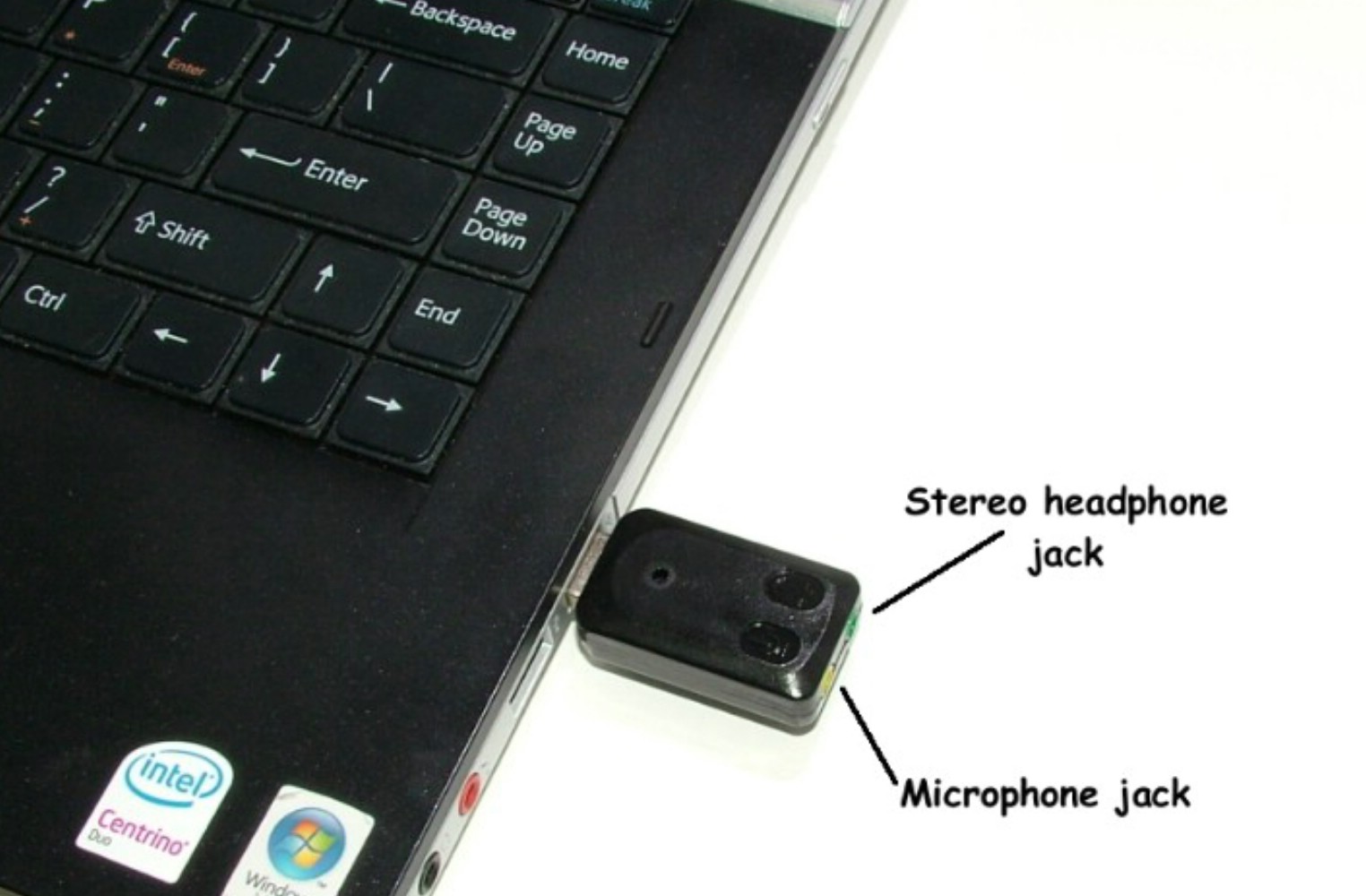
A USB microphone may appear only as an input device. A pair of USB headphones may appear only as an output device. A USB headset may appear as both.
Connection type does not change the basic rule. If the device captures sound, it is input. If it plays sound, it is output.
Frequently Asked Questions About Is Output Mic or Headphones
Is a microphone input or output?
A microphone is an input device. It captures sound and sends it into a computer, phone, tablet, or recording system.
Are headphones input or output?
Headphones are output devices because they receive an audio signal and play it for you to hear. Headphones with a built-in microphone perform both output and input functions.
Is output mic or headphones on a computer?
Output is usually headphones, earbuds, speakers, or monitor audio. The microphone belongs in the input section because it sends your voice into the computer.
Why does my headset appear as both input and output?
A headset contains headphones and a microphone. The headphone part is output, while the microphone part is input, so the operating system may list the headset in both menus.
Can a microphone also be an output device?
A standard microphone is not an output device. Some specialized audio equipment may contain speakers or headphone monitoring, but the microphone component itself still functions as an input.
How do I fix it if my headphones are not listed as output?
Reconnect the headphones, check the cable or Bluetooth connection, and open your device’s sound settings. Then select the headphones manually as the output device and check the app’s separate audio settings.
Conclusion
A microphone is input, and headphones are output. The microphone sends sound into your device, while headphones and speakers send sound from the device to you. A headset can do both jobs, which explains why it may appear in both input and output menus.
When you wonder, “is output mic or headphones,” use the simple memory aid: output is what you hear, and input is what your device hears from you. Check these settings before calls, recordings, gaming sessions, and livestreams to avoid common audio problems.
Try a short sound test today, confirm both devices, and share this guide with anyone who keeps asking which audio setting to choose.