

Yes, you can plug some microphones into a laptop headphone jack, but compatibility depends on the jack and plug.
The answer to “can I plug a microphone into my laptop headphone jack” depends on whether your laptop has a true combo audio port, a separate microphone input, or only a headphone output. This guide explains the wiring, plug types, adapters, settings, and simple tests that help you get clear sound without buying gear you do not need.

Can I plug a microphone into my laptop headphone jack?
In many cases, yes. Most newer laptops use a 3.5 mm combo jack. This single port supports both headphones and a microphone through a four-contact plug called TRRS.
Older laptops may have two separate ports. One port is for headphones, and the other is for a microphone. If your laptop has only a headphone-out port, a regular microphone will not work through it because that port sends sound out rather than receiving sound in.
The easiest way to check is to look for an icon:
• A headset icon usually means the port supports headphones and a microphone.
• A headphone icon usually means audio output only.
• A microphone icon usually means microphone input.
Your laptop manual or manufacturer support page can confirm the port’s function. This check matters because two ports may look identical but have very different wiring.

How laptop headphone jacks handle microphones
A laptop headphone jack is often more than a simple headphone connection. On a newer computer, it may be a headset jack that carries left audio, right audio, ground, and microphone input through one plug.
Think of the jack as a small traffic tunnel. Headphone sound travels out, while microphone sound travels in. The plug must have the right contacts so both signals reach the correct destination.
TRS and TRRS plugs
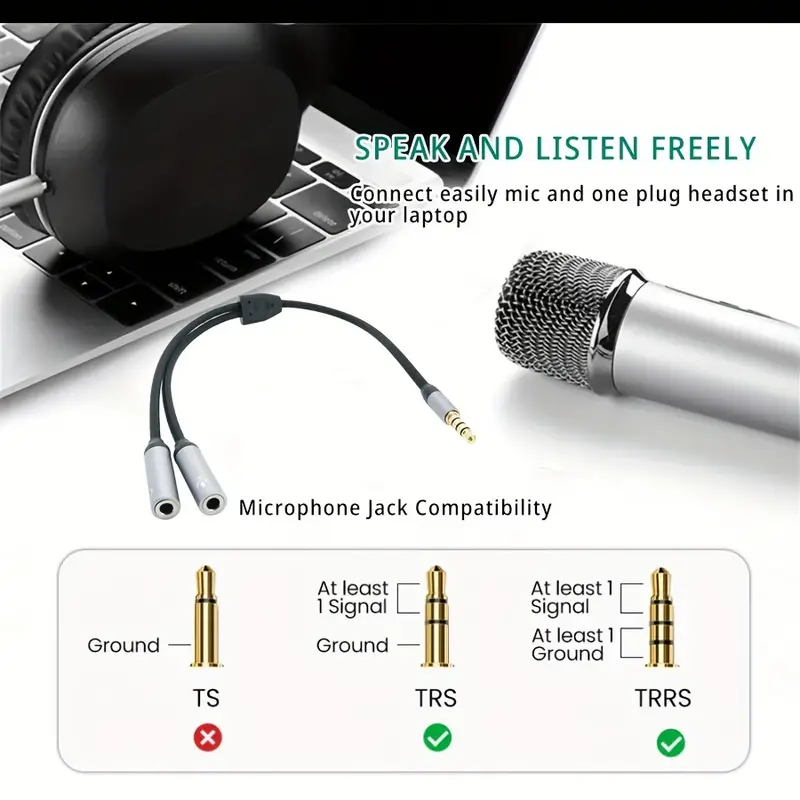
The number of black bands on a 3.5 mm plug helps identify its design.
• TS has one black band and usually carries a single audio signal.
• TRS has two black bands and commonly works with stereo headphones or some microphones.
• TRRS has three black bands and can carry stereo sound plus microphone input.
Most laptop combo jacks expect a TRRS headset plug. A microphone with a TRS plug may not work correctly unless you use the right adapter.
The CTIA TRRS layout is common on modern laptops, phones, tablets, and gaming headsets. Some older equipment uses a different layout, which can create confusing results such as no microphone sound or sound in only one channel.
Which microphones work with a laptop headphone jack?
The microphone type makes a major difference. A simple headset microphone is usually the easiest option because it is designed for a laptop combo jack.
Headset microphones
A wired headset with one four-pole 3.5 mm plug often works immediately. Plug it into the combo jack, select the microphone in your sound settings, and speak close to the mic.
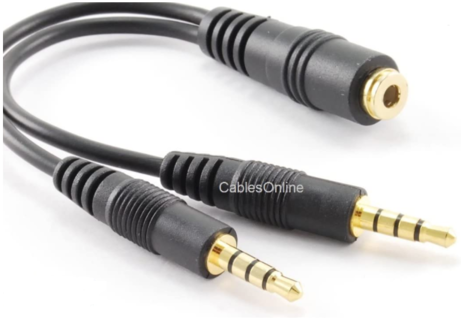
Gaming headsets, phone earbuds with a built-in microphone, and many office headsets use this setup. Some headsets include separate headphone and microphone plugs, so they need an adapter before connecting to a laptop with one combo port.
lavalier microphones
Many lavalier microphones use a 3.5 mm TRRS plug for phones and laptops. Others use a TRS plug for cameras. A phone-style lavalier may work with a laptop, while a camera-style lavalier may require a TRS-to-TRRS adapter.
Always check the microphone’s product guide. The plug shape alone does not guarantee that the wiring matches your laptop.
Standalone computer microphones
Some small computer microphones use a 3.5 mm TRS connector. They may work with a dedicated microphone input, but they may not work directly with a laptop combo jack.
A USB microphone is often a better choice for recording, podcasting, online classes, and voice-over work. It bypasses the laptop’s analog jack and includes its own audio converter.
XLR microphones
Professional dynamic and condenser microphones normally use an XLR connector. They cannot connect directly to a laptop headphone jack.
You need an audio interface or a mixer with a microphone preamp. Condenser microphones also need phantom power, which a proper audio interface can provide.
Why does my microphone not work through the headphone jack?
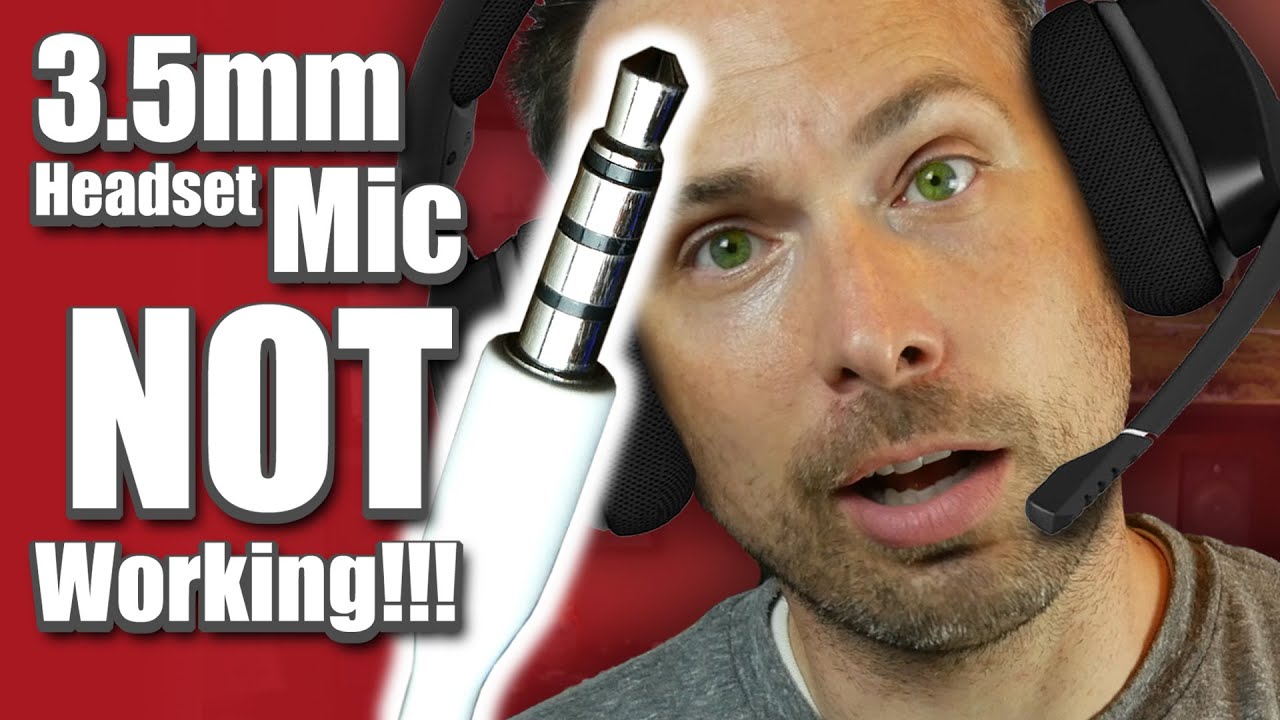
When people ask, “can I plug a microphone into my laptop headphone jack,” the hidden issue is often port design. A microphone can be fully functional and still fail because the laptop port does not accept microphone input.
Common causes include:
• The laptop has a headphone-only output.
• The microphone uses TRS wiring, but the laptop expects TRRS.
• The adapter has separate headphone and microphone ends but is plugged in backward.
• The microphone needs plug-in power that the laptop does not provide.
• The operating system selected the wrong input device.
• The microphone is muted in system settings.
• A case or debris prevents the plug from seating fully.
• The microphone is connected to a dock or monitor with limited audio support.
A damaged cable can cause similar symptoms. Test the microphone on another compatible device before replacing it.
How to connect a microphone to a laptop headphone jack
Follow these steps before buying new equipment.
Turn down your laptop volume to protect your ears and speakers.
Check whether the port has a headset or microphone icon.
Confirm whether your microphone has a TRRS, TRS, USB, or XLR connector.
Insert the plug firmly into the correct port.
Open your laptop’s sound settings.
Choose the microphone as the input device.
Speak while watching the input meter.
Record a short test and listen for noise, distortion, or silence.
On Windows, open Settings, select System, choose Sound, and review the Input section. On macOS, open System Settings, select Sound, and choose the Input tab.
If the laptop asks what you plugged in, choose Headset or Microphone rather than Headphones. Choosing Headphones may disable the microphone contacts.

When do you need a microphone adapter?
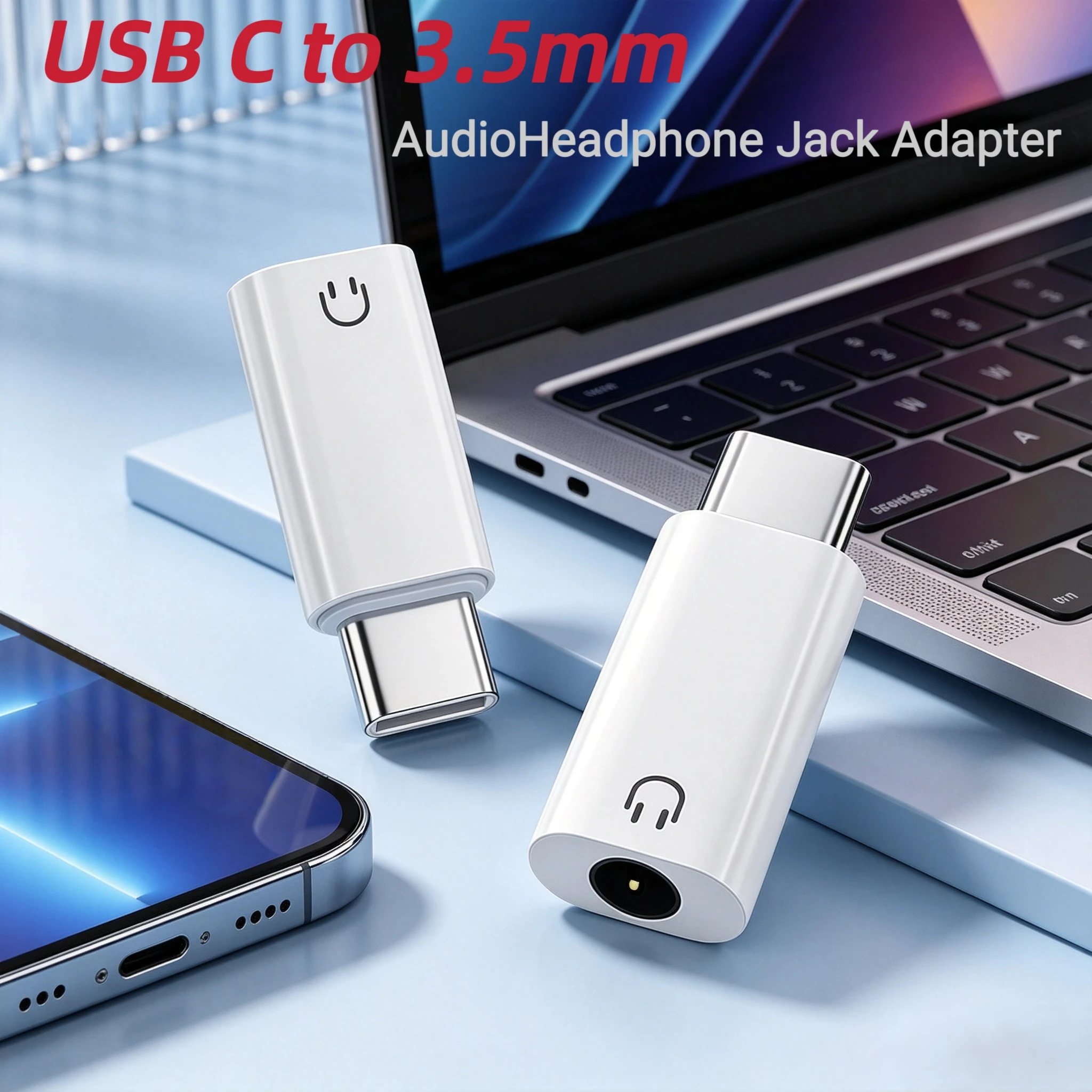
An adapter can solve a plug mismatch, but the type matters. Not every 3.5 mm adapter changes the signal wiring.
A headset splitter usually has one female TRRS socket and two male plugs. One plug connects to headphones, and the other connects to a microphone. This is useful when a laptop has separate headphone and microphone ports.
A TRS-to-TRRS adapter changes a camera-style microphone connection for a phone or laptop combo jack. It may also match the microphone’s wiring to the CTIA standard.
Avoid confusing a simple size adapter with a signal adapter. A 6.35 mm-to-3.5 mm adapter changes physical size only. It does not add microphone input, power, or signal conversion.
Before you buy, check:
• The number of plug contacts.
• The CTIA or OMTP wiring standard.
• Whether the adapter supports microphone input.
• Whether it is made for a laptop, phone, camera, or headset.
Headphone jack versus USB microphone
A 3.5 mm microphone connection is convenient and inexpensive. It is useful for calls, gaming, dictation, and casual recordings.
USB microphones are usually easier for beginners because they contain their own analog-to-digital converter. They also tend to provide a cleaner and more stable connection than a low-quality laptop audio port.
A headphone jack may be the better choice when:
• You already own a compatible headset.
• You need a small setup for travel.
• You only make occasional calls.
• You want to avoid extra software.
A USB microphone may be better when:
• You record podcasts or videos.
• You need a stronger, clearer voice signal.
• You want microphone gain controls.
• You plan to use a professional microphone later.
In my own microphone testing, the biggest improvement often came from microphone placement rather than price. Moving a small mic closer to your mouth and away from the laptop fan can reduce room noise more than buying a costly cable.
How to improve microphone sound through a laptop jack
A working connection does not always sound good. Laptop mic inputs can pick up fan noise, electrical hum, keyboard clicks, and room echo.
Try these practical improvements:
• Place the microphone 4 to 8 inches from your mouth.
• Keep the microphone slightly to the side to reduce harsh breath sounds.
• Use a pop filter for speech and singing.
• Lower input gain if your voice sounds cracked or distorted.
• Raise input gain if the recording is very quiet.
• Keep the cable away from chargers and power bricks.
• Use headphones while testing to prevent feedback.
• Record in a soft room with curtains, carpet, or furniture.
Do not boost the input level to its maximum right away. Start near the middle, speak at your normal volume, and raise the level until the meter reaches a healthy range without touching the red zone.
A faint hiss may come from the laptop’s built-in audio hardware. For clean voice work, a USB microphone or audio interface usually gives better results.
Common mistakes to avoid
The most common mistake is assuming that every headphone jack accepts a microphone. A headphone output cannot receive a microphone signal, no matter how firmly you insert the plug.
Another mistake is using a headphone splitter instead of a headset adapter. A basic splitter may separate stereo audio but may not connect the microphone contact correctly.
I have also seen users blame the microphone when the real problem was a muted input in the operating system. Always check the input meter and privacy permissions before replacing hardware.
Avoid forcing a plug into a port. If it does not fit smoothly, stop and check the connector. Bent contacts can damage the jack and may lead to costly repairs.
A simple troubleshooting checklist
If your microphone is not detected, work through this list:
Unplug and reconnect the microphone.
Test the microphone on another device.
Try another compatible headset or microphone on the laptop.
Confirm that the laptop uses a combo jack or a microphone input.
Select the correct input in Windows or macOS.
Check microphone privacy permissions.
Make sure the microphone is not muted by a switch or button.
Try a CTIA-compatible TRS-to-TRRS adapter.
Restart the audio application.
Update the laptop’s audio driver if the input is still missing.
If another microphone works in the same port, the original microphone or adapter is likely the problem. If no microphone works, the laptop port, driver, or input settings may be responsible.
Frequently Asked Questions
Can I plug a USB microphone into a laptop headphone jack?
No. A USB microphone needs a USB port because it sends digital audio through USB. Use a USB-A or USB-C port, or use the correct USB adapter.
Can I plug earbuds with a microphone into my laptop headphone jack?
Yes, if the laptop has a compatible combo jack and the earbuds use a CTIA TRRS plug. If the earbuds have separate headphone and microphone plugs, you may need a headset splitter or a different adapter.
Why does my laptop detect headphones but not the microphone?
The port may be output-only, the plug may not match the laptop’s wiring, or the microphone may be disabled in sound settings. Check the input device and try a compatible TRRS headset.
Do I need an adapter for a 3.5 mm microphone?
Sometimes. A TRRS microphone may connect directly to a combo jack, while a TRS microphone may need a TRS-to-TRRS adapter. A microphone with an XLR plug needs an audio interface.
Can a headphone jack power a microphone?
It can provide limited plug-in power for some small electret microphones. It cannot properly power most professional condenser microphones, which usually need phantom power from an audio interface.
Is a USB microphone better than a 3.5 mm microphone?
Not always, but USB microphones are often simpler and can deliver cleaner sound. A compatible 3.5 mm headset remains a practical choice for calls, gaming, and basic recording.
How can I tell whether my laptop has a combo jack?
Look for a headset icon, inspect the laptop manual, or check the manufacturer’s specifications. A combo jack usually supports both headphones and a microphone through one TRRS connection.
Conclusion
So, can I plug a microphone into my laptop headphone jack? Yes, when the laptop has a compatible combo jack or microphone input and the microphone uses matching wiring. A TRRS headset often works directly, while a TRS microphone may need a proper TRS-to-TRRS adapter.
If the laptop has only a headphone output, use a USB microphone, a USB audio adapter, or an audio interface instead. Check the port, connector, operating system settings, and input meter before buying anything. Test your setup today, and share your microphone or laptop model if you need help finding the right connection.