

Your microphone may not work because of muted settings, wrong input selection, blocked permissions, loose cables, or outdated drivers.
When you ask, “why isn't my microphone working,” the answer is often simple but hidden behind several system settings. This guide explains how to find the cause, test your mic, fix common problems on Windows, Mac, iPhone, Android, and popular apps, and know when the hardware itself needs replacing.
Start With These Fast Microphone Checks
Before changing advanced settings, check the basics. A quick review can solve many microphone problems in less than five minutes.
Check the mute button. Look for a mute key on your headset, microphone, keyboard, or meeting app. Some headsets show a red light when muted.
Reconnect the microphone. Unplug a wired mic, wait a few seconds, and plug it back in. Try another USB port if you use a USB microphone.
Check the cable. Look for cuts, bent connectors, or loose plugs. A damaged cable can provide power but still fail to carry sound.
Restart your device. A restart can clear a frozen audio service or a temporary driver error.
Test another app. Record a short voice memo or use your device’s built in sound recorder. If the mic works there, the issue may be inside one specific app.
Move closer to the microphone. This matters with laptop microphones, webcams, and Bluetooth earbuds. Speak toward the mic opening, not the speaker.
Remove thick covers or dust. A phone case, laptop cover, or dirt can block a small microphone opening.
If your microphone still does not work, the next step is to identify whether the problem comes from the microphone, the device, or the app.

Why Isn’t My Microphone Working? The Most Common Causes
The question “why isn't my microphone working” usually has one of six answers. Understanding these causes helps you avoid random fixes.
1. The microphone is muted
Your microphone may be muted by a physical button, keyboard shortcut, operating system setting, or app control. Video meeting tools such as Zoom, Microsoft Teams, Google Meet, and Discord can also mute you separately from the main system.
This creates a common trap. Your computer may show that the mic is connected, but the app may still block your voice.
2. The wrong input device is selected
Many devices have several microphones. A laptop may have an internal mic, a webcam mic, a headset mic, and a USB microphone connected at the same time.
If your computer selects the wrong input, it may listen to a mic across the room or to one that is not connected. This is one of the most common reasons why isn't my microphone working searches lead to a simple settings fix.
3. The app does not have permission
Modern operating systems protect your privacy by asking before an app can use the microphone. If you clicked “Don’t Allow,” the app may not receive any sound.
Privacy settings can also change after an operating system update. An app that worked yesterday may need permission again today.
4. The microphone volume is too low
A microphone can be active but nearly silent. Low input volume, an aggressive noise filter, or an incorrect gain setting can make your voice hard to hear.
Some apps also have automatic input controls. These controls may reduce your volume if they mistake your voice for background noise.
5. The driver or audio service has failed
Windows uses audio drivers to communicate with sound hardware. If a driver is outdated, damaged, or disabled, the microphone may disappear or stop responding.
A system update can also create a temporary compatibility issue. In many cases, updating, reinstalling, or rolling back the audio driver fixes the problem.
6. The microphone has a hardware fault
A microphone can fail because of water, impact, worn cables, damaged ports, or normal use. Bluetooth microphones may also have a weak battery or a failed wireless connection.
You can confirm a hardware problem by testing the microphone on another device. If it fails everywhere, repair or replacement may be the practical answer.

How to Test Whether Your Microphone Works
A proper test is more useful than guessing. Follow these steps in order.
Check the input meter
Open your sound settings and speak in a normal voice. Watch the input meter.
• If the meter moves, your device receives sound. The problem is likely inside the app, call, or playback system.
• If the meter does not move, check the selected input, permissions, mute controls, and hardware connection.
• If the meter moves only a little, increase the input volume or move closer to the mic.
Make a short recording
Use a built in recorder:
Open Voice Recorder on Windows, Voice Memos on iPhone, or a similar recorder on Android and Mac.
Record ten seconds of speech.
Play the recording through headphones.
Listen for silence, distortion, crackling, or very low volume.
This test separates microphone problems from speaker problems. You may think your microphone is broken when the real issue is that your speakers or headphones are muted.
Test a second microphone
Connect a different microphone to the same device. Then test the original microphone on another device.
This creates a simple process of elimination:
• One microphone fails on every device: the microphone is likely faulty.
• Several microphones fail on one device: the device, port, permissions, or driver is likely responsible.
• The mic works in a recorder but not in one app: the app settings or permission is the likely cause.
In my troubleshooting work, this comparison has saved the most time. People often replace a good headset when the real problem is a blocked app permission.
Fix Microphone Problems on Windows
Windows 10 and Windows 11 include several audio controls. The names may vary slightly by version, but the process is similar.
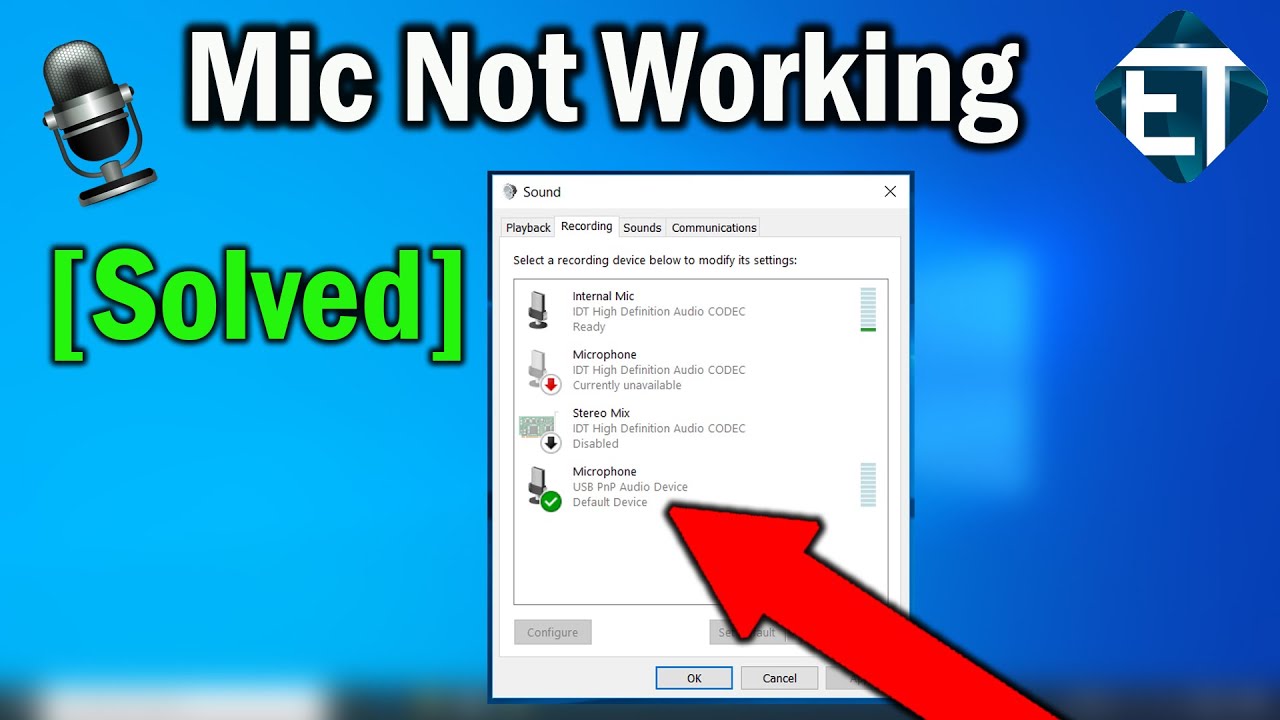
Select the correct input device
Open Settings.
Select System, then Sound.
Under Input, choose the microphone you want to use.
Speak and watch the input volume meter.
Open the microphone properties and raise the input volume if needed.
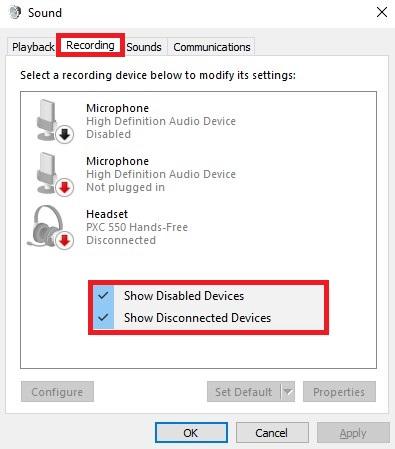
If the microphone does not appear, unplug it and reconnect it. For a USB mic, try a different port. Avoid using a USB hub during testing because a weak hub may not provide a stable connection.
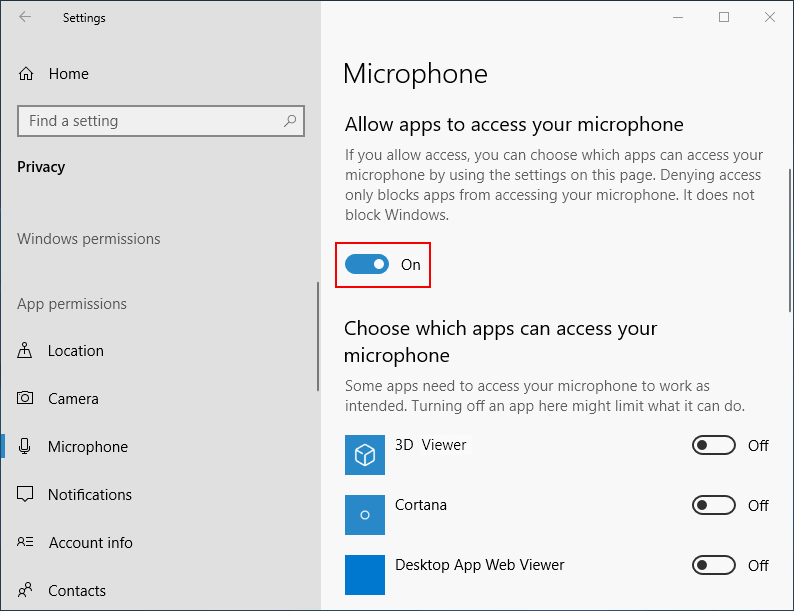
Allow microphone access
Open Settings.
Select Privacy & security.
Choose Microphone.
Turn on microphone access.
Allow access for the app you want to use.
Also check the option that allows desktop apps to access the microphone. Browsers, games, and communication tools may need this setting.
Run the Windows audio troubleshooter
Windows includes an automated troubleshooter for common sound issues. Open Settings, go to System, choose Troubleshoot, and select the audio troubleshooter.
Automated tools cannot repair every issue, but they can detect a disabled device or incorrect default input.
Update or reinstall the microphone driver
Right click the Start button.
Open Device Manager.
Expand Audio inputs and outputs.
Right click your microphone.
Choose Update driver.
If the issue began after an update, check whether a driver rollback is available. You can also uninstall the device and restart Windows. The system may reinstall the driver automatically.
Only download drivers from your computer maker or the microphone maker. Random driver websites can provide unsafe or incorrect software.

Fix Microphone Problems on Mac
macOS gives each app its own microphone permission. This is helpful for privacy, but it can make the cause less obvious.
Choose the right microphone
Open the Apple menu.
Select System Settings.
Choose Sound.
Open the Input section.
Select your microphone.
Adjust the input volume.
Speak while watching the input level. If the bar responds, the Mac detects your voice.
Allow app access
Open System Settings.
Select Privacy & Security.
Choose Microphone.
Turn on access for the app that needs your mic.
Close and reopen the app after changing permission. Some apps do not recognize a new permission until they restart.
Check browser permissions
If you use a browser for a meeting, the browser and the website may both need access.
Look for a microphone icon near the address bar. Select it and allow microphone use for the website. Then reload the page and select the right input device inside the meeting settings.
Disconnect conflicting devices
Turn off Bluetooth headphones for a moment and disconnect external webcams. Then test the Mac’s built in microphone.
If the internal microphone works after removing another device, the issue may be automatic input switching rather than a damaged Mac microphone.
Fix Microphone Problems on iPhone and Android
A phone microphone may stop working because of app permissions, blocked openings, Bluetooth routing, or physical damage.
iPhone steps
Open Settings.
Select Privacy & Security.
Tap Microphone.
Turn on access for the app.
Open Voice Memos and make a test recording.
Remove the case and check the microphone openings. Do not push a sharp object into them. Use a clean, soft brush to remove loose dust.
If your iPhone sends sound to Bluetooth earbuds, turn Bluetooth off and test again. This shows whether the phone is using the wrong input.
Android steps
Android menus differ by manufacturer, but the main controls are usually in Settings, Privacy, Permission Manager, or Apps.
Open the app settings.
Select Permissions.
Allow microphone access.
Check the phone’s privacy controls for a global microphone switch.
Test the mic with the built in recorder.
Restart the phone after changing permissions. If only one app fails, clear that app’s cache or reinstall it from the official app store.
Check for physical blockage
Phones often have more than one microphone. One may support calls, while another helps with video or noise reduction.
A phone case, screen protector, dirt, or moisture may block one opening. If calls work but videos have no sound, a specific microphone opening may be affected.

Fix Microphone Problems in Zoom, Teams, Discord, and Browsers
If your mic works in a recorder but not during a call, the application is the likely source.
Zoom
Open Zoom’s audio settings and select the correct microphone. Speak and watch the input meter.
Check the mute button, automatic microphone volume, and test microphone feature. If Zoom has permission but still receives no sound, close other apps that may be using the microphone.
Microsoft Teams
Open Settings, choose Devices, and select your preferred microphone. Make a test call if the option is available.
Teams can use a different input from the one selected in Windows. Set the microphone in both places and restart Teams.
Google Meet
Before joining, check the microphone icon on the preview screen. During a meeting, open the audio settings and select the correct microphone.
If the browser blocks access, select the permission icon near the address bar. Allow the site to use your microphone, then reload the meeting.
Discord
Open User Settings, choose Voice & Video, and select the correct input device. Check the input volume and try the microphone test.
Discord’s noise suppression, automatic gain control, and input sensitivity can affect your voice. Temporarily disable these features while testing.
Web browsers
A browser may have permission at two levels:
• The operating system must allow the browser to use the microphone.
• The website must allow the browser to use the microphone.
Check both levels. Private browsing mode, workplace policies, extensions, and security software may also limit access.
Bluetooth and Wireless Microphone Problems
Wireless microphones can fail even when they appear connected. Bluetooth status only confirms a connection. It does not always confirm that the correct audio profile is active.
Try these steps:
Charge the headset or microphone fully.
Turn Bluetooth off and on.
Forget the device and pair it again.
Disconnect other Bluetooth audio devices.
Select the microphone manually in your sound settings.
Keep the microphone close to the device during testing.
Bluetooth headsets may switch between high quality music mode and call mode. Call mode usually supports microphone use, but audio quality may drop. That behavior is normal for many Bluetooth devices.
If a wireless mic works in one app but not another, check the app’s input selection. If it fails across several devices, the battery, wireless radio, or microphone hardware may be damaged.
Advanced Fixes When Your Microphone Still Does Not Work
Use advanced steps only after checking the basics. They are useful when the microphone appears connected but remains silent.
Check exclusive control on Windows
Some Windows applications can take exclusive control of an audio device. If one app holds the microphone, another app may not receive sound.
Open the microphone properties and look for advanced options related to exclusive control. Turn them off temporarily, then test again.
Disable audio enhancements
Noise reduction, echo cancellation, and voice processing can sometimes remove quiet speech. Turn off enhancements for a short test.
If the mic works after disabling them, enable each feature one at a time. This helps you find the setting that causes the problem.
Close other microphone apps
Video calls, games, voice assistants, recording tools, and browser tabs may compete for the same microphone.
Close them all. Restart the app you need. This simple step often fixes microphone problems after a program crashes.
Check security software
Some antivirus tools and workplace security systems control access to cameras and microphones. Review their privacy settings if the operating system says access is allowed but the app remains silent.
Do not disable security software permanently. Test only as directed by the software maker or your workplace administrator.
Install system updates
Updates can fix known audio bugs and improve hardware support. Install updates from Microsoft, Apple, Google, or your device manufacturer.
However, updates can also introduce compatibility problems. If the microphone failed immediately after an update, check official support information before making major changes.
Reset audio settings
A full reset can remove custom settings that conflict with the microphone. Save important preferences first, because a reset may remove selected input devices, app permissions, or sound profiles.
When You Should Replace the Microphone
Replacement makes sense when testing points to physical failure.
Consider replacing the microphone if:
• It fails on several different devices.
• The cable works only when held at a certain angle.
• The connector is bent or loose.
• The microphone produces constant crackling.
• The device suffered water or impact damage.
• Another microphone works normally on the same computer or phone.
Before buying a new model, check compatibility. A microphone may require a USB adapter, a compatible audio jack, a special phone connector, or software support.
For calls, a basic wired headset often offers more stable performance than a low cost wireless model. For recording, look for the correct pickup pattern, connection type, and monitoring features rather than focusing only on price.
Mistakes to Avoid When Troubleshooting
Many people make the problem worse by changing too many settings at once. A careful process is faster and easier to reverse.
Avoid these mistakes:
• Do not install drivers from unknown websites.
• Do not poke microphone openings with pins or paper clips.
• Do not assume a connected device is the selected input.
• Do not test only inside one app.
• Do not raise microphone gain so high that it creates distortion.
• Do not reset the entire device before testing permissions and cables.
• Do not ignore a physical mute switch.
Write down each change you make. If a fix works, you will know which setting solved the issue. If it fails, you can return to the earlier setup without guessing.
A useful lesson from real troubleshooting is to change one variable at a time. Test the mic, change one setting, and test again. This approach turns a frustrating problem into a clear process.
Frequently Asked Questions About Why Isn’t My Microphone Working
Why isn’t my microphone working even though it is connected?
A connected microphone may not be selected as the active input. Open your sound settings, choose the correct microphone, and check whether the input meter moves when you speak.
How do I know if my microphone is muted?
Check the physical mute button, keyboard controls, and the mute icon in your calling app. Also review the system sound settings because your operating system may mute the input separately.
Why does my microphone work in one app but not another?
The second app may lack microphone permission or may use a different input device. Check the app’s audio settings and confirm that your operating system and browser both allow microphone access.
Why is my microphone volume so low?
The input volume may be set too low, or the microphone may be too far from your mouth. Increase the input level, move closer, and temporarily disable noise filters or audio enhancements.
Why isn’t my microphone working on Bluetooth?
The microphone may have a low battery, an incomplete pairing, or the wrong audio profile. Recharge it, remove and pair it again, disconnect other Bluetooth devices, and select it manually as the input.
Can a software update stop a microphone from working?
Yes. An update can change permissions, select a different input, or create a driver compatibility issue. Recheck privacy settings, input selection, and official driver updates after an operating system update.
How can I fix a microphone that is not detected?
Reconnect the device, try another port, restart the computer, and check Device Manager on Windows or Sound settings on Mac. If the microphone remains missing on multiple devices, it may have a hardware fault.
Conclusion
The answer to “why isn't my microphone working” is usually found in a short list: mute controls, input selection, privacy permissions, low volume, drivers, wireless connections, or hardware damage. Start with a simple recording test, then compare the microphone across apps and devices.
Use one fix at a time and test after each change. That method saves time and helps you avoid unnecessary purchases or risky software downloads. If this guide helped, share it with someone who is stuck on a silent video call, and explore more device troubleshooting resources for practical solutions.