

Plug in the headset, choose its microphone in Windows, allow access, and test the input level.
Learning how to get headset microphone to work on PC usually takes only a few checks. The problem may come from a loose plug, the wrong input device, muted audio, blocked app permissions, or an old driver. This guide explains each fix in a clear order, so you can find the cause without guessing.
Check the Headset Connection First
Before changing Windows settings, inspect the physical connection. A computer cannot use a microphone if the headset plug is not fully inserted or the port does not support microphone input.
Try these steps:
- Unplug the headset from your PC.
- Check the plug for dust, bent contacts, or visible damage.
- Plug it in firmly.
- If you use a USB headset, try another USB port.
- If you use a 3.5 mm headset, check whether your PC has one combined headset jack or separate headphone and microphone jacks.
Many modern headsets use a single four-pole 3.5 mm connector. This connector carries both sound and microphone signals. Older desktop computers may have separate green and pink ports, so you may need a headset splitter.
A splitter has one female headset socket and two male plugs. Connect the headphone plug to the green port and the microphone plug to the pink port. A basic headphone-only adapter will not carry the microphone signal.
If your headset works on a phone but not on a desktop PC, the connector standard or port layout may be the issue. Test the headset on another device to separate a headset fault from a computer fault.

Select the Correct Microphone in Windows
Windows can detect several audio devices at once. It may choose a laptop microphone, webcam microphone, monitor microphone, or wireless device instead of your headset.
Here is how to select the correct input device in Windows 11:
- Right-click the speaker icon on the taskbar.
- Select Sound settings.
- Scroll to the Input section.
- Choose your headset microphone.
- Speak into the microphone and watch the input meter.
On Windows 10, open Settings, select System, choose Sound, and find the Input section. Select the headset from the list under “Choose your input device.”
The device name may appear as one of these:
• Headset Microphone
• Microphone Array
• USB Audio Device
• The headset brand name
• High Definition Audio Device
If the input meter moves when you speak, Windows is receiving your voice. The issue may then be inside the app you are using, such as Discord, Zoom, Teams, Steam, or a game.
If the headset does not appear, expand the sound settings and check disabled devices. In Windows 11, open More sound settings, select the Recording tab, right-click an empty area, and enable “Show Disabled Devices.” If the headset appears, right-click it and choose Enable.
This is one of the most important steps in learning how to get headset microphone to work on PC. A microphone can be connected and still remain unused if Windows selects another input.
Allow Microphone Access for Windows and apps
windows privacy controls can block microphone access. This often happens after a system update, a fresh Windows installation, or a change in privacy settings.
To allow microphone access in Windows 11:
- Open Settings.
- Select Privacy & security.
- Choose Microphone.
- Turn on Microphone access.
- Turn on “Let apps access your microphone.”
- Turn on access for the desktop apps you use.
Windows 10 users can open Settings, choose Privacy, and select Microphone. Turn on access for the device and the apps that need it.
Some desktop programs do not appear as individual app switches. In that case, the desktop app access setting controls them. Close and reopen the app after changing permissions.
You should also check permission settings inside the app. For example, Discord has an input device menu under Voice & Video. Zoom has microphone controls under Audio. Games often include voice chat settings under Audio, Communication, or Privacy.
A blocked microphone often looks like a hardware failure. The headset may show up correctly, but no program can hear you. Checking permissions early saves time.
Unmute the Microphone and Increase Its Level
A muted microphone produces no usable voice signal. Some headsets have a mute button on the ear cup, cable, or microphone boom. Others mute when you raise the boom.
Check the headset itself first. Look for a mute button, switch, LED indicator, or rotating microphone arm. If the headset has a removable microphone, remove and reconnect it firmly.
Then check Windows:
- Open Sound settings.
- Select your headset microphone.
- Set the input volume between 70 and 100.
- Speak normally and watch the input meter.
- Open the microphone properties if the meter remains still.
- Confirm that the device is not disabled.
Some headsets include a physical volume wheel. That wheel may affect only headphone sound, but certain models also include a microphone mute control. Read the headset manual if the controls are unclear.
Avoid setting the microphone level too high if your voice sounds harsh or distorted. Start near 80 and test it. A clear voice is better than a loud voice.
In my own troubleshooting, mute controls cause more confusion than people expect. I have seen a headset appear fully functional while a small red light on the cable quietly showed that the microphone was muted.

Set the Headset as the Default Communication Device
Windows can use one device for general sound and another for calls. Setting your headset as the default communication device helps voice apps choose it correctly.
Follow these steps:
- Open Control Panel.
- Select Hardware and Sound.
- Choose Sound.
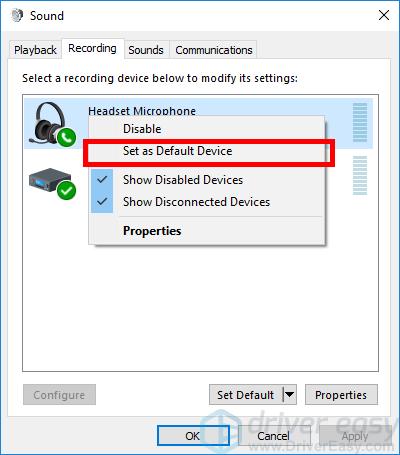
- Open the Recording tab.
- Right-click your headset microphone.
- Select “Set as Default Device.”
- Select “Set as Default Communication Device.”
- Click Apply, then OK.
You can also set the headset as the default output device in the Playback tab. This makes Windows send both voice input and headset audio through the same device.
If you use a USB headset, Windows may list it separately from your computer’s built-in audio hardware. If you use Bluetooth, you may see separate Stereo and Hands-Free profiles. The Hands-Free profile is normally required for microphone use.
Keep in mind that Bluetooth headsets may sound less clear when the microphone is active. This happens because many Bluetooth devices switch from a high-quality stereo profile to a lower-bandwidth hands-free profile during calls.
Fix Microphone Settings in Discord, Zoom, and Games
If the microphone works in Windows but not in one app, the app is probably using the wrong input device or has its own mute setting.
Check the app’s audio settings. Look for options named Input Device, Microphone, Voice Input, Recording Device, or Communication Device. Select the headset microphone instead of “Default” if the app keeps choosing the wrong device.
Use these checks:
• Confirm that the microphone is not muted inside the app.
• Select the headset as the input device.
• Raise the input volume or sensitivity.
• Disable push-to-talk for a quick test.
• Close other apps that may be using the microphone.
• Restart the app after changing its audio settings.
Discord users should open User Settings, select Voice & Video, and choose the headset under Input Device. Zoom users can open Settings, choose Audio, and test the microphone. In a game, search for voice chat settings and confirm that voice input is enabled.
Some apps use exclusive control over an audio device. If one program has control, another program may not receive the microphone signal. Closing the first app often resolves this issue.
When learning how to get headset microphone to work on PC for gaming, test the microphone in Windows before changing game settings. This tells you whether the fault is system-wide or limited to the game.

Update or Reinstall the Audio Driver
An audio driver helps Windows communicate with the computer’s sound hardware. A damaged, missing, or outdated driver can stop a headset microphone from working.
To check the driver:
- Right-click the Start button.
- Open Device Manager.
- Expand “Audio inputs and outputs.”
- Find the headset or microphone.
- Right-click it and select “Update driver.”
- Also check “Sound, video and game controllers.”
Windows may report that the best driver is already installed. That does not always mean the driver is healthy. If the problem began after an update, you can open the device properties, select the Driver tab, and try “Roll Back Driver” when available.
You can also uninstall the microphone device from Device Manager. Restart the PC afterward. Windows will usually detect the device and reinstall the basic driver.
For built-in audio on a desktop or laptop, check the support page for the computer or motherboard maker. Use the exact model number. Avoid random driver download sites, since they may provide unsafe or incorrect files.
USB headsets often use standard Windows audio drivers. However, headsets with extra buttons, surround sound, or noise cancellation may need software from the manufacturer.
Run the Windows Audio Troubleshooter
Windows includes automatic tools that can find common audio problems. The troubleshooter may detect a muted device, incorrect default setting, disabled service, or driver issue.
In Windows 11:
- Open Settings.
- Select System.
- Choose Troubleshoot.
- Select Other troubleshooters.
- Run the Recording Audio troubleshooter.
- Follow the suggested steps.
You can also run the Playing Audio troubleshooter if you cannot hear sound through the headset.
Automatic troubleshooters do not fix every problem. They may miss hardware damage, cable faults, unsupported adapters, and app-specific settings. Still, the tool is safe and useful for basic configuration errors.
Windows audio services should also be running. Press Windows key + R, type services.msc, and press Enter. Find Windows Audio and Windows Audio Endpoint Builder. Both services should be running and set to start automatically.
Do not change advanced services at random. If you are unsure, restart the PC after checking the basic audio settings.

Test the Microphone in Windows
A direct microphone test helps you avoid guessing. Windows can show whether it receives your voice before you open a call or game.
Open Sound settings, select the headset microphone, and use the input test. Speak in a normal voice from about six inches away. The input meter should respond without staying at zero.
You can also use the built-in Sound Recorder app:
- Open Sound Recorder from the Start menu.
- Start a new recording.
- Speak for several seconds.
- Stop the recording.
- Play it back through the headset.
If the recording contains your voice, the microphone works at the system level. If Discord, Zoom, or a game still cannot hear you, focus on that app’s settings and permissions.
If the recording is silent, test another microphone with the same computer. You can also test the headset on another PC, phone, or console. These tests identify the faulty part:
• The headset fails on every device: the headset or cable may be damaged.
• Another microphone works on the PC: the headset or adapter may be the problem.
• The headset works elsewhere but not on the PC: check the port, driver, adapter, and Windows settings.
Solve Common 3.5 mm Headset Problems
A 3.5 mm headset can have compatibility problems even when the plug fits. The most common issue is a mismatch between a combined headset jack and separate computer ports.
A combined jack usually has one socket for both headphones and the microphone. A desktop with separate audio and microphone ports needs a headset splitter. Make sure the splitter supports microphone input.
You may also have a TRS and TRRS mismatch. A headset microphone usually needs a TRRS connector with four contact sections. A normal stereo headphone plug may have only three contact sections and cannot carry a microphone signal.
Clean the audio port carefully. Dust can prevent the microphone contact from touching the plug. Use compressed air lightly and never push metal objects into the port.
Front-panel desktop ports can also fail or become disconnected from the motherboard. Test the rear audio ports if available. If the rear ports work but the front port does not, the front-panel cable or jack may need attention.
In my experience, a cheap splitter is often the hidden problem. Replacing it with a good CTIA-compatible headset splitter has fixed microphone issues that looked like Windows failures.
Fix USB Headset and USB Adapter Problems
USB headsets contain their own digital audio hardware. They do not rely on the same analog audio path as a 3.5 mm headset.
Try a different USB port, preferably one directly connected to the computer. Avoid unpowered USB hubs during testing. Some hubs do not provide stable power or may create connection problems.
Open Device Manager and check whether the USB headset appears under audio devices. If it disappears when you move the cable, the cable or USB connector may be damaged.
You can also reset the USB connection:
- Unplug the headset.
- Shut down the PC.
- Wait about 30 seconds.
- Start the PC.
- Connect the headset after Windows loads.
For wireless USB headsets, check the receiver. Keep it close to the headset and away from large metal objects, wireless routers, and other USB 3.0 devices when possible. Charge the headset fully and pair it again if necessary.
Manufacturer software may control microphone gain, sidetone, noise reduction, or mute behavior. Open the software and verify that the microphone is enabled.
Fix Bluetooth Headset Microphone Issues
Bluetooth headsets need both pairing and the correct Windows profile. A headset may connect for music but fail to provide microphone input.
Open Settings, select Bluetooth & devices, and confirm that the headset is connected. Then open Sound settings and choose the headset under Input.
Windows may show two Bluetooth options:
• Headphones or Stereo: better sound quality, usually no microphone access.
• Headset or Hands-Free: microphone access, often lower sound quality.
Choose the hands-free input when you need the microphone. If the device does not appear, remove it from Bluetooth settings, restart the PC, and pair it again.
Bluetooth performance depends on the adapter, distance, interference, and headset support. Some older adapters do not work well with newer Bluetooth profiles. Updating the Bluetooth driver or using a newer adapter may help.
For regular gaming or work calls, a wired or USB headset is often more reliable. Bluetooth is convenient, but it has more points of failure than a direct cable.
Adjust Advanced Microphone Settings
Advanced settings can help when the microphone works but sounds too quiet, distorted, or unstable.
Open Control Panel, select Sound, open the Recording tab, and double-click the headset microphone. Check these areas:
• Levels: increase microphone volume and microphone boost carefully.
• Enhancements: disable effects if they make your voice sound strange.
• Advanced: try a common format such as 16-bit, 48,000 Hz.
• Listen: use this only for testing, since it can cause audio feedback.
Microphone Boost can make a quiet microphone louder, but too much boost can add hiss and distortion. Raise it in small steps.
Noise suppression can reduce keyboard sounds and background noise. However, aggressive suppression may cut off soft voices or the start of words. If your voice sounds choppy, test with enhancements disabled.
Sample rate settings should normally match across Windows and the app. A standard format such as 16-bit, 44,100 Hz or 48,000 Hz is usually safe. There is no need to choose the highest setting for a typical voice call.
What to Do When the Microphone Still Does Not Work
If you have tried the main fixes, use a process of elimination. Change only one thing at a time and test after each change.
Work through this final checklist:
- Test the headset on another device.
- Test another microphone on the PC.
- Try a different port.
- Replace the splitter or adapter.
- Check Windows microphone permissions.
- Confirm the correct input device.
- Check the app’s microphone settings.
- Update or reinstall audio and Bluetooth drivers.
- Run the recording troubleshooter.
- Check for cable or microphone damage.
If no microphone works on the PC, the sound hardware, motherboard audio, or Windows installation may have a deeper problem. A USB microphone can serve as a useful test because it bypasses the computer’s built-in analog audio port.
If only one headset fails, replacement may be more practical than repair. Headset microphones are small and difficult to repair without the right tools. A new splitter or USB adapter is often a low-cost solution.
Do not install registry cleaners or unknown “driver fixer” programs. They can create new problems and are not required for normal microphone troubleshooting.
How to Prevent Future Microphone Problems
Once you learn how to get headset microphone to work on PC, a few habits can prevent repeat issues.
Keep the headset cable loose and avoid sharp bends near the plug. Do not pull the headset out by the cable. Store it where the microphone boom will not be crushed.
After major Windows updates, check the default input device and microphone privacy settings. Updates can change device priorities or reset permissions.
Use a clear label for your headset in Windows if several audio devices are connected. Disconnect unused USB audio devices during calls and gaming sessions. This reduces the chance that Windows or an app selects the wrong microphone.
Keep headset firmware and manufacturer software updated when the maker provides official updates. Also, test your microphone before an important meeting, class, interview, or live stream.
A simple ten-second test can prevent a stressful scramble later.
Frequently Asked Questions About How to Get Headset Microphone to Work on PC
Why is my headset microphone not detected by my PC?
The headset may use the wrong connector, a faulty adapter, or an unsupported port. Check whether you need a TRRS splitter, then test another USB or audio port and select the headset under Windows Sound settings.
How do I enable my headset microphone in Windows 11?
Open Settings, select Privacy & security, choose Microphone, and enable microphone access. Then open System, choose Sound, select the headset microphone under Input, and test the input meter.
Why does my headset work for sound but not for the microphone?
Your PC may have separate headphone and microphone ports, or the headset may need a compatible splitter. The microphone may also be muted, disabled, blocked by privacy settings, or not selected as the input device.
How do I get my headset microphone to work on Discord?
Open Discord User Settings, select Voice & Video, and choose the headset under Input Device. Check the input meter, turn off mute, confirm the correct input mode, and restart Discord after changing the device.
Can a headset microphone work through a headphone jack?
It can work through a combined headset jack designed for both audio and microphone signals. A headphone-only jack cannot receive microphone input, so a compatible microphone port or adapter is required.
Why is my Bluetooth headset microphone low quality on PC?
Bluetooth often switches from a high-quality stereo profile to a hands-free profile when the microphone is active. This is normal for many Bluetooth devices, although a newer adapter or USB headset may provide better results.
How can I test whether my headset microphone is working?
Open Windows Sound settings and watch the input meter while speaking. You can also record your voice with the Windows Sound Recorder app and play the file back.
Conclusion
Getting a headset microphone to work on a PC usually involves checking the connection, selecting the right input, allowing microphone access, removing mute settings, and testing the app itself. Drivers, splitters, Bluetooth profiles, and damaged ports can also affect the result.
Start with the simple checks and test after each change. This step-by-step method helps you find the real cause instead of changing many settings at once. Try the checklist today, and share your solution or question in the comments.