

Check your connections, grant microphone access, select the right input, and update or reinstall its driver.
Wondering, “how do I get my microphone to work?” You are not alone. A microphone can fail because of a muted switch, blocked permissions, a wrong input device, a loose cable, or a damaged driver. This guide explains how to get your microphone working on Windows, Mac, phones, gaming consoles, and common apps with clear steps you can follow at home.

Start with the Basic Microphone Checks
Before changing system settings, check the microphone itself. Simple hardware problems cause many microphone failures, and they are often easy to fix.
Try these quick checks:
- Make sure the microphone is connected firmly.
- Check whether the microphone has a mute button or mute switch.
- If it uses USB, plug it into another USB port.
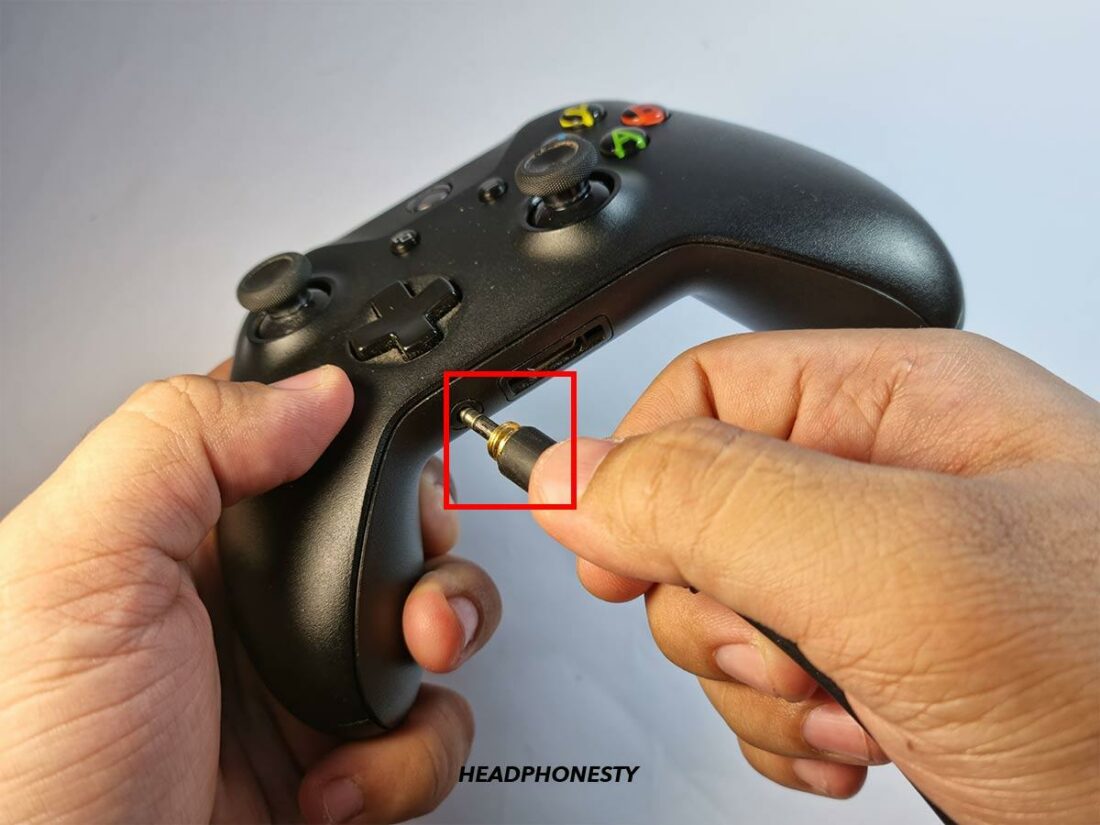
- If it uses a 3.5 mm plug, connect it to the microphone input, not the headphone output.
- If it is wireless, charge it and confirm that it is paired.
- Move the microphone closer to your mouth.
- Remove dust or debris from the ports.
- Restart the computer or phone.
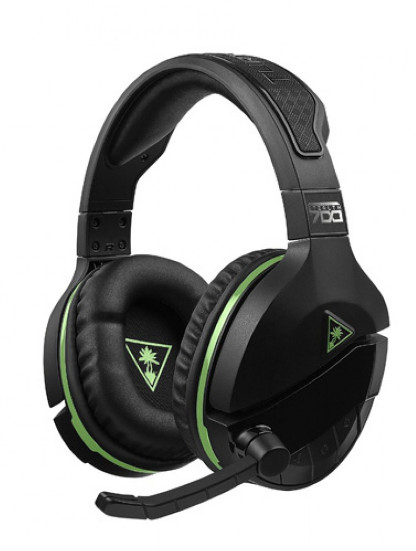
If you use a headset, test both the microphone and headphones. If the headphones work but the microphone does not, the headset plug, adapter, or microphone arm may be the problem.
I once spent several minutes testing a headset that seemed completely dead. The real issue was a small mute switch on the cable. This is a good reminder that learning how do i get my microphone to work should begin with the physical controls, not advanced settings.
Check Whether the Microphone Works at All
The next step is to test the microphone outside the app where you noticed the problem. This helps you find out whether the issue comes from the microphone, the operating system, or one specific app.
Use a built-in recorder:
• On Windows, open Sound Recorder and record your voice.
• On Mac, open QuickTime Player, choose File, select New Audio Recording, and choose the microphone.
• On iPhone, open Voice Memos and make a short recording.
• On Android, use the phone’s voice recorder or camera app.
Play the recording. If your voice sounds clear, the microphone works and the original app likely has the wrong input selected or lacks permission.
If the recording is silent, check the system input settings. If the sound is very faint, speak closer to the microphone and raise the input volume. A test outside the main app is one of the fastest ways to learn how do i get my microphone to work.

How Do I Get My Microphone to Work on Windows?
Windows offers several settings that control microphone input. The names may vary slightly between Windows 10 and Windows 11, but the process is similar.
Select the correct input device
- Open Settings.
- Select System.
- Choose Sound.
- Find the Input section.
- Select the microphone you want to use.
- Speak and watch the input level move.
If the level bar moves, Windows is receiving sound. If it does not, select another microphone from the list and test again.
Your computer may show several choices, such as an internal microphone, a webcam microphone, a USB microphone, and a Bluetooth headset. Choosing the wrong one is a common reason people ask how do i get my microphone to work.
Raise the input volume
In the same Sound menu, open the microphone properties. Increase the input volume if your voice is too quiet. Avoid setting it too high if you hear crackling, distortion, or a harsh buzzing sound.
Some microphones also have a physical gain knob. Start with a medium setting, then adjust it while watching the input meter.
Run the Windows troubleshooter
Windows includes a sound troubleshooter that can detect common configuration problems. Open the sound settings and look for the option to troubleshoot input devices.
The troubleshooter may reset a disabled device, repair a service, or suggest a driver change. It cannot repair damaged hardware, but it is useful for basic software problems.
Check microphone permissions
Windows may block apps from using your microphone.
- Open Settings.
- Select Privacy and security.
- Choose Microphone.
- Turn on microphone access.
- Allow apps to access your microphone.
- Enable access for the specific app you use.
Also check desktop app access. A browser, game, video tool, or meeting app may need separate permission.

How Do I Get My Microphone to Work on a Mac?
Mac computers also require the correct input device and privacy permission. The steps are usually quick.
Choose the microphone in Sound settings
- Open the Apple menu.
- Select System Settings.
- Choose Sound.
- Open the Input section.
- Select your microphone.
- Adjust the input volume.
Speak into the microphone and watch the input level. If the meter responds, the Mac can hear you.
If you use a USB or Bluetooth microphone, disconnect it and reconnect it. Then return to the Input menu and select it again. macOS may switch back to the built-in microphone after a device disconnects.
Allow microphone access
- Open System Settings.
- Select Privacy and Security.
- Choose Microphone.
- Turn on access for the app you need.
- Close and reopen the app.
An app may not detect a new permission until it restarts. This simple step often solves questions about how do i get my microphone to work on a Mac.
Check audio controls in the app
Video apps often have their own microphone menu. Open the app’s audio settings and select the same microphone chosen in macOS.
Look for a mute button, input meter, and volume slider. A microphone can work perfectly in macOS but remain muted inside Zoom, Teams, Discord, a browser, or a recording program.
Fix Microphone Problems in Zoom, Teams, Discord, and Browsers
If your microphone works in a recorder but not in a meeting or chat app, focus on the app settings.
Check these items:
• Select the correct microphone under Audio settings.
• Make sure the app does not show a muted microphone icon.
• Raise the input volume inside the app.
• Close other apps that may be using the microphone.
• Leave and rejoin the call after changing settings.
• Restart the app after granting permission.
Browsers add another layer of control. When a website asks to use your microphone, choose Allow. If you blocked it before, open the browser’s site permissions and change the microphone setting.
You may also have more than one browser tab using audio input. Close tabs that use voice chat, recording, or video calls. These steps are central to solving how do i get my microphone to work in a browser.
Update, Reinstall, or Roll Back the Microphone Driver
A driver helps the operating system communicate with hardware. A damaged, outdated, or incompatible driver can make a microphone disappear or stop responding.
On Windows, open Device Manager and expand the sections for Audio inputs and outputs and Sound, video and game controllers. Find the microphone, right-click it, and choose the option to update the driver.
If updating does not help, uninstall the microphone device and restart the computer. Windows may install the driver again automatically.
A recent update can also cause trouble. If the microphone stopped working immediately after a driver or system update, use the driver rollback option when available. Only download drivers from the computer or microphone maker’s official website. Random driver sites can provide unsafe or incorrect files.
Mac computers usually manage audio drivers through macOS updates and manufacturer software. Install pending system updates, then restart the Mac. For professional USB microphones, check whether the maker provides a control app or firmware update.
Fix Bluetooth and Wireless Microphone Issues
Wireless microphones can fail because of pairing, battery, range, or profile problems. Start by charging the device fully.
Then remove the microphone from the computer or phone’s Bluetooth list and pair it again. Keep the microphone close during pairing, and turn off Bluetooth on nearby devices that may connect to it first.
Bluetooth headsets sometimes switch between a high-quality listening mode and a two-way call mode. The call mode may sound less clear, but it is required for microphone use on some systems.
If the microphone works only when the headset is close to the computer, interference or a weak Bluetooth connection may be involved. A wired connection or USB wireless receiver can provide a more stable result, especially for gaming and long meetings.
Fix Low, Muffled, or Distorted Microphone Sound
A microphone does not have to be completely silent to have a problem. Low volume, echo, buzzing, and distortion are also common.
Try the following:
• Place the microphone 4 to 8 inches from your mouth, depending on the model.
• Speak toward the front of the microphone.
• Use a pop filter for strong “p” and “b” sounds.
• Lower the gain if your voice sounds clipped or distorted.
• Move USB cables away from power adapters and chargers.
• Disable audio effects or enhancements for testing.
• Use headphones to prevent speaker sound from entering the microphone.
• Check whether a noise suppression feature is cutting off quiet speech.
A microphone that sounds muffled may be covered by clothing, a desk mat, or a thick foam cover. A microphone that sounds sharp and broken may be too close or receiving too much gain.
When I test a microphone, I first make a plain recording with all effects off. After the raw sound is clear, I add noise reduction or compression one setting at a time. This method avoids masking the real cause of the problem.
Check Cables, Adapters, and Ports
A damaged cable can make a microphone work only when it is held at a certain angle. Try a different cable if the microphone uses a removable one.
USB microphones should appear in the computer’s sound device list. If they do not, test another port and avoid an unpowered USB hub. Some hubs cannot provide enough power for certain audio devices.
Headsets with a single four-pole plug may need a compatible adapter on desktop computers with separate headphone and microphone ports. Using the wrong adapter can allow sound output while blocking the microphone.
For XLR microphones, check the cable, audio interface, channel selection, and phantom power requirements. Some condenser microphones need 48-volt phantom power. Do not enable phantom power unless your microphone and interface support it.
When the Microphone Still Does Not Work
If you have tried the steps above, narrow down the fault with a simple swap test.
Test the microphone on another computer or phone. Then test a different microphone on the original device.
The results can tell you where the problem is:
• Your microphone fails on every device: the microphone, cable, or adapter may be damaged.
• Several microphones fail on one computer: system settings, ports, drivers, or permissions may be responsible.
• The microphone works in one app only: the app’s settings or permissions are likely wrong.
• The microphone works after restarting but fails later: a driver, background app, power setting, or Bluetooth connection may be interfering.
If the device has physical damage, smells burned, becomes unusually hot, or has liquid exposure, stop using it. A repair shop or the manufacturer’s support team can provide a safer diagnosis.
Learning how do i get my microphone to work is often a process of elimination. Change one thing at a time and test after each change. That approach is slower than guessing, but it gives you a clear answer.
Microphone Troubleshooting Checklist
Use this checklist when you need a fast review:
- Confirm the microphone is connected.
- Check the physical mute switch.
- Select the correct input device.
- Raise the input volume.
- Allow microphone permissions.
- Test with a built-in recorder.
- Check the app’s audio settings.
- Restart the app and device.
- Try another port or cable.
- Update or reinstall the driver.
- Test the microphone on another device.
- Contact support if the hardware appears damaged.
This list covers the most common answers to how do i get my microphone to work without requiring special tools.
How Do I Get My Microphone to Work?
Why is my microphone not working even though it is connected?
A connected microphone may still be muted, disabled, or set as the wrong input device. Check the operating system’s sound menu, app permissions, and the microphone’s physical mute control.
How do I allow an app to use my microphone?
Open your device’s privacy settings and enable microphone access for the app. Close and reopen the app after changing the permission.
Why does my microphone work in one app but not another?
Each app can use a different microphone and its own volume setting. Open the app’s audio menu, choose the correct input, and check that the app is not muted.
How can I test whether my microphone is working?
Use a built-in recorder, such as Sound Recorder, QuickTime Player, Voice Memos, or a phone recorder. A clear recording confirms that the microphone and basic system input are working.
Why is my microphone so quiet?
The input volume may be low, the microphone may be too far away, or you may be speaking toward the wrong side. Increase input volume, move closer, and check the microphone’s gain control.
Do I need a new microphone if it is not detected?
Not always. Try another port, cable, computer, or permission setting first. If the microphone is not detected on any compatible device, it may have a hardware fault.
Conclusion
Most microphone problems come from a small set of causes: a muted control, the wrong input device, blocked permission, low volume, a bad cable, or a driver issue. Start with the simple checks, test the microphone in a recorder, and then work through the settings for your device and app.
The best way to solve how do i get my microphone to work is to test one change at a time. Try the checklist today, and share your microphone model and device details in the comments if you need help with a more specific issue.