

To make your mic louder in Windows 11, raise input volume, enable microphone boost, and fix app or driver settings.
A quiet microphone can make meetings, streams, and game chats frustrating. I have tested Windows 11 audio settings across USB, Bluetooth, and 3.5 mm microphones, and the best fix is usually a mix of system volume, microphone boost, and app settings. This guide explains how to make mic louder Windows 11 users can follow without buying new equipment first.

Check your microphone input volume
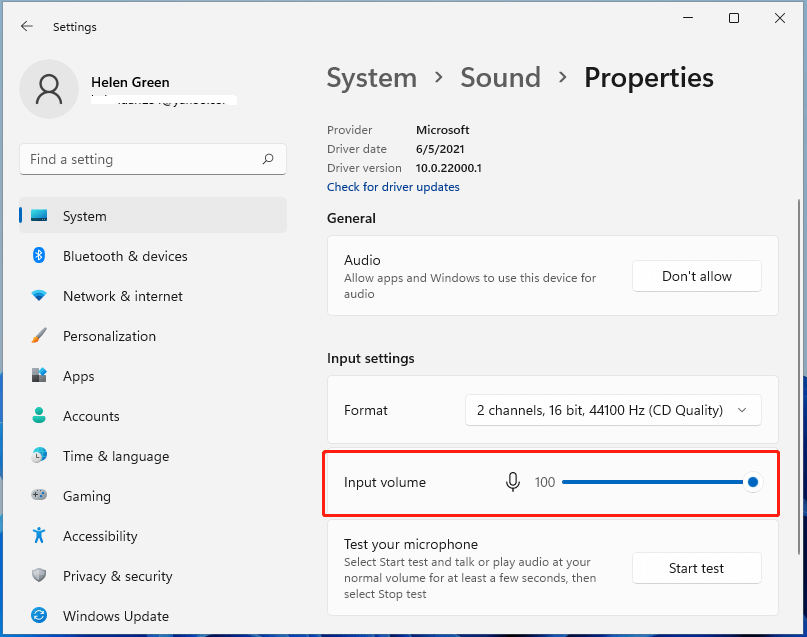
Windows 11 controls microphone loudness through the input volume setting. If this value is too low, your voice may sound distant even when the microphone itself works well.
Follow these steps:
- Press Windows + I to open Settings.
- Select System.
- Choose Sound.
- Scroll to the Input section.
- Select your microphone.
- Move the Input volume slider to 90 or 100.
- Speak normally and watch the input meter.
The input meter should move when you talk. If it barely moves, Windows is receiving a weak signal. If the meter reaches the top often, your voice may sound distorted, so lower the volume slightly.
Windows 11 may list several microphones, such as a laptop microphone, webcam microphone, headset microphone, and USB microphone. Select the device you are actually using. Choosing the wrong input is one of the most common reasons people search for how to make mic louder Windows 11.
You can also test the microphone from the same page. Select Start test, speak for a few seconds, and then stop the test. Windows will show a volume result that helps you judge whether the microphone is too quiet.
Turn on microphone boost
Microphone Boost can add extra gain to some microphones. Gain makes a weak microphone signal louder before it reaches Windows or your apps.
To find this setting:
- Press Windows + R.
- Type
mmsys.cpl. - Press Enter.
- Open the Recording tab.
- Double-click your microphone.
- Select the Levels tab.
- Set Microphone to 100.
- Increase Microphone Boost in small steps.
- Select Apply, then OK.
Boost options may appear as +10 dB, +20 dB, or +30 dB. Start with the lowest available option. Test your voice after each change.
Too much boost can create hiss, buzzing, echo, or clipping. A clear voice at +10 dB is better than a loud but damaged voice at +30 dB. Think of boost as turning up a quiet radio signal. It raises both the voice and some background noise.
Some USB and Bluetooth microphones do not show the Microphone Boost option. This is normal. These devices often control gain through their own firmware, buttons, or companion software.

Use the microphone properties in Windows 11
The classic sound panel provides extra controls that the main Settings app may not show. These controls can help when the standard input slider does not solve a quiet microphone.
Open the microphone properties with these steps:
- Press Windows + R.
- Enter
mmsys.cpl. - Open the Recording tab.
- Select the correct microphone.
- Choose Properties.
- Review the Levels and Advanced tabs.
Under the Advanced tab, look for the default format. Try a standard option such as:
• 1 channel, 16 bit, 44100 Hz for basic voice use
• 1 channel, 16 bit, 48000 Hz for meetings, games, and video work
A high sample rate does not automatically make a microphone louder. It can also create compatibility problems with older apps or drivers. Use a format that your microphone supports reliably.
You may also see an option that allows applications to take exclusive control of the microphone. Exclusive mode can help some professional audio programs, but it may cause conflicts when several apps need the microphone. If your voice cuts out or becomes quiet only in certain programs, test the setting with exclusive control turned off.
Give apps permission to use your microphone
Windows can block or limit microphone access for individual applications. When access is restricted, an app may use the wrong microphone or receive no signal at all.
Check these privacy settings:
- Open Settings with Windows + I.
- Select Privacy & security.
- Choose Microphone.
- Turn on Microphone access.
- Turn on Let apps access your microphone.
- Turn on Let desktop apps access your microphone.
Next, open the audio settings inside the app you use. Zoom, Microsoft Teams, Discord, OBS Studio, Google Meet, and many games have their own input volume controls.
For example, Discord may use automatic input sensitivity or automatic gain control. OBS Studio has a Mic/Aux slider and filters. A video meeting app may have a separate microphone volume menu. Raising Windows input volume will not always fix a low signal if the app has reduced its own level.
A useful test is to record a short clip with Windows Sound Recorder. If the recording is loud but your call is quiet, the issue is inside the app. If the recording is quiet too, focus on Windows, the driver, the cable, or the microphone.
Select the correct microphone
Windows 11 can switch audio devices after you connect a headset, webcam, monitor, or Bluetooth accessory. Your app may then use a different microphone than the one near your mouth.
To select the correct device:
- Go to Settings.
- Select System.
- Choose Sound.
- Open the Input section.
- Pick your preferred microphone.
- Select it as the default input device if the option appears.
Keep unused microphones disconnected during testing. This makes it easier to identify the source and prevents Windows or an app from switching devices.
A laptop microphone may sound quiet because it sits far from you. A headset microphone usually sounds louder because it is closer to your mouth. Position matters as much as software. Place the microphone a few inches from your mouth, slightly to the side, and point it toward your voice.
Do not cover the microphone opening with a case, tape, or thick foam. A blocked opening can reduce volume and make your voice sound muffled.

Update or reinstall the microphone driver
A damaged or outdated audio driver can cause low volume, missing boost controls, or poor microphone detection. Windows Update often installs a suitable driver, but the best driver may also come from your computer or microphone manufacturer.
Try these steps:
- Right-click the Start button.
- Select Device Manager.
- Expand Audio inputs and outputs.
- Right-click your microphone.
- Select Update driver.
- Choose Search automatically for drivers.
- Restart your computer.
If the problem began after a driver update, open the microphone properties in Device Manager and check whether Roll Back Driver is available. You can also uninstall the device and restart Windows. Windows will usually detect and reinstall it.
For a branded laptop, check the support page for the exact model. Manufacturer audio drivers can include microphone processing that is missing from the generic Windows driver.
Avoid random driver websites. They can provide incorrect or unsafe files. Use Windows Update or the manufacturer’s official support page.

Turn off audio effects that reduce clarity
Windows 11 audio enhancements can improve or damage microphone quality. Noise suppression may reduce background sound, but aggressive processing can also remove parts of your voice.
Open your microphone settings and look for options such as:
• Audio enhancements
• Voice focus
• Noise suppression
• Automatic gain control
• Echo cancellation
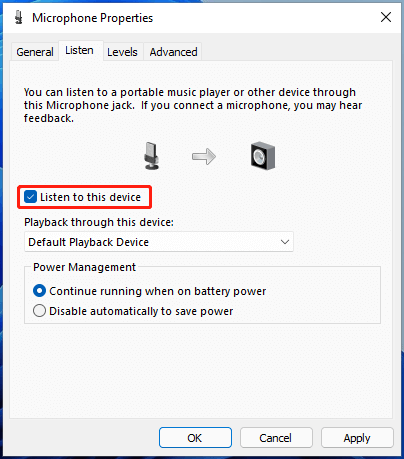
Test each option one at a time. Record your voice before and after the change. This simple comparison is more reliable than guessing from the setting name.
If your voice sounds thin, chopped, or quiet, turn enhancements off temporarily. If background noise is the main problem, turn them back on one by one and keep only the setting that helps.
Some computers manage these effects through apps such as Realtek Audio Console, Dolby Access, or manufacturer control panels. Check those tools if the Windows settings do not explain the change.
Fix a quiet Bluetooth microphone
Bluetooth headsets can sound quiet because Windows may use different Bluetooth profiles for music and calls. The hands-free calling profile often has lower audio quality than the stereo playback profile.
Try these solutions:
- Charge the headset fully.
- Disconnect other Bluetooth devices.
- Remove the headset from Bluetooth settings.
- Restart the computer.
- Pair the headset again.
- Select its hands-free microphone as the input device.
- Raise its input volume in Windows and your app.
Keep the headset close to the computer during testing. Walls, USB 3.0 interference, and other wireless devices can weaken the connection.
If the Bluetooth microphone remains quiet, test a wired or USB microphone. This helps identify whether the problem is with Windows audio settings or the wireless device itself.

Reduce background noise and improve microphone position
A louder microphone is not always a better microphone. If you raise gain too far, your voice may become louder while fans, keyboards, traffic, and room echo become louder too.
Use these practical improvements:
• Move the microphone closer to your mouth.
• Speak toward the microphone’s pickup side.
• Keep the microphone away from your computer fan.
• Use a pop filter for strong P and B sounds.
• Close noisy apps and fans when possible.
• Add soft furnishings to reduce room echo.
• Use a headset in rooms with speakers to prevent feedback.
In my own audio tests, moving a microphone closer often improved speech more than adding boost. Distance is powerful. A microphone placed 8 inches away may need much more gain than one placed 3 inches away.
Avoid speaking directly into the microphone capsule from very close range. A slight angle can reduce popping while keeping your voice strong and clear.
Use microphone filters in recording and streaming apps
If you use OBS Studio or another recording program, filters can make a quiet microphone easier to understand. A gain filter increases volume, while a compressor keeps loud and soft speech more even.
A simple filter chain may include:
- Noise suppression
- Noise gate
- Compressor
- Gain
Use gain carefully. Adding 3 to 6 dB may help, but large increases can expose hiss. A compressor can make quiet words easier to hear without forcing the entire microphone level extremely high.
For calls, built-in automatic gain control may already adjust your voice. Using several gain systems at once can create pumping sounds, where the volume rises and falls in an unnatural way. Test one control at a time.
Troubleshoot microphone volume with a simple test
A short test can show where the problem starts. This saves time and prevents random changes.
Follow this order:
- Record your voice with Windows Sound Recorder.
- Check the input meter in Windows 11.
- Test the microphone in a second app.
- Test the microphone on another computer if possible.
- Try a different USB port or cable.
- Compare the microphone with another headset.
Use the results to narrow the cause:
• Quiet in every app: Check volume, boost, placement, cable, and hardware.
• Quiet in one app: Check that app’s input device and volume.
• Quiet only over Bluetooth: Check the Bluetooth profile and connection.
• Loud but distorted: Lower boost or input volume.
• No input at all: Check permissions, mute switches, and drivers.
This method is useful because it separates software problems from hardware problems. A microphone that remains quiet on two computers may need repair or replacement.
Common mistakes to avoid
Many people make the microphone louder by increasing every available control. That approach often creates distortion instead of better speech.
Avoid these mistakes:
• Setting every gain control to maximum.
• Selecting the webcam microphone by accident.
• Ignoring a physical mute switch.
• Testing only inside one application.
• Installing drivers from unofficial websites.
• Placing the microphone too far away.
• Using heavy noise suppression without recording a test.
• Assuming a higher sample rate means higher volume.
One mistake I see often is changing settings without writing down the original values. Take a screenshot before you adjust anything. Then you can undo a change if the audio becomes worse.
The goal is a strong, clean signal with some room below the maximum level. Your voice should be easy to hear without redlining the meter.
Frequently asked questions about how to make mic louder Windows 11
Why is my microphone so quiet in Windows 11?
Your microphone may be quiet because its input volume is low, Microphone Boost is disabled, or the wrong input device is selected. Distance, blocked ports, weak cables, outdated drivers, and app settings can also reduce volume.
How do I increase microphone volume beyond 100 in Windows 11?
Open mmsys.cpl, select the Recording tab, open your microphone properties, and check Levels. If available, increase Microphone Boost gradually; some USB and Bluetooth devices do not provide this option.
Why is my microphone loud in Windows but quiet in Discord?
Discord may use a different microphone or a lower input level. Open Discord’s Voice & Video settings, select the correct input device, disable automatic input sensitivity for testing, and adjust the input volume.
Does microphone boost reduce sound quality?
It can. Boost raises the voice signal and may also raise hiss, fan noise, and room noise, so use the smallest setting that makes your voice clear.
How can I make a laptop microphone louder?
Raise the Windows 11 input volume, select the built-in microphone, check microphone permissions, and test Microphone Boost. Moving closer to the laptop and reducing background noise can help, but a headset or USB microphone may provide clearer results.
Why is Microphone Boost missing from Windows 11?
The option depends on the microphone, driver, and audio hardware. USB, Bluetooth, and some modern laptop microphones often manage gain internally and may not show a boost control.
Can a microphone be too loud?
Yes. Excessive volume causes clipping, distortion, and harsh audio. Keep the input meter below the maximum during normal speech and lower the level if it frequently reaches the top.
Conclusion
Windows 11 gives you several ways to make a microphone louder. Start by selecting the correct input device and raising its input volume. Then test Microphone Boost, review app permissions, check individual application settings, and update the audio driver if needed.
Good microphone placement can matter as much as software. Move the mic closer, reduce background noise, and test every change with a short recording. Use these steps to make mic louder Windows 11 audio clear and natural, then explore your app’s audio tools for final improvements.