

Plug your headset into the correct port, select its microphone in Windows, allow access, and test your voice.
Learning how to use a headset mic on a PC is simple once you understand the connection type, Windows sound settings, and app permissions. This guide explains each step for wired, USB, and Bluetooth headsets, plus clear fixes for low volume, static, echo, and a microphone that does not work.
Check Your Headset Connection
Before changing settings, identify how your headset connects to your computer. Most headset microphone problems start with the wrong port, an incomplete connection, or a missing adapter.
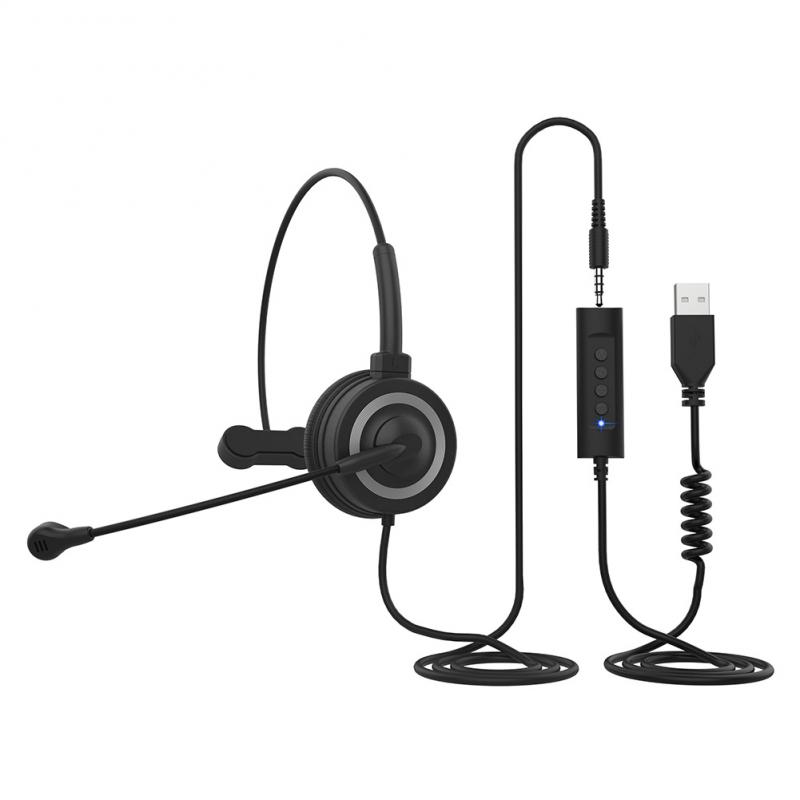
Common headset connection types include:
• 3.5 mm headset: Uses a small round audio plug.
• USB headset: Connects through a USB-A or USB-C port.
• Bluetooth headset: Connects wirelessly through Windows Bluetooth settings.
• Wireless USB headset: Uses a small USB receiver, often called a dongle.
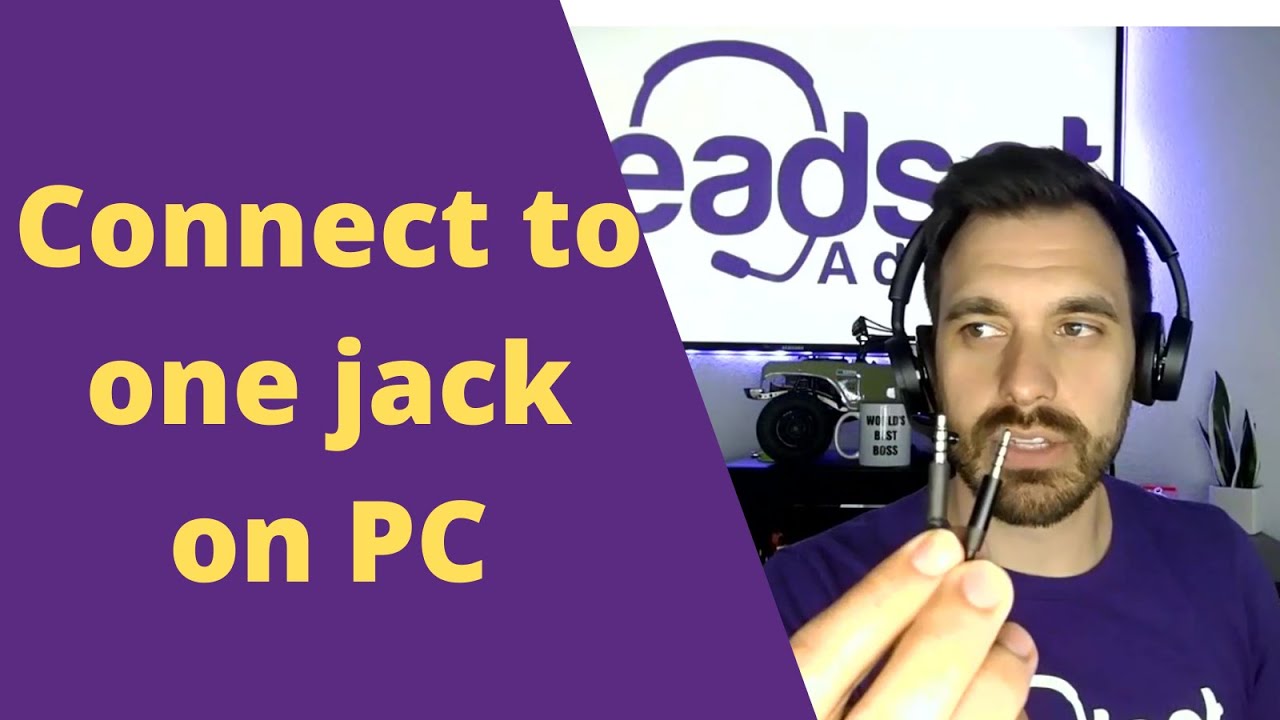
A desktop PC may have separate headphone and microphone ports. Usually, the green port is for audio output, while the pink port is for the microphone. Many newer headsets use one combined 3.5 mm plug, known as a TRRS plug.
If your computer has separate audio and microphone ports, you may need a TRRS splitter. This adapter changes one combined headset plug into two plugs. Connect the headphone plug to the audio port and the microphone plug to the microphone port.
On a laptop, the single headset port often supports both sound and voice. Insert the plug fully. A loose connection can make your headphones work while the microphone remains silent.

How to Use a Headset Mic on PC With a 3.5 mm Plug
A 3.5 mm headset is often the fastest option because Windows can detect it without special software. Follow these steps carefully.
Find the correct audio port on your PC.
Insert the headset plug completely.
If your computer has separate ports, use a TRRS splitter.
Open the Windows Start menu.
Select Settings, then System, then Sound.
Look under the Input section.
Choose your headset microphone from the list.
Speak normally and watch the input level move.
If the input meter moves, Windows is receiving your voice. If it stays still, check the plug, splitter, mute switch, and input device selection.
Some headset cables include a small mute button. Make sure it is not set to mute. A mute switch can be easy to miss, especially when it sits near your chest or behind your keyboard.
When I test a new wired headset, I first check the input meter before opening a game or chat app. This saves time because it shows whether the issue comes from Windows or from the individual app.

How to Use a Headset Mic on PC With USB
USB headsets contain their own sound hardware. This means they usually avoid problems caused by a damaged computer audio port or an incompatible analog jack.
To set up a USB headset:
Plug the headset into a working USB port.
Wait a few seconds for Windows to detect it.
Open Settings and select System.
Choose Sound.
Select the USB headset under Input.
Speak into the microphone and check the input meter.
Select the headset under Output if you also want to hear sound through it.
Try another USB port if the headset does not appear. A desktop computer may have ports on both the front and back. Some USB hubs may not provide stable power, so connect the headset directly to the computer when possible.
Windows often installs a basic driver automatically. Extra software may still be useful for features such as equalizers, microphone monitoring, noise reduction, or programmable buttons. Download that software only from the headset maker’s official website.
A USB headset is not automatically better than a 3.5 mm headset. It is often easier to set up, but it can still have driver, permission, or software problems.

How to Use a Headset Mic on PC With Bluetooth
Bluetooth headsets can work well for calls and casual gaming, but setup takes a few more steps. Some Bluetooth models also reduce sound quality when their microphone is active. This happens because Bluetooth may switch from a high-quality stereo mode to a hands-free communication mode.
To connect a Bluetooth headset:
Turn on the headset.
Put it into pairing mode.
Open Settings in Windows.
Select Bluetooth & devices.
Turn Bluetooth on.
Select Add device.
Choose Bluetooth.
Select your headset from the list.
Return to Settings, then System, then Sound.
Choose the headset microphone under Input.
Choose the headset under Output if needed.
Keep the headset close to the PC during pairing. Move away from other wireless devices if the connection repeatedly fails.
If Windows shows two versions of the headset, select the hands-free or headset option for microphone use. The stereo option may provide better audio but may not support the microphone at the same time.
For gaming, a wireless headset with its own USB receiver often gives more stable sound and lower delay than standard Bluetooth. Bluetooth remains a convenient choice for meetings, music, and everyday calls.

Select the Correct Microphone in Windows
Even when the headset is connected, Windows may continue using a laptop microphone, webcam microphone, or another audio device. Selecting the correct input is a key part of learning how to use a headset mic on PC.
Open:
Settings > System > Sound > Input
Select your headset microphone. Then speak and watch the input volume bar.
You can also adjust the microphone volume. Start near 80 to 100 percent, then lower it if your voice sounds harsh or distorted. The right level depends on the headset, your voice, and how close the microphone sits to your mouth.
Windows also lets you run a microphone test. Speak for a few seconds and review the result. A low test level may mean the microphone is too far away, muted, blocked, or connected to the wrong input.
If you want to make the headset your usual microphone, choose it as the default input device. This helps many apps select it automatically, but some programs still have their own microphone settings.
Allow Microphone Access
Windows privacy controls can block a headset microphone even when the hardware works correctly. This is common after a Windows update or when you install a new communication app.
To check microphone permissions:
Open Settings.
Select Privacy & security.
Choose Microphone.
Turn on Microphone access.
Turn on Let apps access your microphone.
Turn on desktop app access if you use programs such as Discord, Zoom, Teams, or a game.
Close and reopen the app after changing this setting. Some programs check microphone permission only when they start.
If the microphone works in Windows but not in one app, the app probably has the wrong input selected or lacks permission. Check its audio settings instead of changing every Windows sound option.
Microphone permissions protect privacy. Keep them enabled only for apps you trust, and review the list from time to time.

Set Up the Headset Mic in Common Apps
Most voice apps have separate microphone controls. This means knowing how to use a headset mic on PC also requires checking the settings inside each program.
Discord
Open User Settings, then Voice & Video. Select the headset microphone under Input Device and use the microphone test option. Adjust the input volume and input sensitivity until your voice is clear.
Automatic input sensitivity can work well, but it may cut off quiet speech. If friends say your first words disappear, adjust the sensitivity manually or speak a little closer to the microphone.
Zoom
Open Settings, select Audio, and choose the headset microphone. Use Test Mic to record your voice, then adjust the input volume if needed.
Enable automatic microphone volume only if your voice level changes often. Manual control may sound more consistent in a quiet room.
Microsoft Teams
Open Settings, select Devices, and choose the headset under Microphone. Make a test call when possible.
Teams may use a different device from Windows. Always check the app’s device list before a meeting.
PC games
Open the game’s audio or voice chat settings. Select the headset microphone, enable voice chat, and choose push-to-talk or open mic.
Push-to-talk is helpful in shared rooms. It prevents keyboard sounds, pets, fans, and background conversations from reaching other players.

Improve Microphone Sound Quality
Correct setup gets the microphone working, but small changes can make your voice sound much better.
• Place the microphone two to three inches from your mouth.
• Keep the microphone slightly to the side to reduce strong breath sounds.
• Speak toward the microphone’s pickup area.
• Keep the microphone away from rubbing clothing.
• Lower the input level if your voice clips or crackles.
• Use a quiet room when possible.
• Close loud fans or move away from an active air conditioner.
• Use a pop filter or foam cover if the headset supports one.
A headset mic is designed for close speech. If it sits far away, you may sound quiet and distant. If it touches your lips, you may create loud breath noises and popping sounds.
I once spent several minutes adjusting software filters when the real problem was a microphone boom angled toward my cheek instead of my mouth. Physical placement often matters more than advanced software.
Noise suppression can help with fans and keyboard sounds, but too much processing can make your voice sound robotic. Test your voice with and without the feature before choosing a setting.
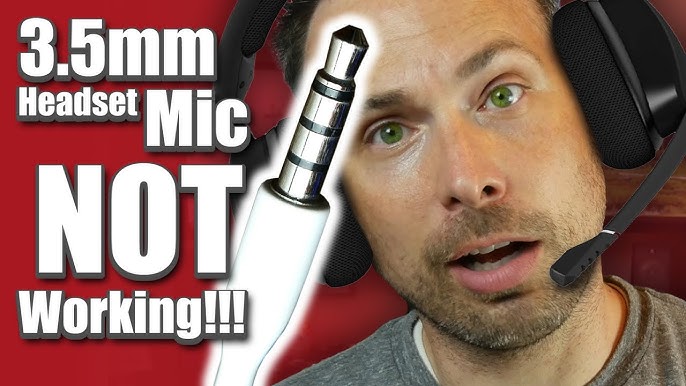
Fix a Headset Mic That Does Not Work
If your headset microphone does not work, use a simple process. Change one setting at a time so you know which fix helped.
Check the headset’s mute switch.
Reconnect the plug or USB receiver.
Try another USB or audio port.
Select the headset under Windows Input.
Confirm microphone permissions.
Test the headset in Windows Sound settings.
Check the app’s microphone selection.
Restart the app.
Restart the computer.
Test the headset on another device.
If the headset fails on several devices, it may have a damaged cable, microphone, plug, or wireless receiver. If it works on another device, the issue is more likely related to your PC settings, port, driver, or adapter.
Windows Device Manager can help with driver problems. Open Device Manager, expand Audio inputs and outputs, and check the headset. Updating or reinstalling the device may help, although driver changes should not be the first step when a basic setting is wrong.
Static may come from a damaged analog cable, electrical interference, a poor splitter, or a loose port. A USB or wireless headset can help identify whether the computer’s analog input is the cause.
Prevent Echo and Microphone Feedback
Echo happens when your microphone captures sound from your speakers. It can also result from software monitoring, a poorly configured app, or two people using the same room.
To reduce echo:
• Use the headset’s ear cups instead of external speakers.
• Lower speaker volume.
• Turn off microphone monitoring unless you need it.
• Check that only one communication app is using audio enhancements.
• Ask other people in the room to mute their microphones.
• Move the microphone away from the ear cup if the design allows it.
Some apps provide echo cancellation. It helps, but it cannot fully correct loud speakers placed beside an open microphone.
If you hear your own voice, check Windows microphone monitoring and the app’s sidetone setting. Sidetone intentionally sends your voice back to your headphones, so it can sound like an echo even when other people hear you normally.
Headset Mic Safety and Privacy Tips
A microphone can transmit more than your voice. It may pick up conversations, television audio, names, addresses, or other private details in the room.
Use the physical mute switch when you are not speaking. For important meetings, confirm the app shows a muted microphone icon before discussing private information.
Avoid installing unknown microphone enhancement tools. Untrusted software may request broad system access. Use Windows settings and software supplied by the headset manufacturer.
Keep the microphone volume at a reasonable level. A very high level can create distortion and may encourage you to speak too close to the microphone. Clear, moderate input is usually better than maximum volume.
Frequently Asked Questions About How to Use a Headset Mic on PC
How do I get my headset mic to work on my PC?
Connect the headset, open Settings > System > Sound, and select it under Input. Then allow microphone access in Windows Privacy & security settings and test the input level.
Why is my headset mic not showing up on my PC?
The headset may be connected to the wrong port, may need a TRRS splitter, or may have a disabled driver. Try another port, reconnect the headset, and check Device Manager and Windows Sound settings.
How do I use a headset mic on PC with one jack?
Plug the headset into the computer’s combined headset port. If the PC has separate headphone and microphone ports, use a compatible TRRS splitter.
How do I test my headset microphone on Windows?
Open Settings, select System, then Sound, and choose the headset under Input. Speak into the microphone and watch the input meter or use Windows’ microphone test option.
Why can people hear my computer audio through my headset mic?
Your microphone may be too close to the ear cup, your speakers may be active, or an app may have audio monitoring enabled. Use headphones, lower the output volume, and turn off microphone monitoring.
Is USB or 3.5 mm better for a PC headset mic?
Neither connection is always better. USB is often easier to set up, while 3.5 mm headsets are widely compatible and do not require USB drivers or power.
Can I use a Bluetooth headset mic for PC gaming?
Yes, but standard Bluetooth may reduce audio quality when the microphone is active. A wireless headset with a dedicated USB receiver often provides better gaming performance.
Conclusion
Learning how to use a headset mic on PC comes down to four tasks: connect the headset correctly, select it as the Windows input device, allow microphone access, and test it inside your app. After that, microphone placement, volume control, and noise management can make your voice much clearer.
Start with the basic Windows input test before changing advanced settings. This simple habit helps you find the real problem faster and prevents unnecessary driver or software changes. Test your headset today, then share this guide with anyone who needs clearer PC calls or game chat.