

To use a headphone mic on a PC, connect it, select it in Windows, and test the input before making a call.
Learning how to use headphone mic on PC is simple once you understand the connection type, sound settings, and app permissions. This guide covers wired, USB, wireless, and Bluetooth headsets, along with clear fixes for low volume, missing microphones, echo, and one-sided audio.

Check Your Headphone Connection
Before changing Windows settings, identify how your headphones connect to the PC. The connection type affects the setup steps and the sound quality you can expect.
Most headphones use one of these connection methods:
• 3.5 mm audio plug: Common on basic headsets and laptops.
• USB plug: Often used by gaming headsets and office headphones.
• Bluetooth: Useful for wireless headphones without a USB receiver.
• Wireless USB receiver: Common with gaming headsets that need low delay.
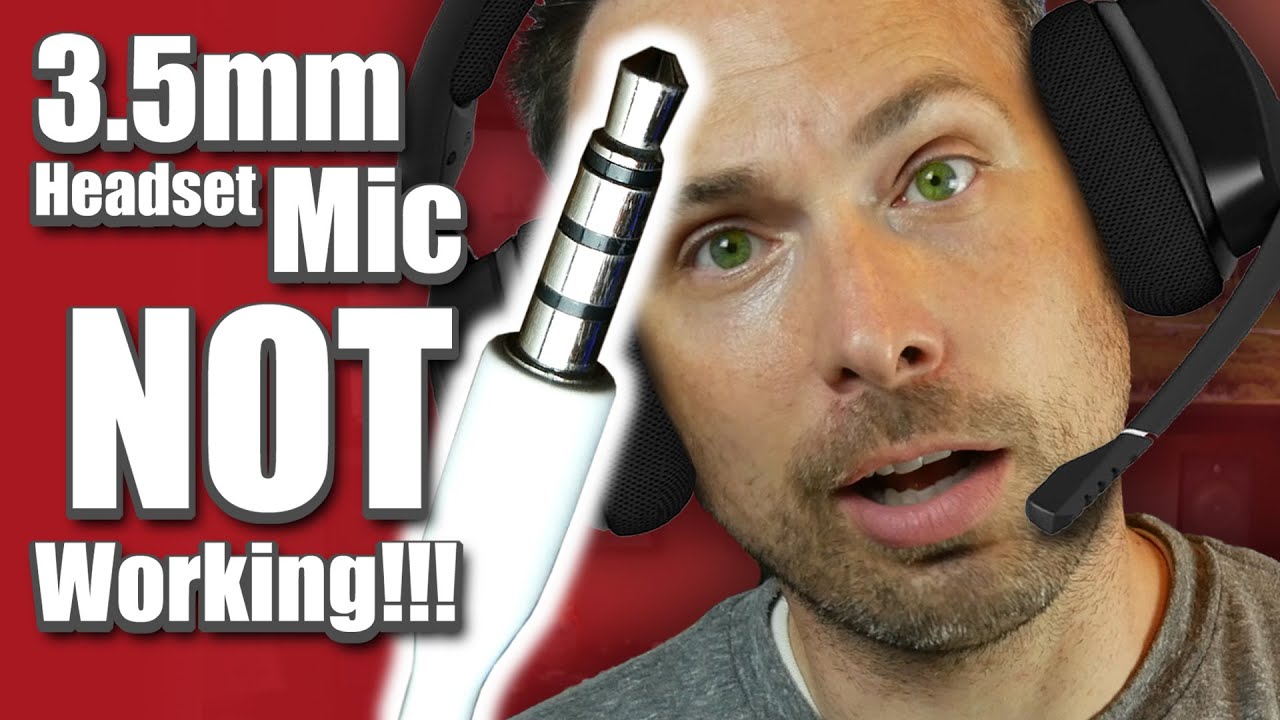
If your headset has one 3.5 mm plug, your computer must have a combined headset port. This port carries both sound and microphone signals. It often has a small headset icon beside it.
Some desktop computers have separate ports for headphones and microphones. In that case, a single-plug headset may need a TRRS splitter. The splitter changes one combined plug into separate headphone and microphone plugs.
A four-pole TRRS plug usually carries left audio, right audio, ground, and microphone audio. Most modern PCs support the CTIA wiring standard, but older or unusual devices may not.

How to Use Headphone Mic on PC With a 3.5 mm Plug
A wired headset is often the fastest way to start. It does not need a battery, driver software, or wireless pairing.
Follow these steps:
- Find the correct audio port on your PC.
- Insert the headset plug firmly.
- If your PC has separate ports, connect the headphone plug to the green port.
- Connect the microphone plug to the pink port.
- If your headset has one plug, use a headset splitter when separate ports are required.
- Wait a few seconds for Windows to detect the device.
On many laptops, the combined port accepts both audio and microphone signals. On desktop computers, the ports may be on the front or back of the case.
If you hear sound but the microphone does not work, the most common cause is an incorrect port or missing splitter. Another possible cause is a muted microphone switch on the headset cable.
This is one of the most common mistakes people make when learning how to use headphone mic on PC. The plug may look connected, but it may not be fully inserted. Remove it, check for dust, and reconnect it until it sits firmly.

How to Use Headphone Mic on PC With USB
USB headsets are usually easy to install. Windows often detects them automatically and installs a basic audio driver within moments.
To connect a USB headset:
- Plug the headset into a working USB port.
- Wait for Windows to display a setup notification.
- Open Settings.
- Select System, then Sound.
- Choose the USB headset under the Input and Output menus.
- Speak into the microphone and check the input meter.
Try a different USB port if the headset does not appear. A port on the back of a desktop PC may provide a more stable connection than a loose front-panel port.
Avoid connecting a high-power wireless headset to an unpowered USB hub during testing. The hub may not supply enough power, especially when other devices share it.
USB headsets may also install companion software. This software can control equalizer settings, microphone gain, sidetone, noise reduction, and surround sound. Windows sound settings still matter, so check both places if the mic remains silent.

How to Use Headphone Mic on PC With Bluetooth
Bluetooth headphones can work well for calls, but Windows may show two audio modes. One mode is designed for high-quality stereo playback. The other enables the microphone and uses a lower-quality hands-free profile.
To pair Bluetooth headphones:
- Turn on Bluetooth on the headphones.
- Open Settings in Windows.
- Select Bluetooth & devices.
- Turn Bluetooth on.
- Select Add device.
- Choose Bluetooth.
- Select your headphones from the list.
- Approve the pairing request if one appears.
After pairing, open Settings, select System, and choose Sound. Select the Bluetooth headset as the input device and output device.
When the microphone is active, music quality may drop. This is normal for many Bluetooth devices because older Bluetooth audio profiles have limited bandwidth when they carry both playback and microphone data.
For long meetings or gaming sessions, a wired or USB headset may offer better microphone quality and less delay. Bluetooth remains convenient, but it is not always the best choice for competitive games or detailed voice recording.
Select the Headphone Mic in Windows
Connecting the headset is only half the process. You must also tell Windows which microphone to use.
Here is how to use headphone mic on PC through Windows sound settings:
- Press Windows + I to open Settings.
- Select System.
- Select Sound.
- Find the Input section.
- Choose your headphone microphone.
- Speak normally and watch the input level meter.
- Move the input volume slider if your voice is too quiet.
Windows may label the device as Headset Microphone, Microphone, USB Audio Device, or the brand name. If you see several options, speak into each one and watch the meter to identify the correct device.
You can also open the classic sound panel for more control:
- Search for Control Panel.
- Select Hardware and Sound.
- Select Sound.
- Open the Recording tab.
- Right-click the headphone microphone.
- Select Set as Default Device.
- Open Properties to adjust levels and enhancements.
Set the microphone level high enough for a clear signal, but avoid maximum gain if it creates hiss or distortion. A level between 70 and 90 percent is a useful starting point for many headsets.

Allow Microphone Access in Windows
Windows privacy controls can block an otherwise working microphone. This can happen after a system update or when you install a new communication app.
To check microphone permissions:
- Open Settings.
- Select Privacy & security.
- Select Microphone.
- Turn on Microphone access.
- Turn on Let apps access your microphone.
- Turn on Let desktop apps access your microphone.
If a specific app cannot use the microphone, close and reopen it after changing permissions. Some programs only check microphone access when they start.
Check the app’s own audio settings as well. Zoom, Microsoft Teams, Discord, Google Meet, and game chat programs often have separate input menus. Selecting the correct device in Windows does not always change the app’s selected microphone.
This privacy step is essential when learning how to use headphone mic on PC. A blocked microphone usually shows no input movement, even when the device appears correctly connected.

Test the Headphone Microphone
Testing helps you find the problem before joining a meeting or starting a game.
In Windows sound settings, select the microphone and use the input test option if it is available. Speak at a normal distance, then watch the input meter. The meter should move smoothly when you talk.
You can also test the mic with:
• Windows Sound Recorder
• A private Discord voice channel
• A Zoom test meeting
• Microsoft Teams device settings
• An online microphone test tool
Use a short recording rather than relying only on the meter. A meter can show activity even when the recording sounds muffled or distorted.
Speak about 4 to 8 inches from the microphone. Keep the mic slightly to the side of your mouth to reduce harsh breathing sounds. Do not cover the microphone opening with your hand or clothing.
In my experience reviewing common headset setups, users often place the mic too far away and then raise the gain too much. Moving the microphone closer usually improves clarity more than increasing the volume slider.
Fix Common Headphone Mic Problems
The PC Does Not Detect the Mic
Try these fixes:
• Reconnect the headset.
• Restart the computer.
• Try another USB port.
• Check whether the headset has a mute switch.
• Install available Windows updates.
• Check the device in Device Manager.
• Test the headset on another computer or phone.
If the headset works on another device, the issue is likely related to your PC settings, port, driver, or privacy permissions. If it fails everywhere, the headset or cable may be damaged.
The Mic Has No Sound
Confirm that the correct input device is selected. Then check the microphone mute button, app permissions, and microphone level.
For a 3.5 mm headset, verify that you are using the correct splitter. A headphone-only adapter may carry audio but not the microphone signal.
The Mic Sounds Too Quiet
Move the microphone closer to your mouth. Increase the input volume in Windows and check the headset software for a microphone gain setting.
Avoid placing the gain at 100 percent right away. High gain can increase keyboard noise, fan noise, and electrical hiss.
Other People Hear an Echo
Echo usually occurs when your speakers play sound back into the microphone. Use headphones instead of external speakers, reduce the playback volume, and enable echo cancellation in the communication app.
Some apps also have a microphone monitoring or sidetone option. Turn it down if you hear your own voice or create feedback.
The Mic Sounds Robotic on Bluetooth
Disconnect other Bluetooth audio devices and keep the headset close to the PC. If the issue continues, switch to a USB receiver or wired connection.
Bluetooth quality depends on the headset, adapter, Windows drivers, and nearby wireless activity. A wired setup is often more stable for important calls.

Improve Voice Quality
Good microphone sound does not require expensive equipment. Small changes often produce the biggest improvement.
Use these practical tips:
• Place the mic near the corner of your mouth.
• Keep the mic slightly below your lips.
• Speak at a steady volume.
• Use a quiet room when possible.
• Keep the cable away from sources of electrical noise.
• Turn off unnecessary microphone enhancements if your voice sounds unnatural.
• Use noise suppression only when background noise is a real problem.
• Keep the headset firmware and control software updated.
Windows microphone enhancements can help with noise, but they may also make speech sound thin or clipped. Test each option with a recording instead of assuming that every enhancement improves quality.
For meetings, clear speech matters more than heavy bass or virtual surround sound. For gaming, low delay and reliable voice pickup may matter more than studio-level detail.
Use a Headphone Mic in Popular Apps
Many apps have their own microphone settings. This means you may need to select the headset twice: once in Windows and again inside the app.
Zoom
Open Settings, select Audio, and choose the headphone microphone under Microphone. Use the test option to check your voice before a meeting.
Microsoft Teams
Open Settings, select Devices, and choose the headset under Microphone and Speaker. Speak to confirm that the input meter responds.
Discord
Open User Settings, select Voice & Video, and choose the headphone microphone under Input Device. Run the mic test and adjust the input sensitivity if needed.
PC Games
Open the game’s audio or voice chat settings. Select the headset microphone and confirm that voice chat is enabled. Some games use push-to-talk by default, so check the assigned key.
Knowing how to use headphone mic on PC inside each app prevents a common surprise: the microphone works in Windows but not in the program you need.
Keep Your Headset Safe and Reliable
A few habits can extend the life of your headphones and microphone.
Do not pull a wired headset out by the cable. Grip the plug instead. Store the cable loosely, since tight bends near the plug can break internal wires.
Keep the microphone opening clean. Use a dry, soft brush to remove dust. Do not pour liquid onto the microphone or insert sharp objects into the opening.
For wireless headphones, charge the battery before important meetings. Keep the USB receiver in a safe place, and avoid pairing the headset with several devices when you need a fast connection.
If the headset disconnects often, check power-saving settings, USB port stability, Bluetooth range, and driver updates. Troubleshooting works best when you change one setting at a time.
Frequently Asked Questions About How to Use Headphone Mic on PC
How do I turn on my headphone mic on a PC?
Connect the headset, open Settings, select System, and choose Sound. Select the headphone microphone under Input, then make sure Windows microphone access and app permissions are enabled.
Why does my PC recognize my headphones but not the microphone?
The headset may use a combined plug while your PC has separate audio and microphone ports. Use a compatible TRRS splitter, check the mute switch, and select the correct input device in Windows.
Can I use Bluetooth headphones as a PC microphone?
Yes, most Bluetooth headphones can work as both speakers and a microphone. However, audio quality may decrease when the microphone is active because Bluetooth switches to a hands-free audio mode.
How can I test my headphone mic on Windows?
Open Settings, select System, choose Sound, and select the microphone under Input. Speak while watching the input meter, or record a short clip with Windows Sound Recorder.
Why is my headphone mic so quiet?
The mic may be too far from your mouth, or the input volume may be low. Move the mic closer, raise the input level, and check whether the headset has a separate gain control.
Do I need a driver for a headphone microphone?
Many 3.5 mm and USB headsets work with drivers built into Windows. Specialized gaming headsets may need manufacturer software for advanced controls, firmware updates, and sound profiles.
Can I use a headphone mic for gaming and video calls?
Yes. Select the headset as the input and output device in Windows and in the game or meeting app. Test voice chat before playing or joining a call.
Conclusion
Learning how to use headphone mic on PC comes down to four steps: connect the right port, select the correct input, allow microphone access, and test your voice. Wired, USB, Bluetooth, and wireless headsets can all work well when their connection and Windows settings match.
If the mic fails, check the mute switch, splitter, privacy permissions, app settings, and input level before replacing the headset. Start with these steps today, test your microphone in a short recording, and share your setup or troubleshooting experience in the comments.